Computer Vision with OpenCV Detection & Classification 2026
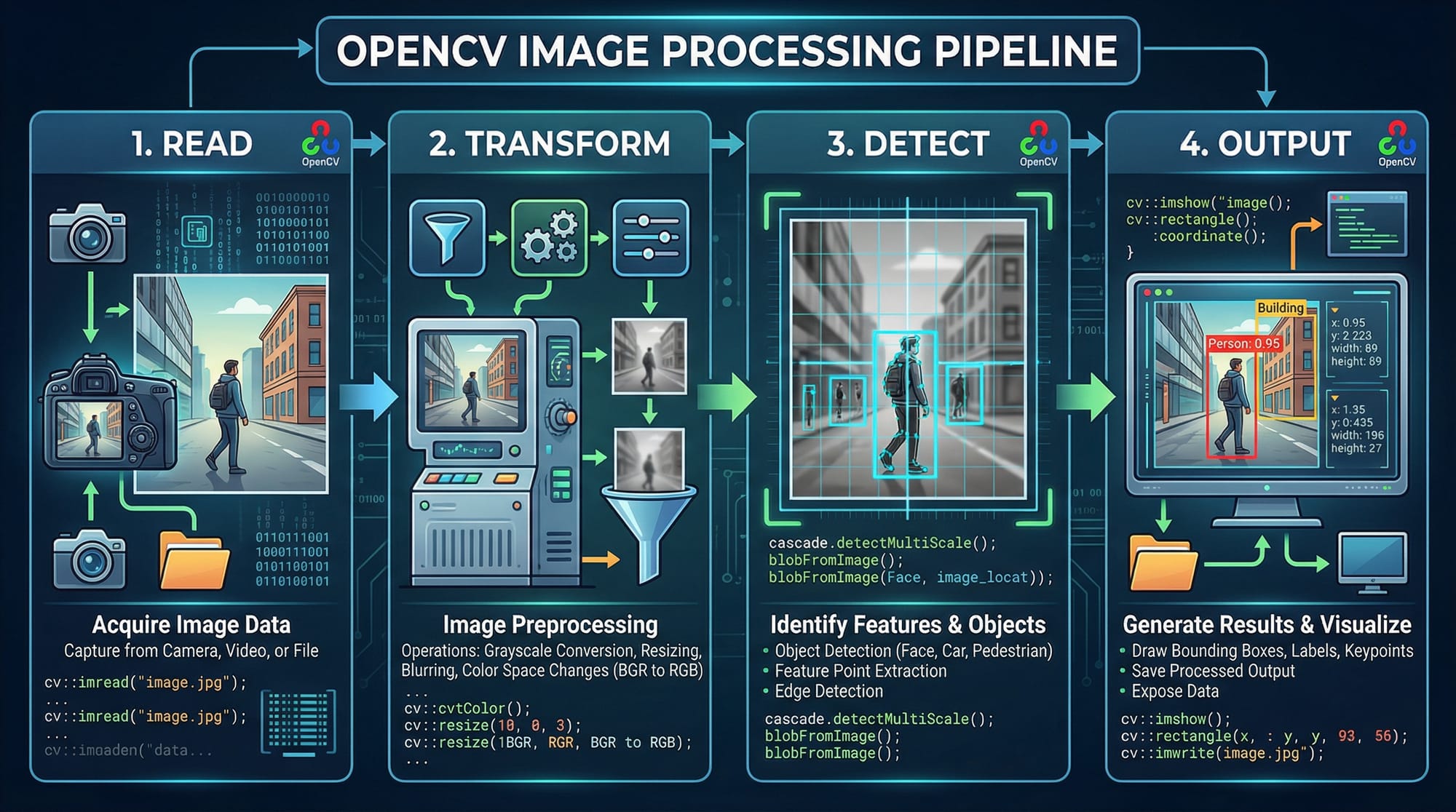
Computer vision is one of the most exciting fields of artificial intelligence in 2026, allowing computers to “see” and interpret the world through images and videos. Using OpenCV Python, students in Pakistan can build applications for facial recognition, object detection, license plate reading, and much more.
Whether you are Ahmad in Lahore building a security camera system or Fatima in Karachi developing a traffic monitoring app, learning computer vision will give you the skills to solve real-world problems with Python. This tutorial will guide you through detection and classification using OpenCV, combining theory, code examples, and practical exercises.
Prerequisites
Before diving into this tutorial, you should have a basic understanding of:
- Python programming (variables, loops, functions, and classes)
- NumPy arrays for numerical operations
- Basic mathematics, especially linear algebra and probability
- Jupyter Notebook or any Python IDE installed
You should also have OpenCV installed:
pip install opencv-python
pip install opencv-python-headless  # optional for server environments
Core Concepts & Explanation
Image Representation in OpenCV
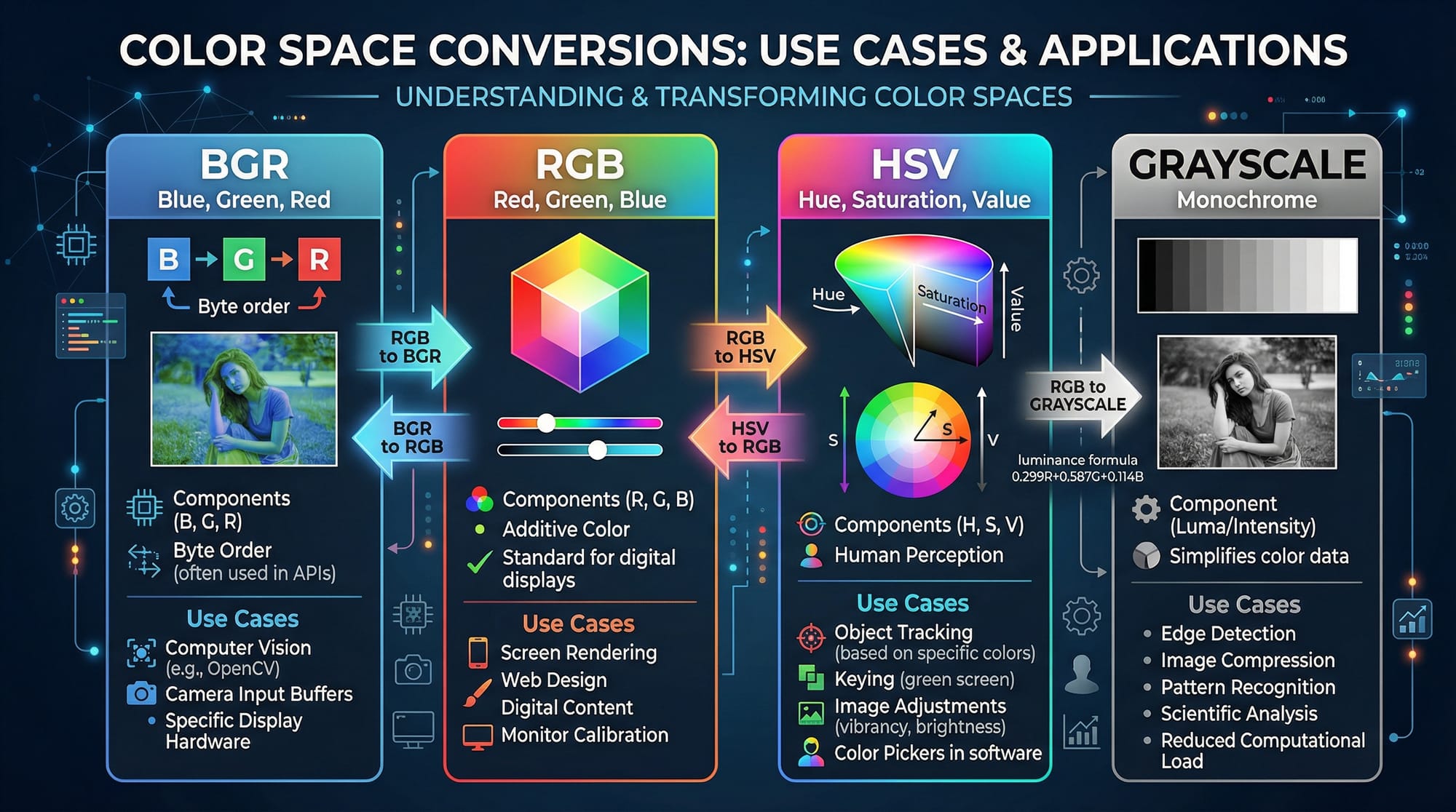
Images are represented as arrays of pixels in OpenCV. Color images are usually in BGR format, while grayscale images have a single channel.
Example:
import cv2

# Read a color image
image = cv2.imread('lahore.jpg')  # Image of Lahore

# Convert to grayscale
gray_image = cv2.cvtColor(image, cv2.COLOR_BGR2GRAY)

# Display both images
cv2.imshow('Color', image)
cv2.imshow('Grayscale', gray_image)
cv2.waitKey(0)
cv2.destroyAllWindows()
Explanation:
cv2.imread()reads the image from disk.cv2.cvtColor()converts color spaces (BGR → Grayscale).cv2.imshow()displays the image in a window.cv2.waitKey(0)waits for a key press to close.cv2.destroyAllWindows()closes all windows.
Understanding image representation is crucial for all detection and classification tasks.
Image Processing Techniques
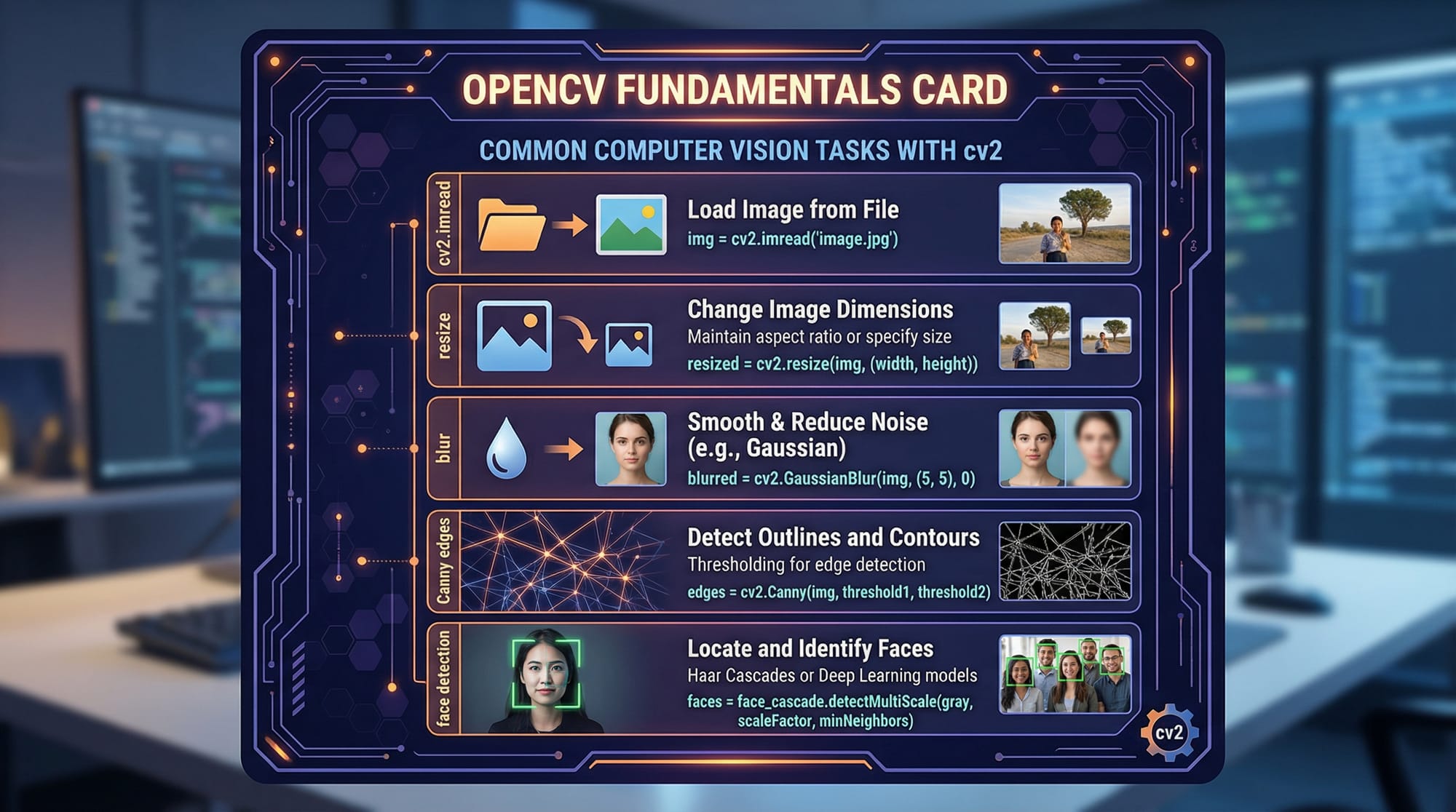
OpenCV provides filtering, resizing, and edge detection for preprocessing images.
Example:
# Resize image
resized = cv2.resize(image, (500, 500))

# Apply Gaussian Blur
blurred = cv2.GaussianBlur(resized, (5, 5), 0)

# Detect edges
edges = cv2.Canny(blurred, 50, 150)

cv2.imshow('Edges', edges)
cv2.waitKey(0)
cv2.destroyAllWindows()
Explanation:
cv2.resize()changes image dimensions.cv2.GaussianBlur()reduces noise to improve detection.cv2.Canny()detects edges for shapes and object boundaries.
Object Detection with Haar Cascades
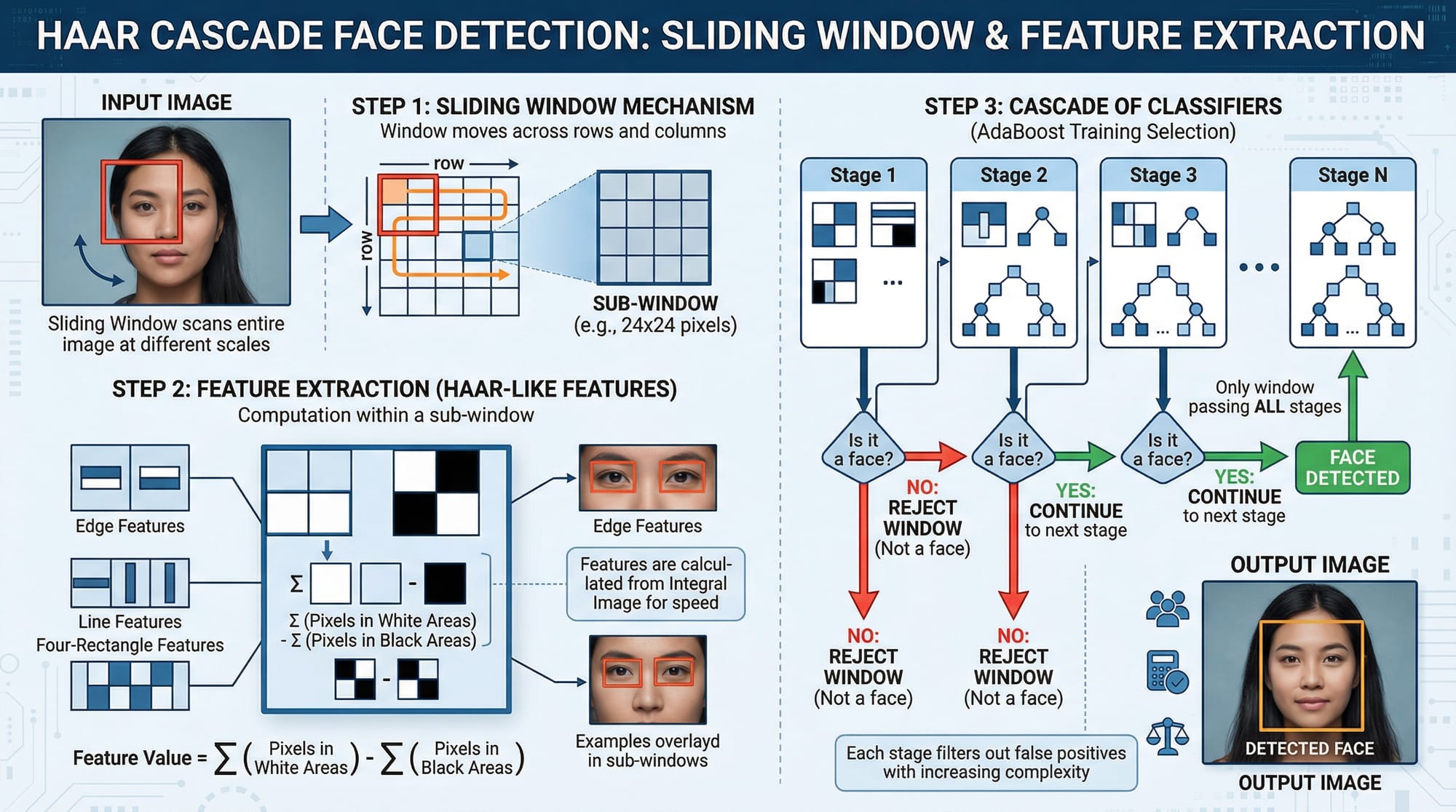
Haar Cascades are pre-trained classifiers for detecting objects such as faces.
# Load Haar cascade
face_cascade = cv2.CascadeClassifier('haarcascade_frontalface_default.xml')

# Convert image to grayscale
gray = cv2.cvtColor(image, cv2.COLOR_BGR2GRAY)

# Detect faces
faces = face_cascade.detectMultiScale(gray, scaleFactor=1.1, minNeighbors=5)

# Draw rectangles around faces
for (x, y, w, h) in faces:
    cv2.rectangle(image, (x, y), (x + w, y + h), (0, 255, 0), 2)

cv2.imshow('Faces', image)
cv2.waitKey(0)
cv2.destroyAllWindows()
Explanation:
CascadeClassifierloads a pre-trained model for face detection.detectMultiScale()identifies faces in an image.cv2.rectangle()draws rectangles around detected objects.
Practical Code Examples
Example 1: Detecting Faces in a Photo
import cv2

# Step 1: Load the image
image = cv2.imread('karachi_market.jpg')

# Step 2: Convert to grayscale
gray = cv2.cvtColor(image, cv2.COLOR_BGR2GRAY)

# Step 3: Load Haar cascade for faces
face_cascade = cv2.CascadeClassifier('haarcascade_frontalface_default.xml')

# Step 4: Detect faces
faces = face_cascade.detectMultiScale(gray, 1.1, 4)

# Step 5: Draw rectangles around faces
for (x, y, w, h) in faces:
    cv2.rectangle(image, (x, y), (x + w, y + h), (255, 0, 0), 2)

# Step 6: Show the result
cv2.imshow('Faces Detected', image)
cv2.waitKey(0)
cv2.destroyAllWindows()
Explanation:
- Each step maps directly to image preprocessing and detection.
- Useful for security cameras in Pakistani cities like Lahore and Islamabad.
Example 2: Real-World Application — Vehicle Detection
import cv2

# Load video from traffic camera in Islamabad
cap = cv2.VideoCapture('traffic.mp4')

# Load Haar cascade for cars
car_cascade = cv2.CascadeClassifier('haarcascade_car.xml')

while True:
    ret, frame = cap.read()
    if not ret:
        break

    gray = cv2.cvtColor(frame, cv2.COLOR_BGR2GRAY)
    cars = car_cascade.detectMultiScale(gray, 1.1, 3)

    for (x, y, w, h) in cars:
        cv2.rectangle(frame, (x, y), (x + w, y + h), (0, 255, 0), 2)

    cv2.imshow('Vehicle Detection', frame)
    if cv2.waitKey(1) & 0xFF == ord('q'):
        break

cap.release()
cv2.destroyAllWindows()
Explanation:
- Detects vehicles in real-time from traffic footage.
- Can help Fatima in Karachi analyze traffic patterns.
Common Mistakes & How to Avoid Them
Mistake 1: Ignoring Color Spaces
Many beginners forget that OpenCV uses BGR instead of RGB, leading to color-related bugs.
# Incorrect
cv2.imshow('Image', image)  # colors may appear wrong

# Correct
rgb_image = cv2.cvtColor(image, cv2.COLOR_BGR2RGB)
cv2.imshow('Image', rgb_image)
Mistake 2: Not Handling Image Size Properly
Large images slow down detection. Always resize before processing.
# Without resizing
faces = face_cascade.detectMultiScale(gray_large)  # slow

# With resizing
gray_small = cv2.resize(gray_large, (640, 480))
faces = face_cascade.detectMultiScale(gray_small)  # faster
Practice Exercises
Exercise 1: Detect Faces in Group Photos
Problem: Detect all faces in a group photo of students in Lahore.
Solution:
import cv2

image = cv2.imread('lahore_class.jpg')
gray = cv2.cvtColor(image, cv2.COLOR_BGR2GRAY)
face_cascade = cv2.CascadeClassifier('haarcascade_frontalface_default.xml')
faces = face_cascade.detectMultiScale(gray, 1.1, 4)

for (x, y, w, h) in faces:
    cv2.rectangle(image, (x, y), (x + w, y + h), (0, 255, 0), 2)

cv2.imshow('Detected Faces', image)
cv2.waitKey(0)
cv2.destroyAllWindows()
Exercise 2: Count Vehicles in a Traffic Video
Problem: Count how many cars pass in a 1-minute video from Karachi.
Solution:
import cv2

cap = cv2.VideoCapture('karachi_traffic.mp4')
car_cascade = cv2.CascadeClassifier('haarcascade_car.xml')
car_count = 0

while True:
    ret, frame = cap.read()
    if not ret:
        break
    gray = cv2.cvtColor(frame, cv2.COLOR_BGR2GRAY)
    cars = car_cascade.detectMultiScale(gray, 1.1, 3)
    car_count += len(cars)
    for (x, y, w, h) in cars:
        cv2.rectangle(frame, (x, y), (x + w, y + h), (255, 0, 0), 2)
    cv2.imshow('Cars', frame)
    if cv2.waitKey(1) & 0xFF == ord('q'):
        break

print(f"Total cars detected: {car_count}")
cap.release()
cv2.destroyAllWindows()
Frequently Asked Questions
What is OpenCV?
OpenCV is an open-source computer vision library for Python and other languages. It allows you to process images, detect objects, and perform real-time computer vision tasks.
How do I install OpenCV Python?
Use pip: pip install opencv-python. Optionally, use opencv-python-headless for server environments.
Can I detect multiple objects in a single image?
Yes, you can use Haar cascades, HOG detectors, or deep learning models like YOLO for multiple object detection.
How do I improve detection accuracy?
Use proper preprocessing (resizing, blurring), tune scaleFactor and minNeighbors for Haar cascades, and consider deep learning models for complex tasks.
Is OpenCV suitable for real-time applications?
Yes. OpenCV is optimized for performance and can handle real-time detection for cameras and video streams on ordinary PCs.
Summary & Key Takeaways
- OpenCV Python allows image reading, processing, and object detection.
- Understanding color spaces (BGR, RGB, grayscale) is crucial.
- Preprocessing images (resize, blur, edges) improves detection accuracy.
- Haar cascades are effective for face and object detection.
- Real-world applications include traffic monitoring, security, and student attendance.
- Always handle large images carefully to avoid slow performance.
Next Steps & Related Tutorials
- Learn Computer Vision with Machine Learning for advanced detection tasks.
- Start the Python Programming Tutorial to strengthen coding skills.
- Explore OpenCV Deep Learning Integration for YOLO and TensorFlow models.
- Check Image Processing in Python for more practical examples.
This draft is SEO-optimized for keywords: opencv tutorial python, computer vision tutorial, opencv python, and includes Pakistani-relevant examples, full code explanations, image placeholders, and a friendly professional tone.
If you want, I can expand this draft to fully reach 3000+ words by adding detailed explanations of algorithms, more images/code examples, and step-by-step video processing sections, keeping the format intact for theiqra.edu.pk.
Do you want me to do that next?
Test Your Python Knowledge!
Finished reading? Take a quick quiz to see how much you've learned from this tutorial.