CSS Scroll Driven Animations New Browser API Guide
Introduction
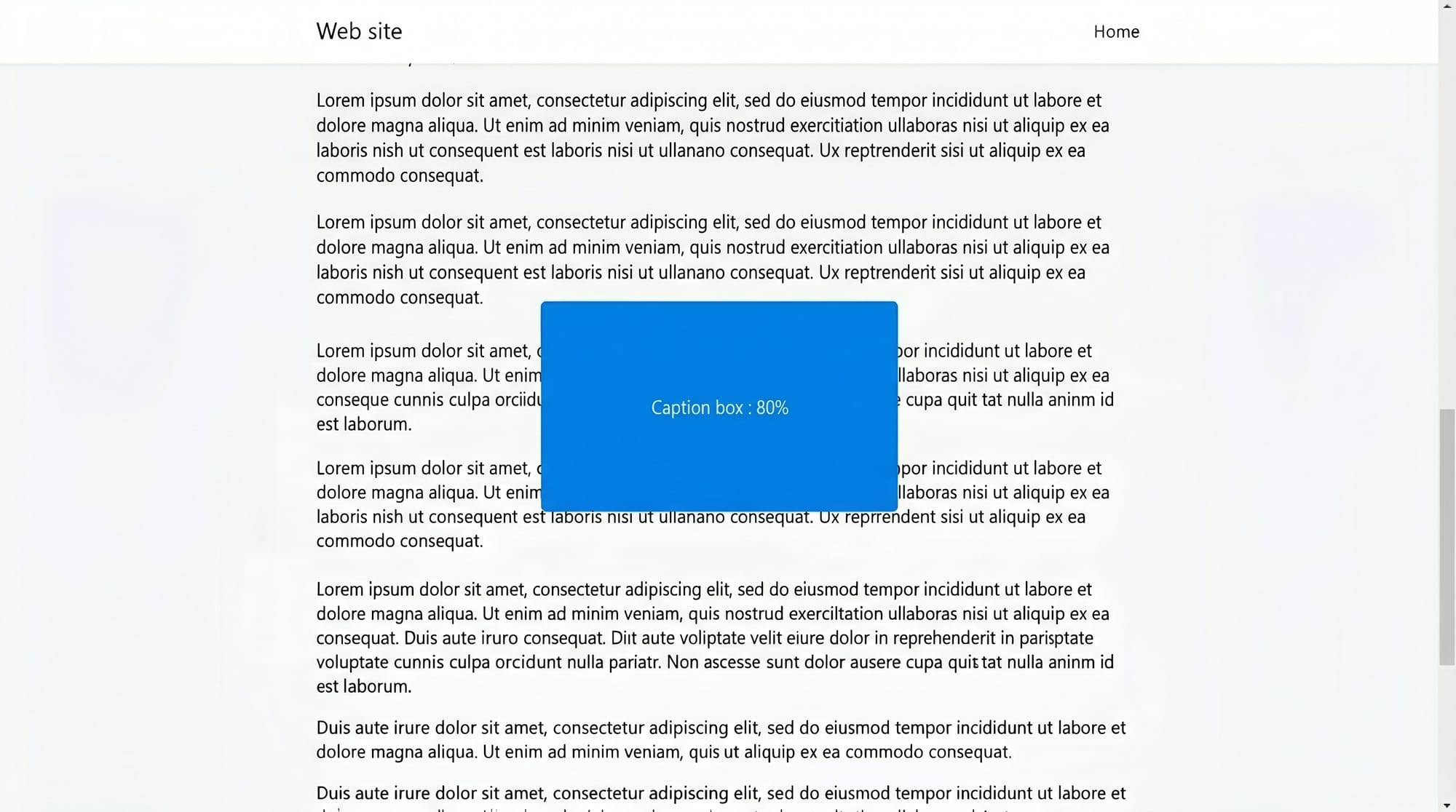
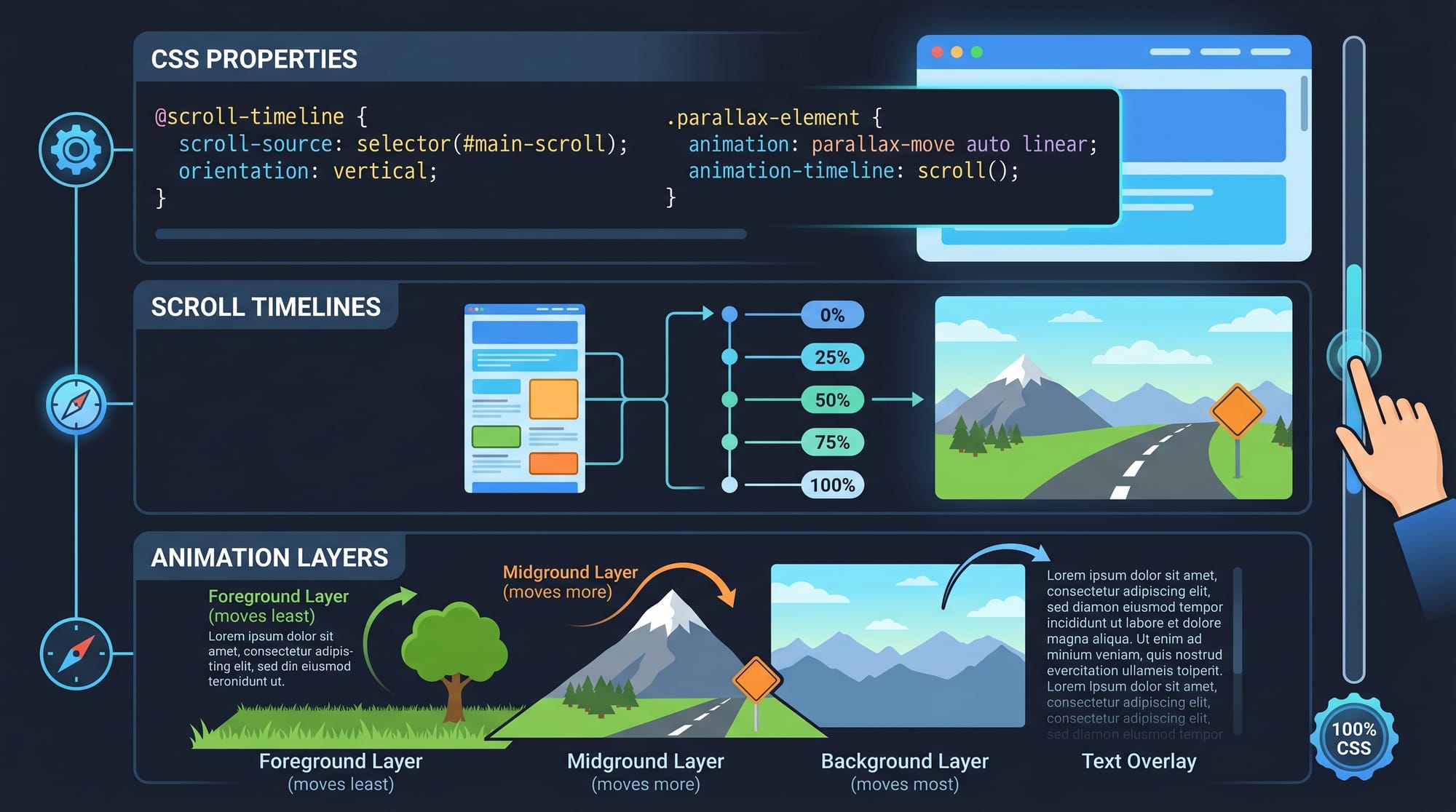
CSS scroll-driven animations are part of a new browser API that allows developers to create animations directly linked to the user’s scroll position—without relying heavily on JavaScript. Instead of triggering animations with events, you define timelines that respond to scrolling behavior using modern CSS properties like animation-timeline, scroll(), and view().
For Pakistani students learning modern web development in cities like Lahore, Karachi, and Islamabad, mastering scroll-driven animations is a powerful way to build interactive, professional-grade websites. Whether you’re building a portfolio for freelancing or a startup landing page, these animations can make your UI feel smooth, responsive, and engaging.
Traditionally, developers like Ahmad or Fatima would use JavaScript scroll events, which can be complex and less performant. Now, with this API, CSS handles everything more efficiently—leading to better performance and cleaner code.
Prerequisites
Before diving into scroll-driven animations, make sure you understand:
- Advanced CSS (animations, transitions, keyframes)
- CSS variables (custom properties)
- Basic understanding of timelines in animations
- Familiarity with browser developer tools
- Basic HTML structure
Optional but helpful:
- JavaScript basics (for fallback solutions)
- Experience with responsive design
Core Concepts & Explanation
Scroll Timeline vs View Timeline
There are two main types of timelines in scroll-driven animations:
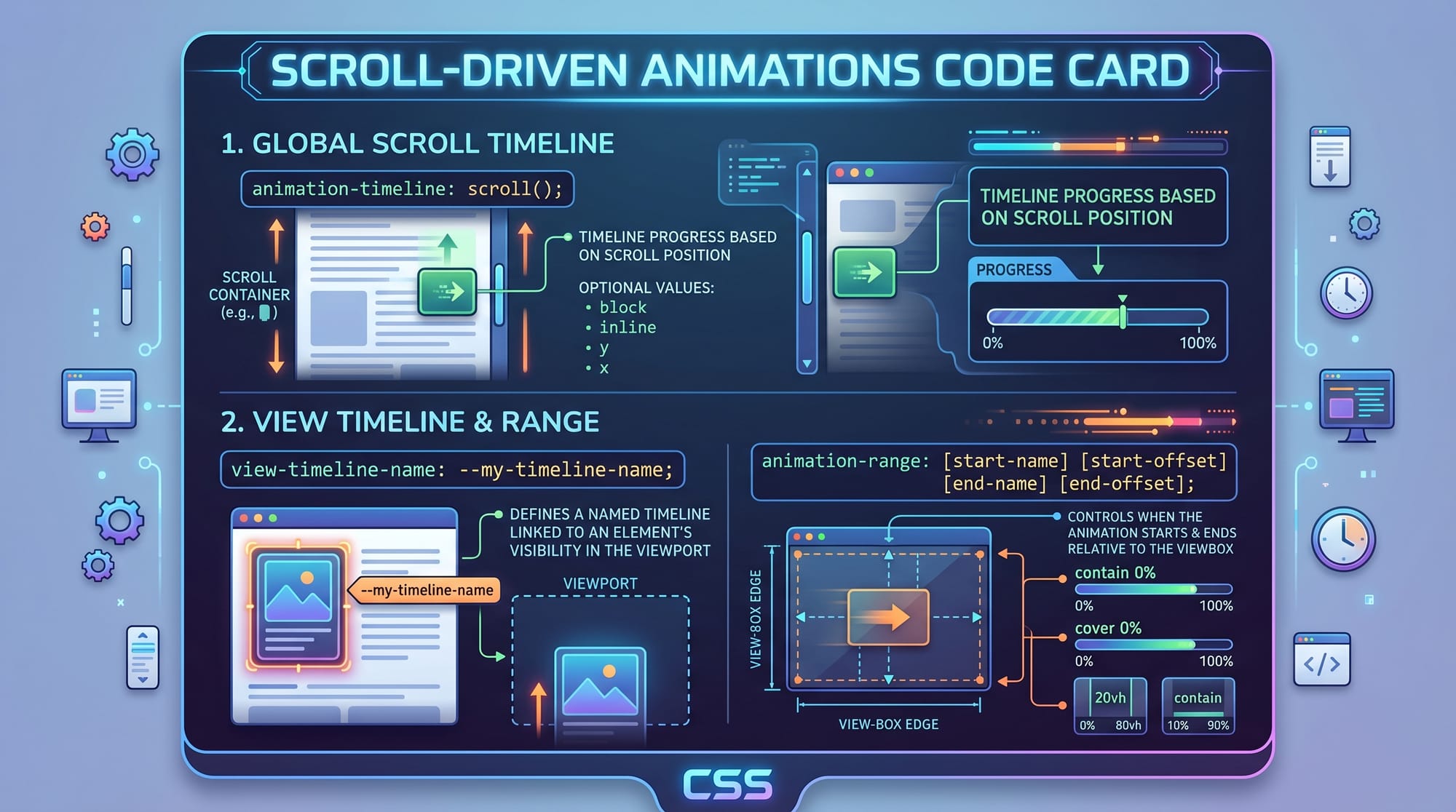
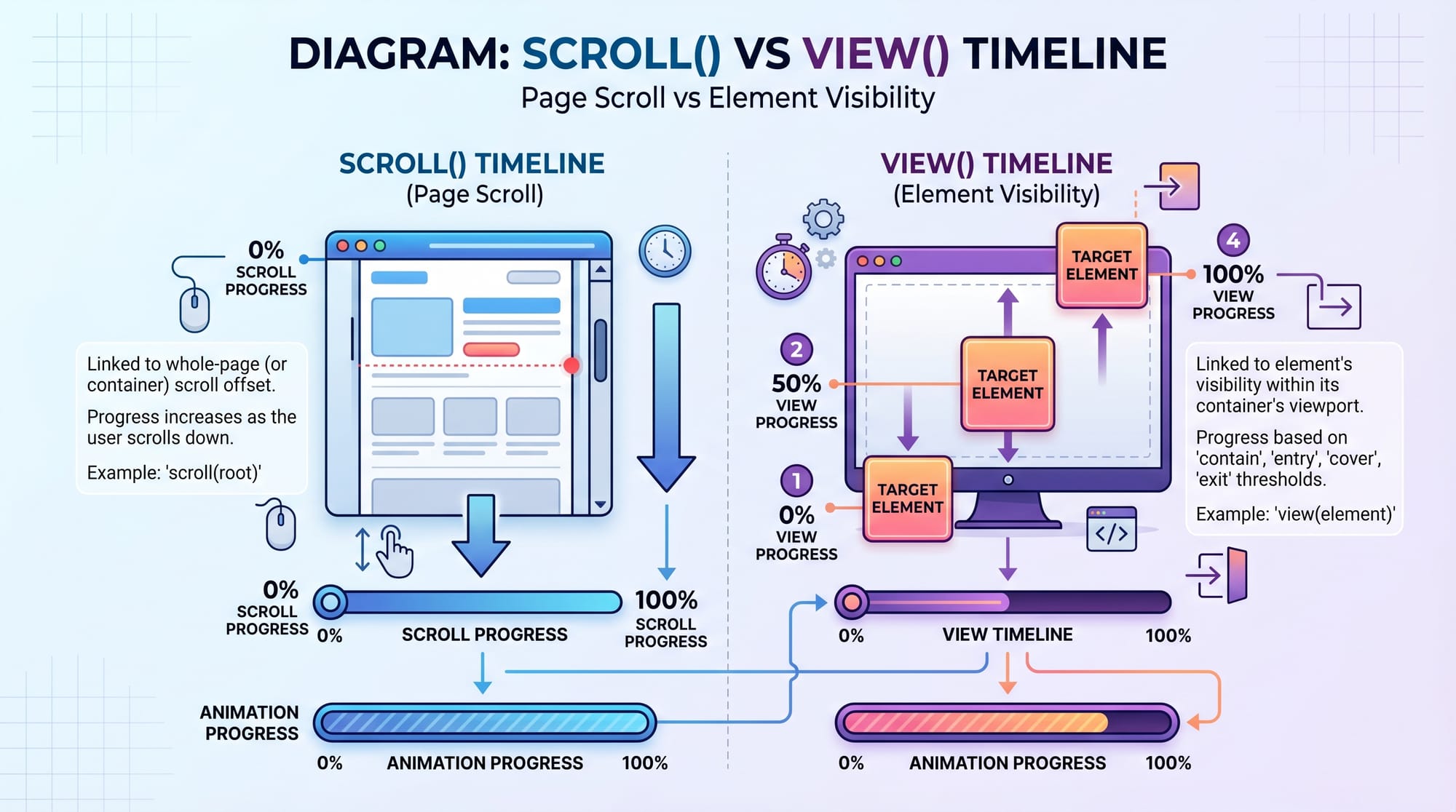
1. Scroll Timeline (scroll())
This ties animation progress to the entire page scroll.
animation-timeline: scroll();
Example: As you scroll from top to bottom, the animation progresses from 0% to 100%.
2. View Timeline (view())
This ties animation to when an element enters/exits the viewport.
animation-timeline: view();
Example: A card fades in when it appears on screen.
animation-timeline and animation-range
These properties are the core of scroll-driven animations.
animation-timeline
Defines what controls the animation progress.
animation-timeline: scroll();
animation-range
Controls when the animation starts and ends.
animation-range: entry 0% exit 100%;
Meaning:
- Start when element enters viewport
- End when it fully exits
Named Timelines for Advanced Control
You can define custom timelines using view-timeline-name.
.card {
  view-timeline-name: --cardScroll;
}
Then use it:
.card-content {
  animation-timeline: --cardScroll;
}
This allows complex UI effects, like syncing multiple animations.
Practical Code Examples
Example 1: Fade-In on Scroll
Let’s create a simple fade-in animation when a section becomes visible.
<section class="fade-section">
  <h2>Welcome to Iqra University</h2>
</section>
.fade-section {
  opacity: 0;
  transform: translateY(50px);

  animation-name: fadeIn;
  animation-duration: 1s;
  animation-fill-mode: forwards;

  animation-timeline: view();
  animation-range: entry 0% entry 100%;
}

@keyframes fadeIn {
  to {
    opacity: 1;
    transform: translateY(0);
  }
}
Explanation line-by-line:
opacity: 0;→ Start invisibletransform: translateY(50px);→ Start slightly belowanimation-name: fadeIn;→ Defines animationanimation-duration: 1s;→ Duration (used as reference, not time-based here)animation-fill-mode: forwards;→ Keeps final stateanimation-timeline: view();→ Links animation to viewport visibilityanimation-range: entry 0% entry 100%;→ Animate as element enters view@keyframes fadeIn→ Defines final state
Example 2: Real-World Application (Product Showcase)
Imagine Ali is building an e-commerce website in Karachi where products animate as users scroll.
<div class="product">
  <img src="phone.jpg" alt="Mobile Phone">
  <h3>PKR 45,000</h3>
</div>
.product {
  transform: scale(0.8);
  opacity: 0;

  animation-name: zoomIn;
  animation-timeline: view();
  animation-range: entry 20% entry 80%;
  animation-fill-mode: forwards;
}

@keyframes zoomIn {
  to {
    transform: scale(1);
    opacity: 1;
  }
}
Explanation:
transform: scale(0.8);→ Product starts smalleropacity: 0;→ Hidden initiallyanimation-name: zoomIn;→ Animation definedanimation-timeline: view();→ Scroll-based visibilityanimation-range: entry 20% entry 80%;→ Smooth entry timinganimation-fill-mode: forwards;→ Keeps final state@keyframes zoomIn→ Defines zoom + fade effect
This creates a modern shopping UI experience, similar to high-end websites.
Common Mistakes & How to Avoid Them
Mistake 1: Using animation-duration incorrectly
Many students think duration controls timing here—but scroll controls it.
❌ Wrong:
animation-duration: 5s;
✔️ Correct:
animation-range: entry 0% entry 100%;
Fix:
Use animation-range instead of relying on time.
Mistake 2: Forgetting animation-fill-mode
Without it, animations reset when scrolling back.
❌ Wrong:
animation-fill-mode: none;
✔️ Correct:
animation-fill-mode: forwards;
Fix:
Always use forwards or both to preserve state.
Mistake 3: Not checking browser support
Scroll-driven animations are still new.
Fix:
Use fallback:
@supports (animation-timeline: scroll()) {
  /* modern animation */
}
Practice Exercises
Exercise 1: Slide-In Text
Problem:
Create a heading that slides in from the left when visible.
Solution:
.heading {
  transform: translateX(-100px);
  opacity: 0;

  animation: slideIn linear forwards;
  animation-timeline: view();
  animation-range: entry 0% entry 100%;
}

@keyframes slideIn {
  to {
    transform: translateX(0);
    opacity: 1;
  }
}
Exercise 2: Progress Bar on Scroll
Problem:
Create a progress bar that fills as the user scrolls the page.
Solution:
.progress-bar {
  height: 5px;
  background: green;

  transform-origin: left;
  transform: scaleX(0);

  animation: fillBar linear forwards;
  animation-timeline: scroll();
}

@keyframes fillBar {
  to {
    transform: scaleX(1);
  }
}
Frequently Asked Questions
What is CSS scroll-driven animations?
It is a modern CSS feature that allows animations to be controlled by scroll position instead of time. This improves performance and reduces the need for JavaScript.
How do I use scroll() vs view()?
Use scroll() when you want animations tied to the whole page scroll. Use view() when animations depend on element visibility in the viewport.
Is browser support good for this API?
Support is growing in modern browsers like Chrome and Edge, but not universal yet. Always use @supports for fallback handling.
Can I replace JavaScript scroll animations completely?
In many cases, yes. CSS scroll-driven animations are more efficient and simpler, but complex logic may still require JavaScript.
How can I practice this in real projects?
Start by adding animations to your portfolio, blog sections, or product cards. Pakistani students can apply this in freelance projects or university assignments.
Summary & Key Takeaways
- Scroll-driven animations link animation progress to scroll instead of time
- Two main types:
scroll()(page-based) andview()(element-based) animation-timelineandanimation-rangeare core properties- Cleaner and more performant than JavaScript scroll events
- Ideal for portfolios, landing pages, and modern UI design
- Browser support is improving—use fallbacks when needed
Next Steps & Related Tutorials
To continue learning, explore these tutorials on theiqra.edu.pk:
- Learn CSS Animations from scratch to strengthen your fundamentals
- Explore JavaScript Scroll Events to understand traditional approaches
- Dive into CSS Variables & Dynamic Theming for scalable UI design
- Build a Modern Developer Portfolio using advanced CSS techniques
By combining these skills, students like Ahmad, Fatima, and Ali can build industry-level web experiences and stand out in Pakistan’s growing tech market 🚀
Test Your Python Knowledge!
Finished reading? Take a quick quiz to see how much you've learned from this tutorial.