ESLint & Prettier JavaScript Code Quality Setup
Introduction
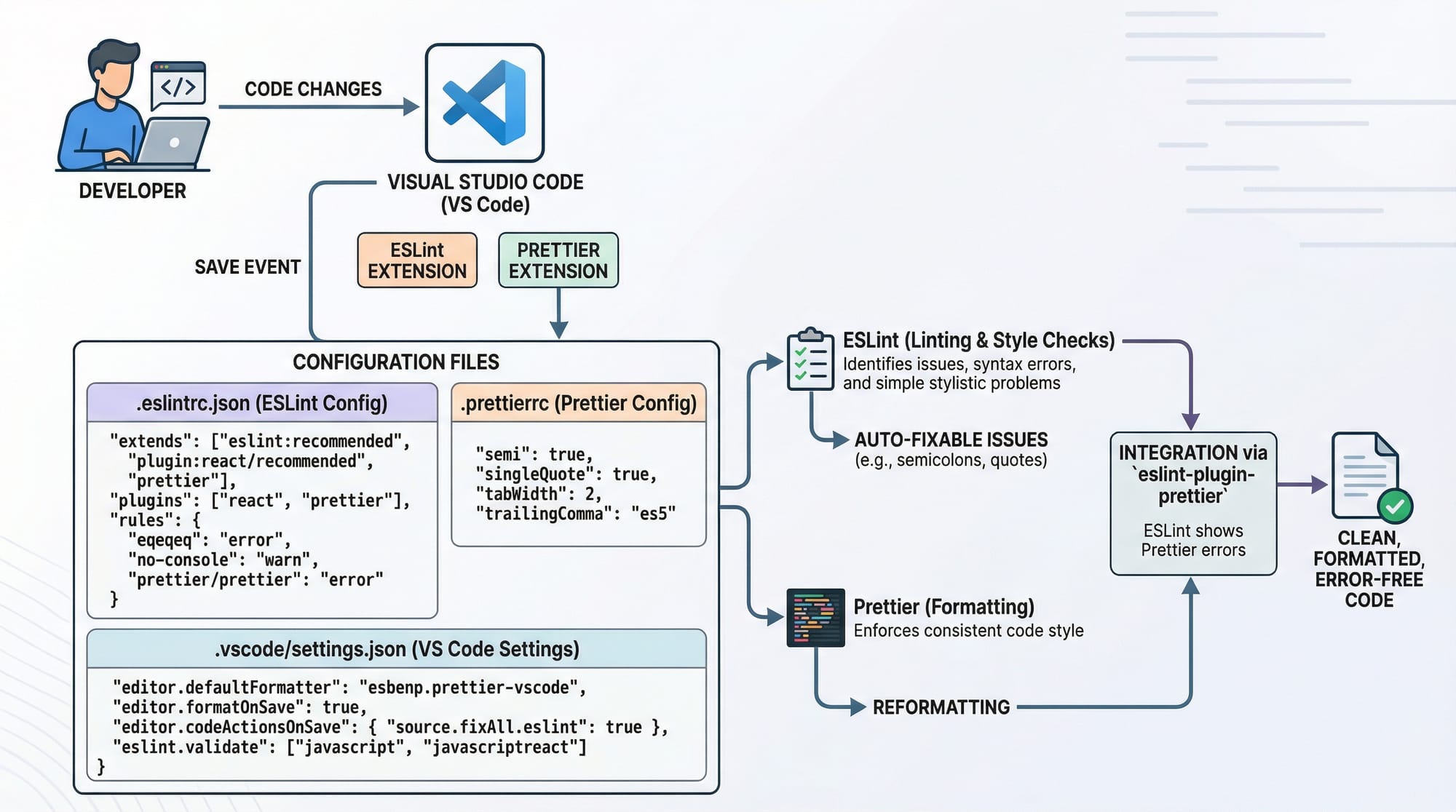
Modern JavaScript development is not just about writing code—it’s about writing clean, consistent, and error-free code. That’s where ESLint and Prettier come in. In this tutorial, we’ll walk through a complete eslint tutorial + prettier javascript setup so you can improve your code quality from day one.
ESLint is a powerful tool that analyzes your JavaScript code to find problems, enforce coding standards, and prevent bugs. Prettier, on the other hand, focuses on code formatting linting—making your code look clean and consistent automatically.
For Pakistani students in cities like Lahore, Karachi, or Islamabad, learning these tools is especially useful if you're:
- Preparing for internships
- Working on university projects
- Building freelance portfolios
Using ESLint and Prettier together ensures your code is professional, readable, and industry-ready.
Prerequisites
Before starting this eslint tutorial, you should have:
- Basic knowledge of JavaScript (variables, functions, objects)
- Node.js installed on your system
- Familiarity with a code editor like VS Code
- Basic understanding of terminal/command line
Core Concepts & Explanation
What is ESLint and How It Works
ESLint is a linting tool that checks your code for errors and enforces coding rules.
For example:
var name = "Ali"
console.log(name)
ESLint may warn:
- Avoid using
var→ useletorconst - Missing semicolon
You can configure ESLint rules to match your coding style.
Key Benefits:
- Catches bugs early
- Enforces coding standards
- Improves team collaboration
What is Prettier and Why It Matters
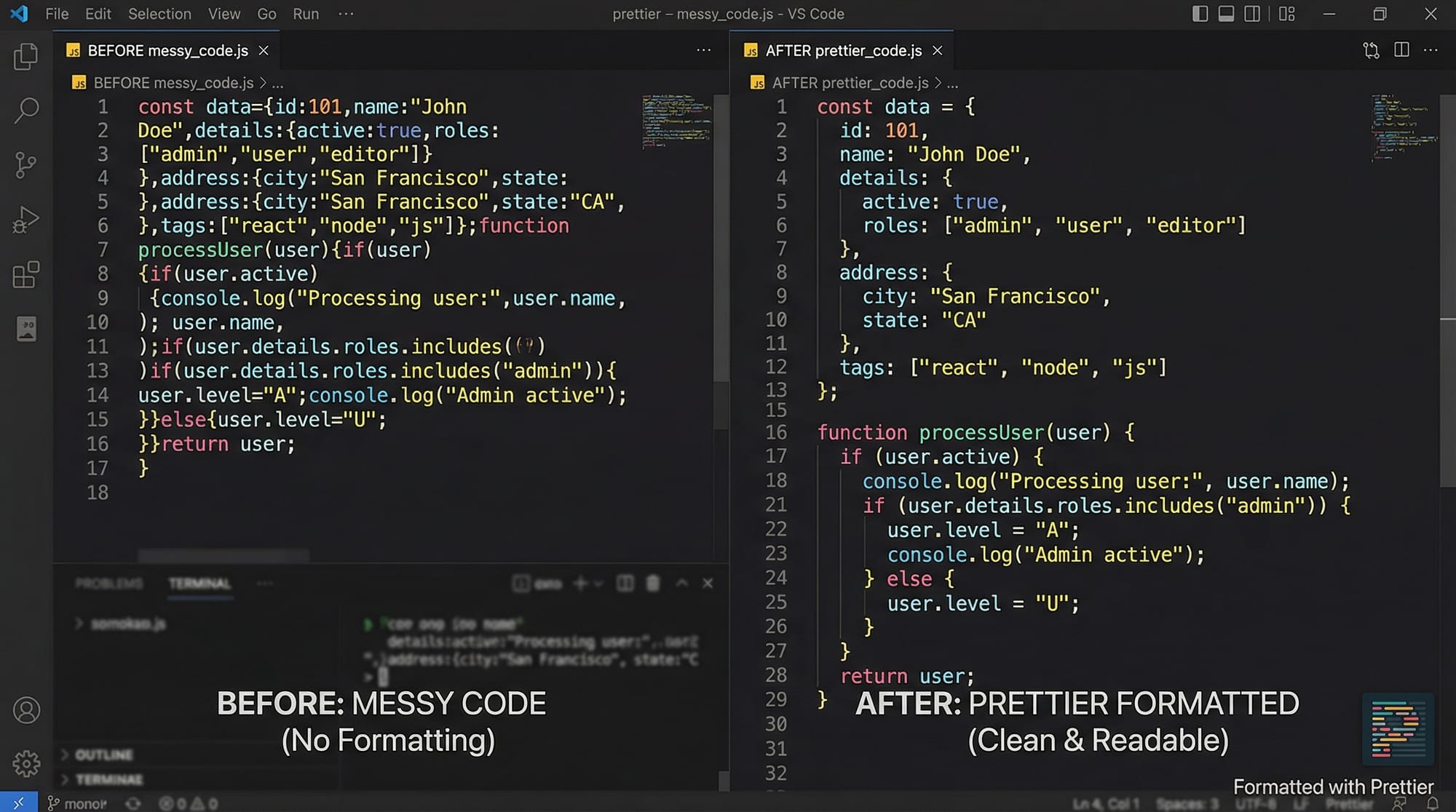
Prettier is a code formatter that automatically formats your code.
Example:
Before Prettier:
function greet(name){console.log("Hello "+name)}
After Prettier:
function greet(name) {
  console.log("Hello " + name);
}
Key Benefits:
- Saves time on formatting
- Makes code consistent
- Reduces code review conflicts
How ESLint and Prettier Work Together
ESLint checks for code quality, while Prettier handles formatting.
Together:
- ESLint → "Is this code correct?"
- Prettier → "Is this code clean?"
You can integrate them so they don’t conflict.
Practical Code Examples
Example 1: Setting Up ESLint & Prettier
Step 1: Initialize Project
npm init -y
Explanation:
npm init→ creates a new Node project-y→ skips manual setup and uses defaults
Step 2: Install ESLint
npm install eslint --save-dev
Explanation:
eslint→ installs linting tool--save-dev→ installs as development dependency
Step 3: Initialize ESLint
npx eslint --init
Explanation:
npx→ runs package without installing globallyeslint --init→ sets up configuration interactively
Step 4: Install Prettier
npm install prettier --save-dev
Explanation:
- Installs Prettier for formatting
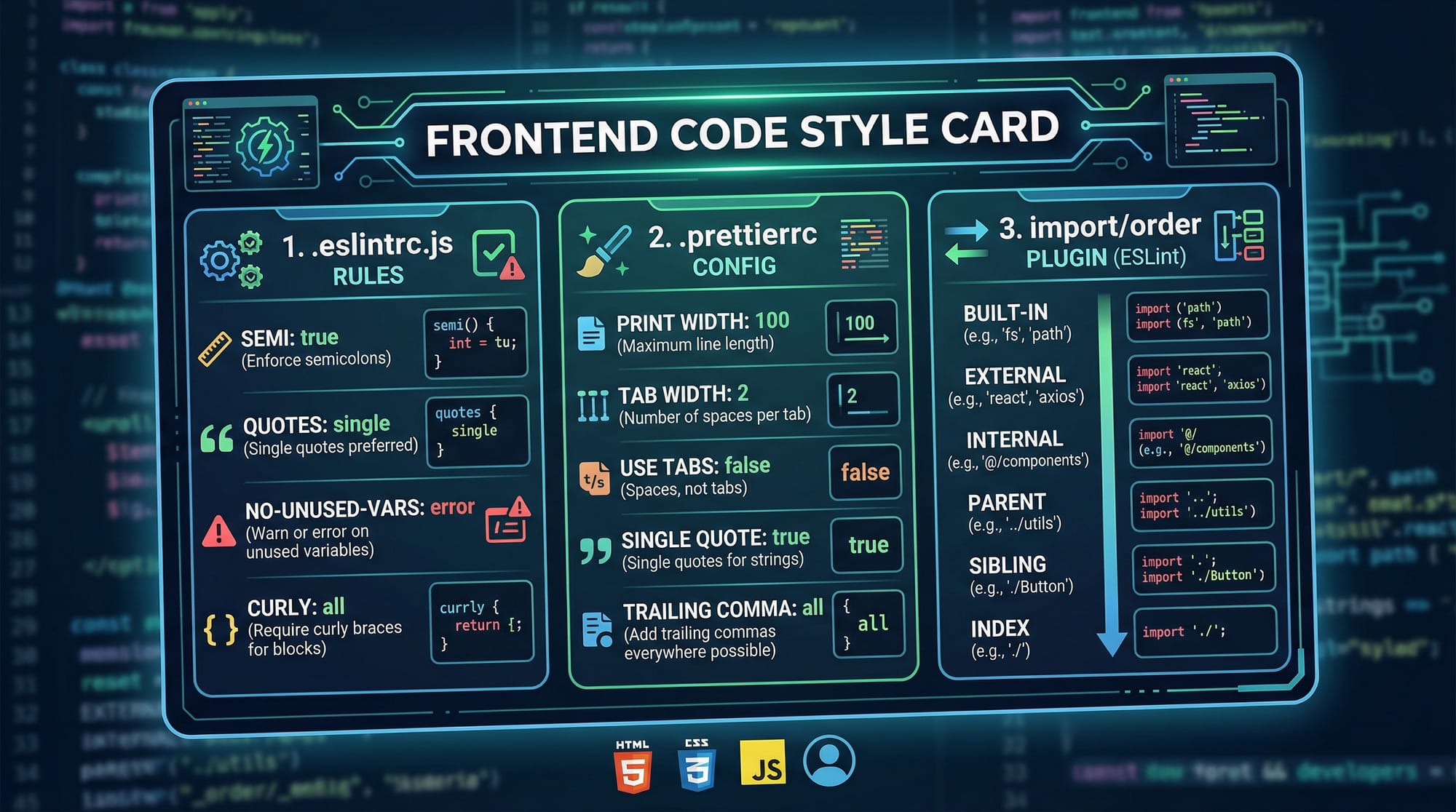
Step 5: Create Configuration Files
.eslintrc.json
{
  "env": {
    "browser": true,
    "es2021": true
  },
  "extends": ["eslint:recommended"],
  "rules": {
    "no-unused-vars": "warn",
    "semi": ["error", "always"]
  }
}
Explanation line-by-line:
"env"→ defines environment (browser, ES version)"extends"→ uses default ESLint rules"no-unused-vars"→ warns about unused variables"semi"→ enforces semicolons
.prettierrc
{
  "singleQuote": true,
  "semi": true
}
Explanation:
singleQuote→ use'instead of"semi→ add semicolons automatically
Example 2: Real-World Application
Let’s say Ahmad is building a student fee calculator for a university in Islamabad.
Code Before ESLint & Prettier
function calculateFee(fee,discount){
return fee-discount
}
console.log(calculateFee(50000,5000))
Code After ESLint & Prettier
function calculateFee(fee, discount) {
  return fee - discount;
}

console.log(calculateFee(50000, 5000));
Line-by-line Explanation:
- Function formatting improved for readability
- Spaces added after commas
- Proper indentation applied
- Semicolons added
This makes the code easier to maintain and understand.
Common Mistakes & How to Avoid Them
Mistake 1: ESLint and Prettier Conflicts
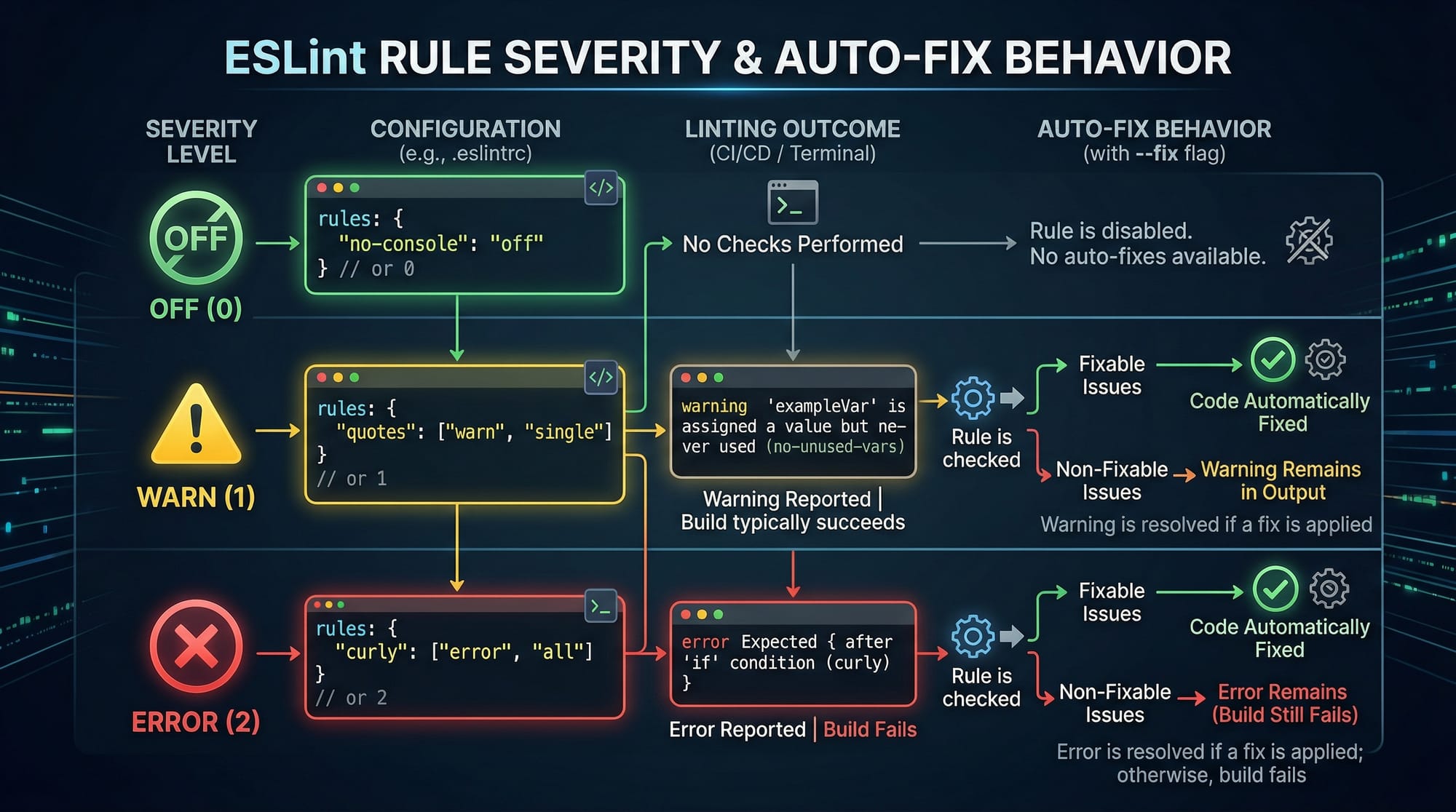
Sometimes ESLint and Prettier may conflict on formatting rules.
Problem Example:
const name = "Ali"
ESLint says:
- Missing semicolon
Prettier says:
- Format differently
Solution:
Install integration package:
npm install eslint-config-prettier --save-dev
Update ESLint config:
{
  "extends": ["eslint:recommended", "prettier"]
}
Explanation:
- Disables ESLint rules that conflict with Prettier
Mistake 2: Not Enabling Auto Format on Save
Many beginners forget to enable auto-formatting in VS Code.
Solution:
Go to VS Code settings and enable:
Format On Save
Or add in settings.json:
{
  "editor.formatOnSave": true
}
Explanation:
- Automatically formats code when saving
Practice Exercises
Exercise 1: Fix Formatting Issues
Problem:
function add(a,b){return a+b}
Solution:
function add(a, b) {
  return a + b;
}
Explanation:
- Added spaces after comma
- Proper indentation
- Added semicolon
Exercise 2: Apply ESLint Rules
Problem:
var total = 1000
console.log(total)
Solution:
let total = 1000;
console.log(total);
Explanation:
- Replaced
varwithlet - Added semicolon
Frequently Asked Questions
What is ESLint used for?
ESLint is used to detect errors and enforce coding standards in JavaScript. It helps developers write cleaner and more reliable code.
How do I install Prettier in my project?
You can install Prettier using npm install prettier --save-dev and then create a .prettierrc file for configuration.
Can ESLint fix errors automatically?
Yes, many ESLint issues can be fixed automatically using the command npx eslint . --fix.
Do I need both ESLint and Prettier?
Yes, ESLint checks code quality while Prettier formats code. Together, they provide complete code formatting linting.
How do I integrate ESLint with VS Code?
Install the ESLint extension in VS Code and enable it. You can also enable auto-fix on save for better workflow.
Summary & Key Takeaways
- ESLint helps detect bugs and enforce coding standards
- Prettier automatically formats your code
- Using both ensures clean and professional code
- Configuration files like
.eslintrcand.prettierrcare essential - Auto-format on save improves productivity
- These tools are widely used in industry and freelancing projects
Next Steps & Related Tutorials
Now that you understand eslint tutorial + prettier javascript, continue learning with:
- Learn the basics in our JavaScript Tutorial for Beginners
- Improve your workflow with Git Hooks for Code Quality
- Explore advanced tooling in Node.js Project Setup Guide
- Master team collaboration with Git & GitHub Complete Guide
By practicing these tools regularly, you’ll be writing industry-standard JavaScript code in no time. Keep learning and building—your future projects (and clients paying in PKR 💰) will thank you!
Test Your Python Knowledge!
Finished reading? Take a quick quiz to see how much you've learned from this tutorial.