Git Basics Version Control & Repository Setup
Introduction
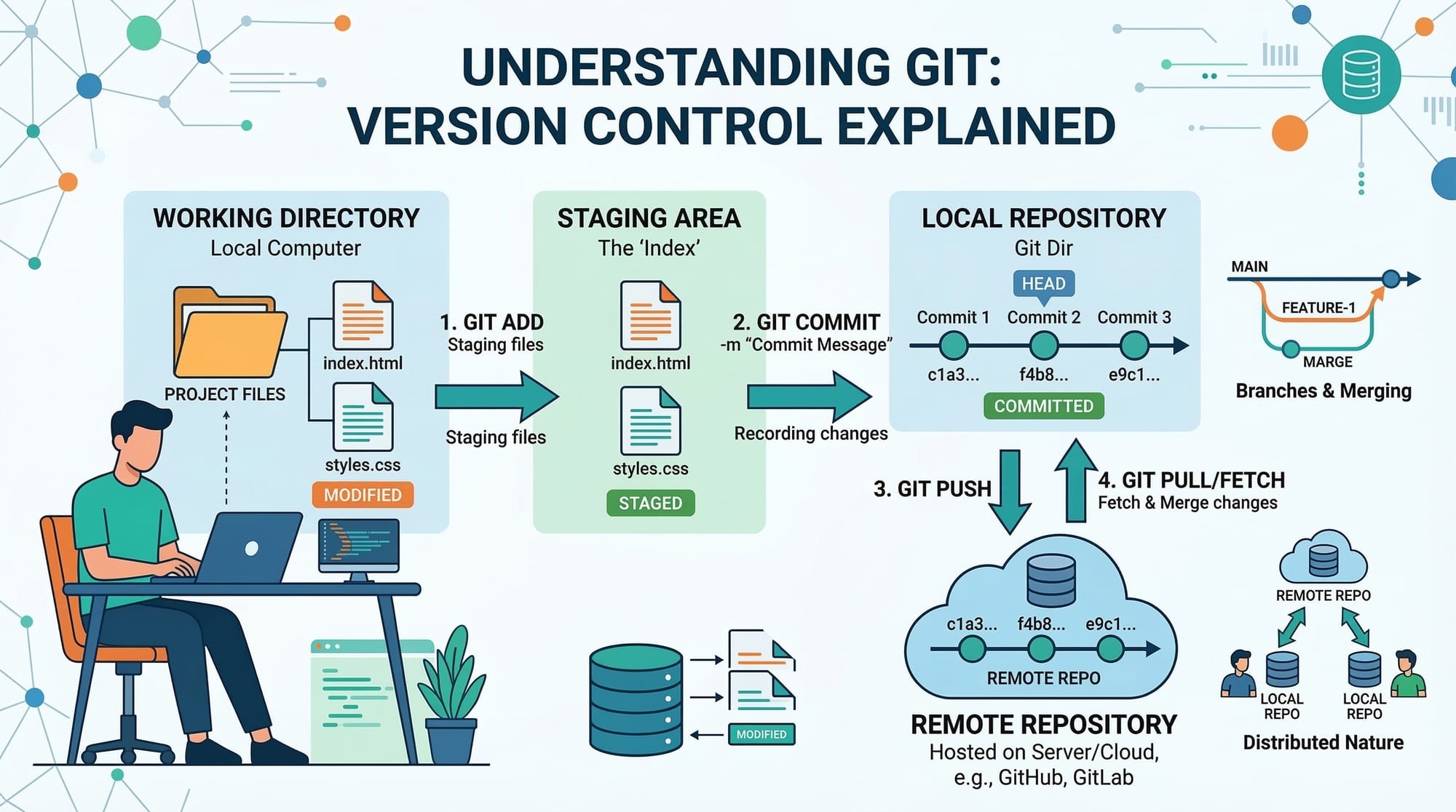
Git is the most widely used version control system in modern software development. It helps developers track changes in their code, collaborate with others, and safely manage project history. If you are learning programming in Pakistan—whether in **Lahore, Karachi, Islamabad, or studying online—understanding Git basics is an essential skill.
Imagine a student named Ali building a web project for his university assignment. As he keeps editing files, mistakes happen. Without version control, Ali might overwrite important code or lose earlier working versions. With Git, he can easily revert changes, compare versions, and collaborate with classmates like Fatima and Ahmad.
Git works by storing project snapshots inside a repository, allowing developers to:
- Track changes in code files
- Collaborate with other developers
- Restore previous versions
- Manage branches for different features
- Maintain project history safely
Because Git is widely used by companies and open-source communities, learning Git basics gives Pakistani students a major advantage in the job market.
In this beginner-friendly Git tutorial, you will learn:
- What version control is
- How Git works
- How to set up Git on your computer
- How to create and manage repositories
- Basic Git commands every beginner should know
By the end of this guide, you will be able to confidently use Git to manage your programming projects.
Prerequisites
Before starting this Git for beginners tutorial, you should have basic knowledge of the following:
Basic Computer Skills
You should know how to:
- Use a computer terminal or command prompt
- Navigate folders on your system
- Create and edit text files
Basic Programming Knowledge
Although Git can track any type of file, beginners usually use it for programming projects such as:
- HTML/CSS websites
- JavaScript applications
- Python scripts
- Node.js projects
Installed Software
You should have the following installed:
- Git on your computer
- A code editor such as VS Code
- Access to a terminal (Command Prompt, PowerShell, or Bash)
To check if Git is installed, run:
git --version
If installed correctly, you will see something like:
git version 2.43.0
If not installed, download Git from the official Git website.
Core Concepts & Explanation
Understanding Version Control
Version control is a system that records changes to files over time. It allows you to:
- Track changes
- Revert to earlier versions
- Compare file modifications
- Collaborate with others safely
Without version control:
- You might create files like
project-final.html
project-final2.html
project-final-last.html
This quickly becomes confusing.
With Git:
- Every change is recorded in a structured history.
- You can return to any previous version instantly.
Example scenario:
Fatima is working on a shopping website project in Karachi. She updates the product page design but later realizes the new design breaks the layout. Instead of rewriting everything, Git allows her to revert to a previous version.
This is why version control is critical in modern development.
Git Repository Explained
A repository (repo) is a storage location where Git tracks your project files and their history.
There are two types:
- Local Repository – stored on your computer
- Remote Repository – hosted online (GitHub, GitLab, etc.)
Example project structure:
student-project/
│
├── index.html
├── style.css
├── script.js
└── README.md
When this folder becomes a Git repository, Git starts tracking changes to these files.
Key components inside a Git repository:
- Working Directory – your current files
- Staging Area – changes prepared for commit
- Repository History – saved snapshots
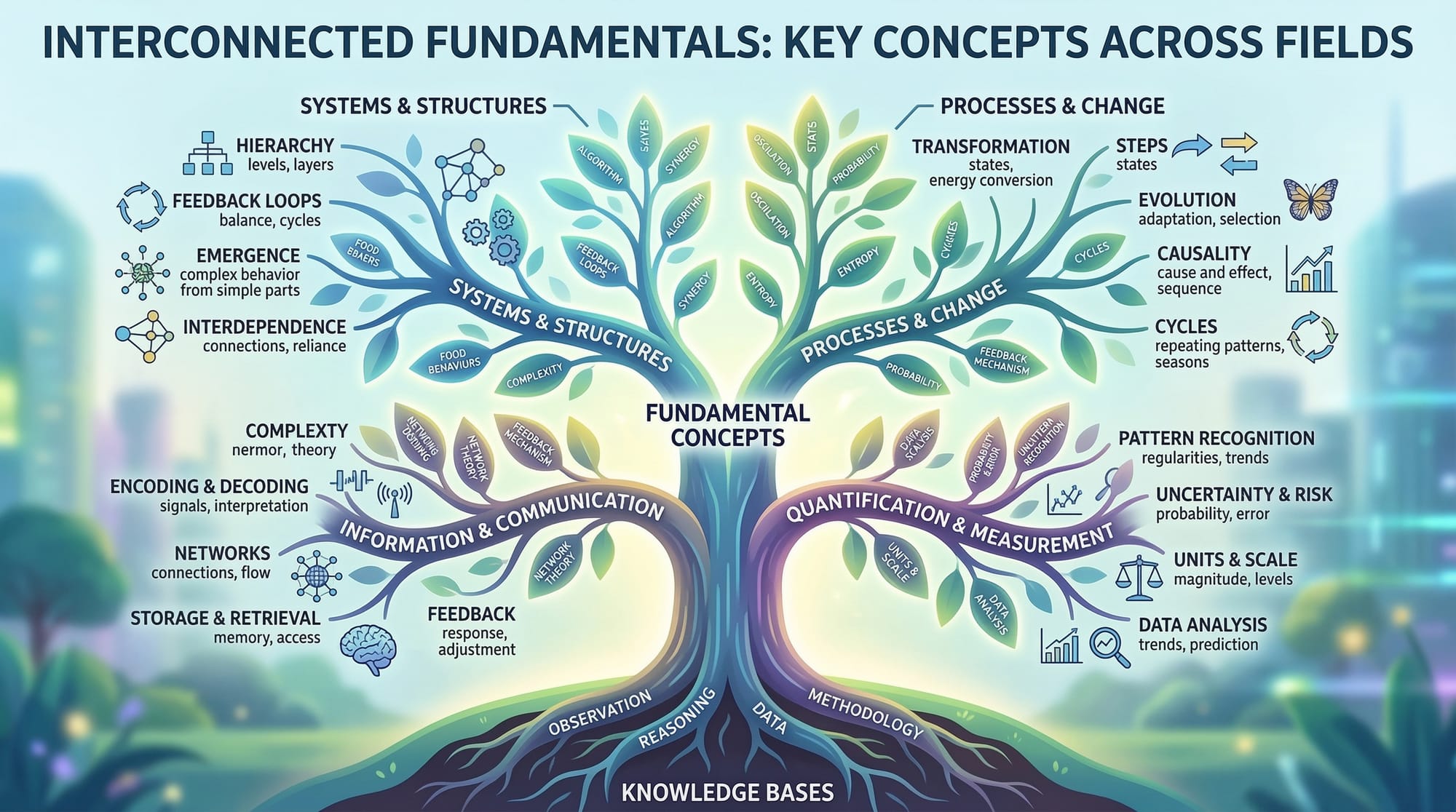
Git workflow:
Working Directory → Staging Area → Commit History
This structured workflow is the foundation of Git basics.
Git Setup and Configuration
Before using Git, you must configure your identity. This ensures commits show the correct author.
Open the terminal and run:
git config --global user.name "Ali Khan"
git config --global user.email "[email protected]"
Explanation:
git config→ sets configuration options--global→ applies settings to all repositoriesuser.name→ your nameuser.email→ your email address
To check your configuration:
git config --list
This will display all configured settings.
Practical Code Examples
Example 1: Creating Your First Git Repository
Let’s create a simple Git repository for a project.
Step 1: Create a folder
mkdir student-project
Explanation:
mkdircreates a new directorystudent-projectis the project name
Step 2: Enter the folder
cd student-project
Explanation:
cdmeans change directory- It moves you into the project folder
Step 3: Initialize Git
git init
Explanation:
git initcreates a new Git repository- It adds a hidden
.gitfolder - Git now tracks this project
Step 4: Create a file
touch index.html
Explanation:
touchcreates an empty fileindex.htmlwill hold your webpage
Step 5: Check repository status
git status
Explanation:
- Shows current repository state
- Lists untracked files
Output example:
Untracked files:
  index.html
Step 6: Add the file to staging
git add index.html
Explanation:
git addmoves file to staging area- Prepares it for commit
Step 7: Commit the file
git commit -m "Add initial HTML file"
Explanation:
git commitsaves changes to history-madds a commit message
Your first Git commit is now complete.
Example 2: Real-World Application
Imagine Ahmad in Lahore is building a simple website for a local store that sells products priced in PKR.
Project files:
store-website/
├── index.html
├── products.html
└── style.css
Git workflow example:
git init
git add .
git commit -m "Initial website layout"
Explanation:
git init→ initialize repositorygit add .→ add all filesgit commit→ save snapshot
Later Ahmad adds a pricing section:
git add products.html
git commit -m "Add product pricing in PKR"
Git records every step of the project’s development.
Common Mistakes & How to Avoid Them
Mistake 1: Forgetting to Add Files
Beginners often edit files but forget to stage them before committing.
Wrong approach:
git commit -m "Update file"
If files are not staged, Git will say:
nothing to commit
Correct workflow:
git add filename
git commit -m "Update file"
Always stage changes before committing.
Mistake 2: Writing Poor Commit Messages
Bad commit messages make project history confusing.
Bad example:
Update stuff
Good example:
Fix login validation bug
Best practices:
- Keep messages short
- Describe what changed
- Use clear action words
Good Git history helps teams collaborate effectively.
Practice Exercises
Exercise 1: Create Your First Repository
Problem
Create a Git repository called portfolio-site and commit a file named index.html.
Solution
mkdir portfolio-site
cd portfolio-site
git init
touch index.html
git add index.html
git commit -m "Initial portfolio homepage"
Explanation:
mkdircreates project foldergit initinitializes Gittouchcreates HTML filegit addstages filegit commitsaves snapshot
Exercise 2: Track File Changes
Problem
Modify index.html and commit the change.
Solution
git add index.html
git commit -m "Update homepage content"
Explanation:
git addstages modified filegit commitrecords changes
Git now stores multiple versions of the file.
Frequently Asked Questions
What is Git used for?
Git is a distributed version control system used to track changes in code files. It allows developers to manage project history, collaborate with others, and safely revert mistakes.
How do I install Git?
Download Git from the official Git website and run the installer. After installation, verify it using the command git --version in your terminal.
What is a Git repository?
A Git repository is a folder that contains project files and the complete history of changes made to those files. It includes a hidden .git directory where Git stores its data.
What is the difference between git add and git commit?
git add moves file changes to the staging area, preparing them for saving. git commit records those staged changes into the repository history.
Do beginners need GitHub to use Git?
No. Git works locally on your computer. However, platforms like GitHub allow you to store repositories online and collaborate with other developers.
Summary & Key Takeaways
- Git is a powerful version control system used worldwide.
- It helps developers track file changes and manage project history.
- A Git repository stores files and their version history.
- Basic Git workflow: init → add → commit.
- Good commit messages improve collaboration.
- Learning Git is essential for modern software development careers.
Next Steps & Related Tutorials
Now that you understand Git basics, you can continue learning more advanced concepts.
Recommended tutorials on theiqra.edu.pk:
- Learn GitHub for beginners to host repositories online
- Explore Branching and Merging in Git to manage multiple features
- Study Node.js Basics for Beginners to build backend applications
- Read JavaScript Fundamentals to strengthen your web development skills
These tutorials will help you progress from beginner to professional developer and prepare you for real-world software development projects.
Test Your Python Knowledge!
Finished reading? Take a quick quiz to see how much you've learned from this tutorial.