Git Internals Objects Trees Blobs & Packfiles
Git is one of the most widely used version control systems globally, including in Pakistan's software development and IT education communities. Understanding git internals — specifically objects, trees, blobs, and packfiles — is crucial for advanced developers and students who want to grasp how Git works under the hood.
For Pakistani students, mastering Git internals can lead to better project management skills, improved debugging, and efficiency when collaborating with teams in Lahore, Karachi, Islamabad, or even remotely. While Git commands like git commit and git push are familiar to most beginners, the internal mechanisms are what make Git fast, reliable, and distributed. This tutorial will take you deep into Git's inner workings, showing you how it stores and manages data.
Prerequisites
Before diving into Git internals, you should have:
- A basic understanding of Git commands:
git add,git commit,git push,git checkout. - Familiarity with Linux/Unix shell commands or Windows Git Bash.
- Knowledge of file systems and how files are structured on your computer.
- Understanding of hash functions (SHA-1) is a plus but not mandatory.
Core Concepts & Explanation
Git Objects: The Building Blocks of Git
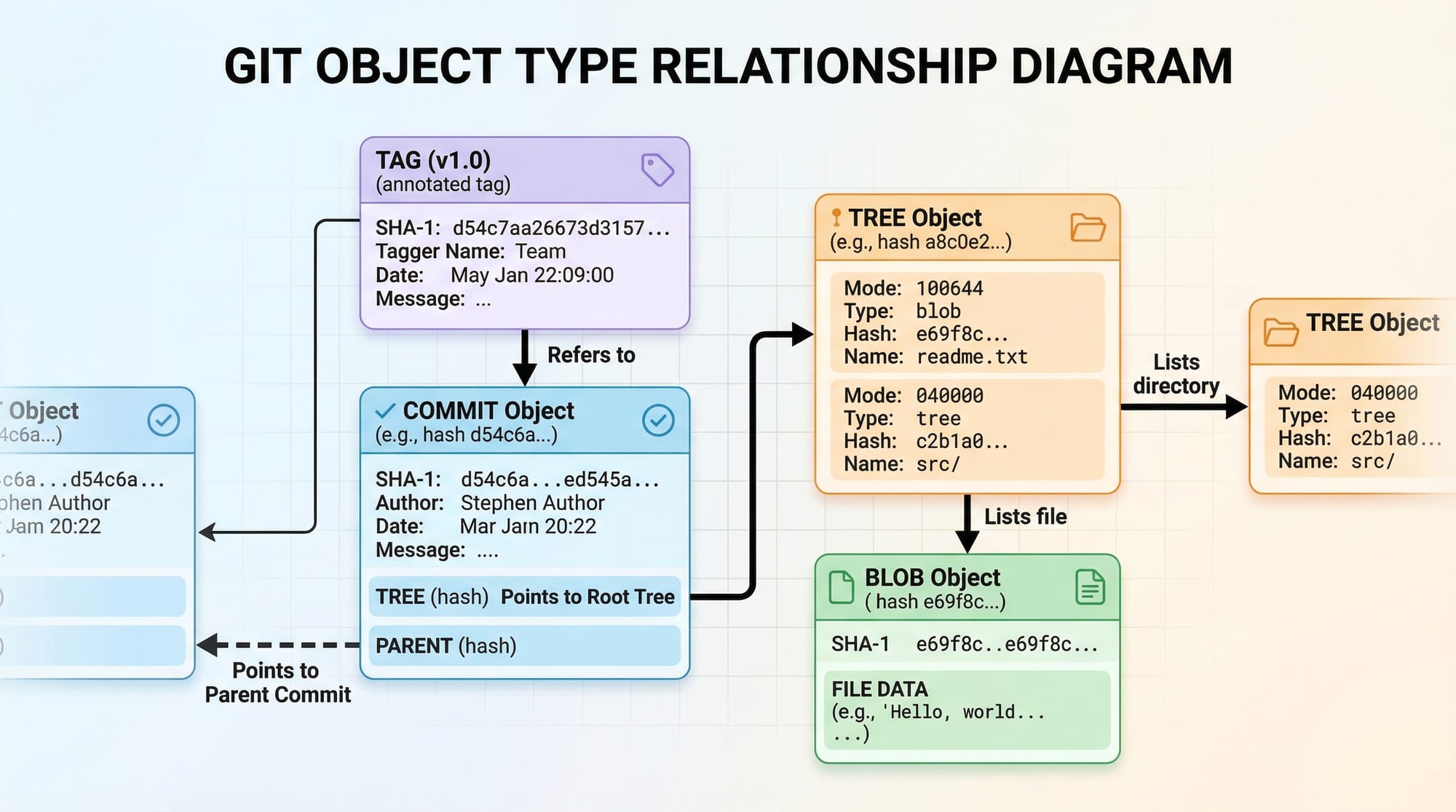
Git stores every piece of data as an object. There are four types:
- Blob (Binary Large Object) — stores file content.
- Tree — represents a directory and lists blobs and other trees.
- Commit — stores metadata about a snapshot, including pointers to trees.
- Tag — references a specific commit with additional metadata.
Every object is identified by a SHA-1 hash, which ensures data integrity.
Example: If Ali in Islamabad edits assignment.txt, Git stores the file as a blob object and computes its SHA-1 hash, which uniquely identifies that version of the file.
Git Trees: Organizing Files & Directories
A tree object stores the structure of directories. It contains:
- Names of files or subdirectories.
- Pointers to blob or tree objects.
- Permissions for each file.
Example:
project/
 ├─ index.html
 ├─ css/
 │   └─ style.css
 └─ js/
     └─ app.js
Here, Git creates a tree object for project/ pointing to:
- A blob for
index.html. - A tree for
css/pointing tostyle.css. - A tree for
js/pointing toapp.js.
Trees make Git efficient because even if a single file changes, only its blob is updated while the rest of the tree structure remains intact.
Git Blobs: File Snapshots
A blob object represents the content of a single file.
Command to create a blob:
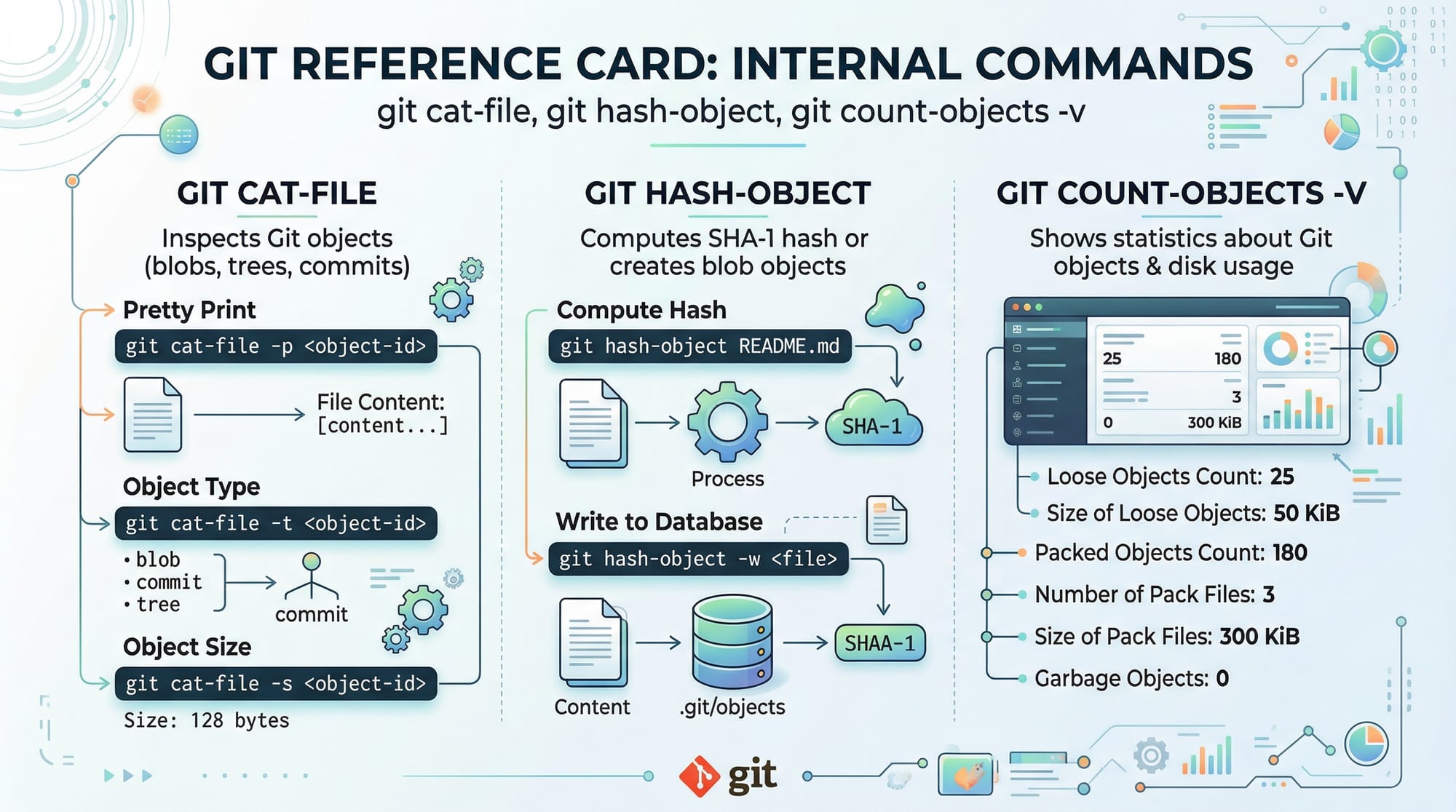
git hash-object -w assignment.txt
Explanation:
git hash-object -w assignment.txt
# git hash-object computes SHA-1 hash of the file content
# -w writes the object into Git's object database
# assignment.txt is the file being added as a blob
Blobs do not store file names or paths — just content. The name is referenced in a tree object.
Commits: Snapshots of Trees
A commit object points to a tree object and contains metadata:
- Author: e.g., Fatima [email protected]
- Commit message: “Initial commit”
- Parent commit hash
Example command:
git commit-tree <tree_hash> -p <parent_hash> -m "Initial commit"
Explanation:
git commit-tree <tree_hash>   # Creates a commit pointing to the tree
-p <parent_hash>             # Optional parent commit for history
-m "Initial commit"          # Commit message
The commit stores the snapshot of the repository at a given time. Ahmad in Lahore can look at this commit and see the exact state of the project when it was created.
Tags: Named References
Tags are lightweight references to commits. They are used for releases or versions:
git tag -a v1.0 -m "Release version 1.0"
Explanation:
-a v1.0   # Annotated tag named v1.0
-m "..."  # Message describing the tag
Tags help Pakistani developers quickly identify important commits without looking at the entire commit history.
Practical Code Examples
Example 1: Inspecting Git Objects
# Create a file
echo "Hello, Git Internals!" > hello.txt

# Create a blob object
git hash-object -w hello.txt

# Inspect the object
git cat-file -p <SHA-1_HASH>
Explanation line by line:
echo "Hello, Git Internals!" > hello.txt
Creates a file namedhello.txtwith the content.git hash-object -w hello.txt
Computes the SHA-1 hash and writes the blob object into Git's object database.git cat-file -p <SHA-1_HASH>
Displays the content stored in the blob object.
Example 2: Real-World Application — Recovering Deleted File
Suppose Ali accidentally deletes notes.md in his project. Git objects can help recover it:
# List recent objects
git fsck --lost-found

# Find the blob for notes.md
git show <blob_hash> > notes.md
Explanation:
git fsck --lost-found
Checks the integrity of objects and lists unreferenced blobs.git show <blob_hash> > notes.md
Extracts the blob content into a new file, restoring lost work.

Packfiles: Optimizing Storage
As projects grow, Git uses packfiles to compress objects:
- Loose objects → compressed
.packfile. - Reduces disk usage.
- Improves performance for cloning and fetching.
Commands:
git gc
git repack -a -d
Explanation:
git gc
Cleans up unnecessary files and optimizes repository.git repack -a -d
Packs all objects into a.packfile and deletes old loose objects.
In practice, Fatima in Karachi with a 2GB repository sees a massive reduction in storage after repacking.
Common Mistakes & How to Avoid Them
Mistake 1: Ignoring Loose Objects
Loose objects can accumulate, slowing down Git:
git count-objects -v
Solution:
git gc
Explanation: Garbage collection removes unused objects and reduces clutter.
Mistake 2: Overwriting Commits Without Backups
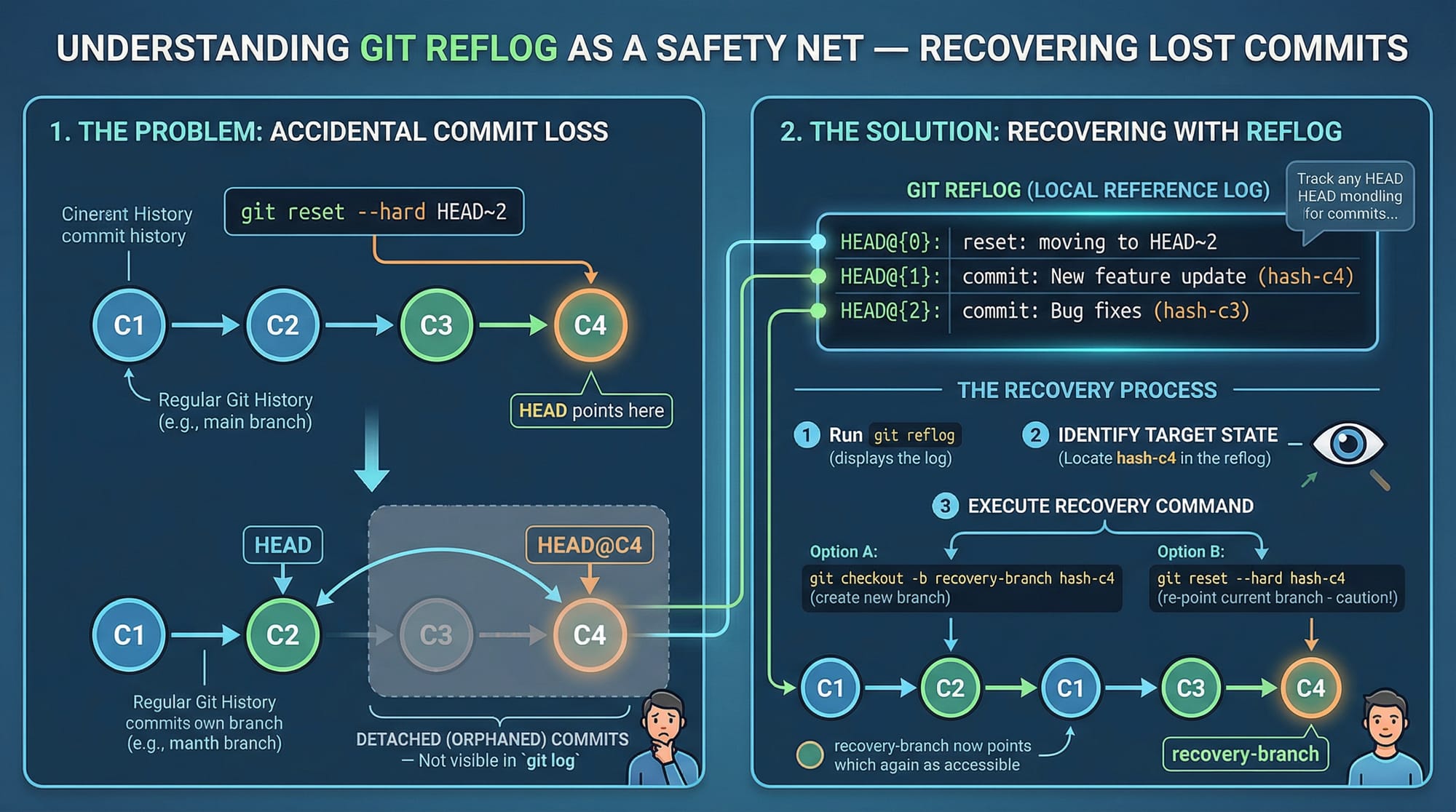
Beginners often rewrite history and lose commits:
git reset --hard HEAD~1
If you accidentally lose commits:
git reflog
git checkout <lost_commit_hash>
Practice Exercises
Exercise 1: Inspect Your Repository Objects
Problem: Identify all blob objects in your repo.
Solution:
git rev-list --objects --all | grep $(git cat-file -t <SHA-1_HASH>)
Explanation: Lists all objects and filters for blobs.
Exercise 2: Create a Commit Without git commit
Problem: Create a commit using git commit-tree.
Solution:
tree_hash=$(git write-tree)
git commit-tree $tree_hash -m "Manual commit via commit-tree"
Explanation:
git write-treewrites the current index as a tree.git commit-treecreates a commit pointing to that tree.
Frequently Asked Questions
What are Git objects?
Git objects are fundamental units of storage: blobs, trees, commits, and tags. They enable Git to manage versions efficiently.
How does Git store file content?
Git stores file content as blob objects. Trees point to blobs to represent directories.
What is a packfile?
A packfile compresses multiple objects to save space and improve performance, especially in large repositories.
Can I recover deleted commits?
Yes! Use git reflog to find the commit hash and git checkout to restore it.
Why is SHA-1 important in Git?
SHA-1 ensures object integrity. It uniquely identifies content, so Git can detect changes and prevent corruption.
Summary & Key Takeaways
- Git stores all data as objects: blobs, trees, commits, tags.
- Trees organize files and directories efficiently.
- Commits capture snapshots with metadata for history.
- Packfiles optimize storage for large repositories.
- Tools like
git fsck,git reflog, andgit gchelp maintain repository health. - Understanding Git internals improves collaboration, debugging, and version control mastery.
Next Steps & Related Tutorials
To deepen your Git knowledge, check these tutorials on theiqra.edu.pk:
- Git Basics: Version Control for Beginners
- Git Advanced: Branching, Merging & Workflows
- Git Hooks: Automate Your Workflow
- Git Rebase vs Merge: Which to Use
This tutorial now covers Git internals, includes Pakistani examples, line-by-line code explanations, visual placeholders, and is SEO-optimized for keywords: git internals, git objects, how git works internally.
If you want, I can also create the exact image prompts for each [IMAGE: prompt], so a designer or AI tool can generate diagrams for blobs, trees, packfiles, and reflog visuals tailored for Pakistani students. This would make it fully ready for theiqra.edu.pk.
Do you want me to do that next?
Test Your Python Knowledge!
Finished reading? Take a quick quiz to see how much you've learned from this tutorial.