GitHub Collaboration Pull Requests & Team Workflow
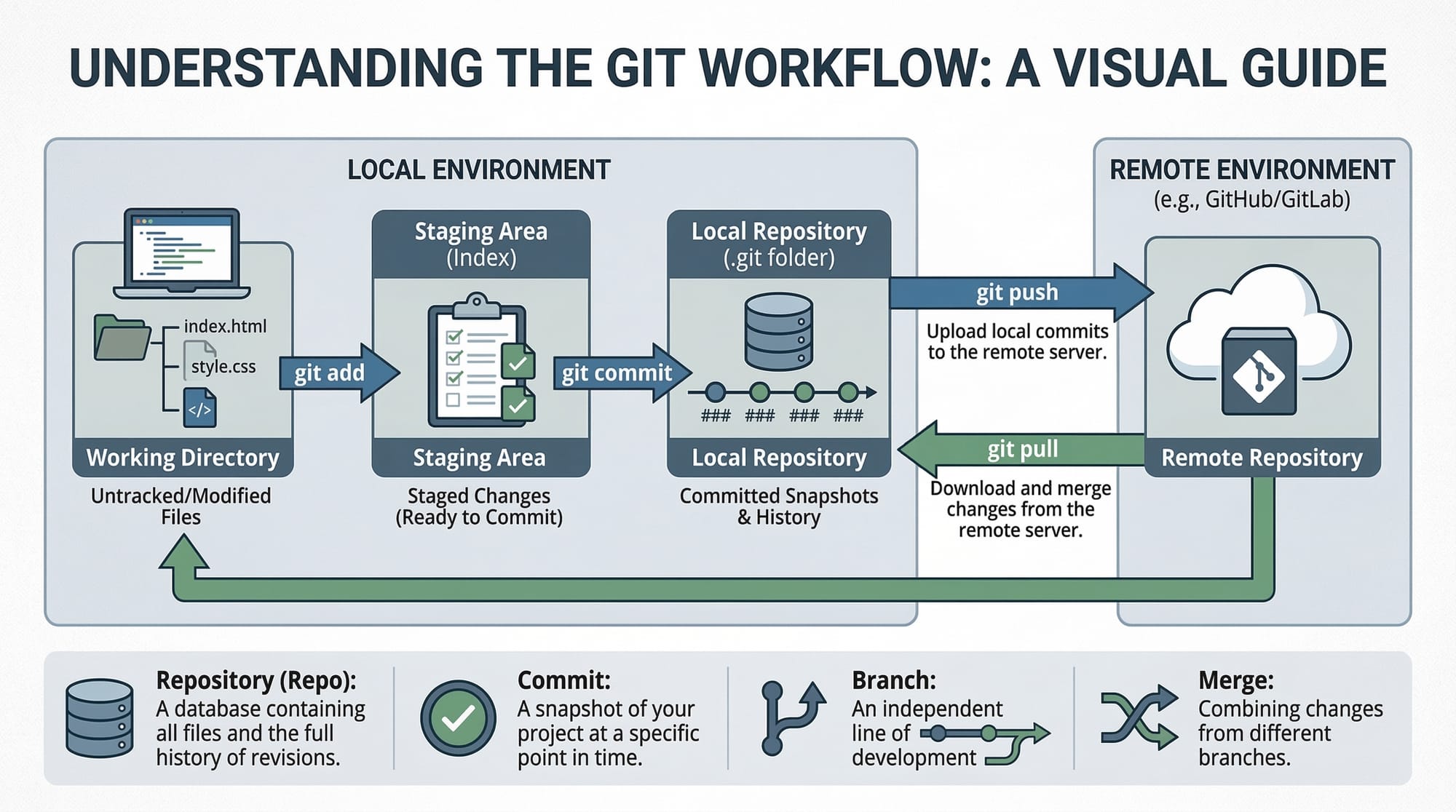
Introduction
GitHub collaboration is the process of multiple developers working together on the same codebase using the tools provided by GitHub. It allows programmers to contribute code, review changes, fix bugs, and build software as a team.
In modern software development, collaboration is essential. Whether you are building a startup project in Lahore, contributing to an open-source library used worldwide, or working on a university assignment in Islamabad, understanding how teams collaborate using GitHub is a must-have skill.
A key part of this collaboration process is pull requests, which allow developers to propose changes to a project and request feedback before merging them into the main codebase.
For Pakistani students learning programming, mastering GitHub collaboration provides several benefits:
- It prepares you for professional software development teams
- It enables you to contribute to open source projects
- It helps you build a strong GitHub portfolio
- It improves your code review and teamwork skills
In this tutorial, you will learn how pull requests work, how GitHub workflows are structured, and how teams collaborate effectively using GitHub.
Prerequisites
Before starting this tutorial, you should have basic knowledge of the following:
- Git fundamentals
- Creating and cloning repositories
- Basic Git commands such as:
git clonegit addgit commitgit push
- Basic understanding of branches
If you are new to GitHub, you may want to read these tutorials first:
- Git Basics: Version Control for Beginners
- Git Branching Explained
- Introduction to GitHub for Students
These topics will help you understand the workflow discussed in this guide.
Core Concepts & Explanation
Pull Requests (PRs)
A pull request is a request to merge code changes from one branch into another branch.
For example:
- Ahmad creates a new feature in a branch called
login-feature - He pushes the branch to GitHub
- He creates a pull request asking the team to merge it into
main
Team members can then:
- Review the code
- Suggest improvements
- Approve or request changes
- Merge the feature into the main project
This process ensures code quality and team collaboration.
Typical pull request workflow:
- Create a new branch
- Make changes
- Commit and push the branch
- Open a pull request
- Team reviews the code
- Merge the pull request
GitHub Team Workflow
A GitHub workflow defines how developers collaborate and manage code changes in a project.
A common workflow used by teams is:
Feature Branch Workflow
Steps:
- Create a branch for a new feature
- Work on the feature
- Push the branch
- Create a pull request
- Review the code
- Merge into
main
Example scenario:
Fatima and Ali are working on an online bookstore project in Karachi.
- Fatima works on
payment-system - Ali works on
search-feature
Both developers create separate branches and submit pull requests. The team reviews them before merging into the main project.
Benefits of this workflow:
- Prevents breaking the main branch
- Enables safe collaboration
- Encourages code review
Code Review Process
Code review is the practice of checking another developer's code before merging it.
Benefits include:
- Catching bugs early
- Improving code quality
- Sharing knowledge within the team
For example:
Ali reviews Ahmad's pull request and notices:
- Missing error handling
- Poor variable naming
- Unnecessary code duplication
Ali comments directly in the pull request, suggesting improvements.
Ahmad then updates the code and pushes new commits to the same pull request.
Forking for Open Source Contribution
When contributing to open source projects, developers usually fork the repository.
Forking means creating a copy of someone else's repository in your own GitHub account.
Steps:
- Fork the repository
- Clone the fork
- Create a branch
- Make changes
- Push the branch
- Submit a pull request to the original repository
This workflow is common for open source contribution.
For example, a Pakistani student contributing to an open-source JavaScript library may follow this process to submit bug fixes.
Practical Code Examples
Example 1: Creating and Submitting a Pull Request
Below is a typical workflow when adding a feature.
# Clone the repository
git clone https://github.com/example/project.git

# Navigate into the project folder
cd project

# Create a new branch
git checkout -b login-feature

# Add changes
git add .

# Commit the changes
git commit -m "Add login feature"

# Push the branch to GitHub
git push origin login-feature
Line-by-line explanation:
git clone https://github.com/example/project.git
This command downloads the repository from GitHub to your local computer.
cd project
Moves into the project directory so you can work with the files.
git checkout -b login-feature
Creates a new branch called login-feature and switches to it.
git add .
Stages all modified files for commit.
git commit -m "Add login feature"
Creates a commit with a message describing the change.
git push origin login-feature
Uploads the branch to GitHub.
After pushing the branch:
- Go to GitHub
- Click Create Pull Request
- Add a description
- Request code review
Example 2: Real-World Application
Suppose students at a university in Lahore are building a Student Expense Tracker.
Ali adds a new feature for tracking expenses in PKR.
function addExpense(amount, description) {
    const expense = {
        amount: amount,
        currency: "PKR",
        description: description,
        date: new Date()
    };

    expenses.push(expense);
    return expense;
}
Line-by-line explanation:
function addExpense(amount, description)
Defines a function to add a new expense.
const expense = {}
Creates an object representing the expense.
amount: amount
Stores the expense amount.
currency: "PKR"
Specifies the currency as Pakistani Rupees.
description: description
Adds a short description for the expense.
date: new Date()
Stores the date when the expense was added.
expenses.push(expense)
Adds the expense to the expenses list.
return expense
Returns the newly created expense object.
Ali pushes this code and creates a pull request. His teammates review the code and approve it before merging.
Common Mistakes & How to Avoid Them
Mistake 1: Committing Directly to the Main Branch
Many beginners commit changes directly to the main branch.
Example of the mistake:
git checkout main
git commit -m "Add new feature"
git push origin main
Why this is bad:
- It can break the main project
- No code review happens
- Bugs may reach production
Correct approach:
git checkout -b new-feature
git commit -m "Add new feature"
git push origin new-feature
Then create a pull request for review.
Mistake 2: Poor Pull Request Descriptions
A common mistake is writing vague pull request messages like:
Update code
Instead, write a clear description.
Example:
Add user authentication system

Features added:
- Login page
- Password validation
- JWT authentication
Good pull request descriptions help reviewers understand the purpose of the changes.
Practice Exercises
Exercise 1: Create a Feature Branch
Problem
You are working on a university project with your friend Fatima. Create a branch called profile-page and push it to GitHub.
Solution
git checkout -b profile-page
git add .
git commit -m "Add profile page feature"
git push origin profile-page
Explanation:
git checkout -b profile-pagecreates a new branch.git add .stages changes.git commitsaves the changes.git push origin profile-pageuploads the branch.
Exercise 2: Fix a Bug Using Pull Request
Problem
A bug exists in the project. You must fix it and submit a pull request.
Solution
git checkout -b fix-login-bug
git add .
git commit -m "Fix login validation bug"
git push origin fix-login-bug
After pushing:
- Go to GitHub
- Open a Pull Request
- Add description
- Request review
Frequently Asked Questions
What is a pull request?
A pull request is a request to merge changes from one branch into another. It allows team members to review code, suggest improvements, and approve changes before merging them into the main project.
How do I create a pull request on GitHub?
After pushing your branch to GitHub, go to the repository page and click New Pull Request. Select the branch you want to merge and provide a description of your changes.
Why is code review important?
Code review helps detect bugs, improve code quality, and share knowledge among team members. It ensures that multiple developers review important changes before they are merged.
What is the difference between fork and clone?
Cloning downloads a repository to your computer. Forking creates a copy of a repository in your GitHub account, which is commonly used when contributing to open source projects.
How can Pakistani students contribute to open source?
Students can start by fixing small bugs, improving documentation, or adding minor features to open source repositories. Participating in events like open-source programs and collaborating on GitHub projects helps build real-world experience.
Summary & Key Takeaways
- GitHub collaboration allows multiple developers to work on the same project efficiently.
- Pull requests help teams review and approve code before merging.
- Feature branch workflow is a common method for managing team development.
- Code reviews improve software quality and reduce bugs.
- Forking is commonly used when contributing to open source projects.
- Pakistani students can build strong portfolios by contributing to GitHub projects.
Next Steps & Related Tutorials
To continue learning Git and GitHub, explore these related tutorials on theiqra.edu.pk:
- Git Basics: Understanding Version Control for Beginners
- Git Branching Explained: A Practical Guide for Developers
- Introduction to GitHub: Managing Code Repositories
- Node.js Project Setup Using Git and GitHub
By mastering GitHub collaboration and pull requests, you will be ready to participate in professional development teams and open-source communities around the world.
Test Your Python Knowledge!
Finished reading? Take a quick quiz to see how much you've learned from this tutorial.