Gradio Tutorial Build AI Demo Apps in Python 2026
Introduction
The Gradio tutorial: build AI demo apps in Python 2026 is your gateway to creating interactive machine learning applications with minimal code. Whether you want to showcase a chatbot, image classifier, or speech recognition tool, Gradio Python makes it incredibly simple to turn your models into user-friendly web apps.
For Pakistani students in cities like Lahore, Karachi, and Islamabad, learning how to build AI app Gradio projects is a powerful skill. Many freelancing platforms (like Fiverr and Upwork) demand demo apps for AI projects, and Gradio helps you create them quickly without needing deep frontend knowledge.
Gradio is widely used in the AI community, especially with tools like Hugging Face, and is ideal for students like Ahmad or Fatima who want to showcase their ML projects professionally.
Prerequisites
Before starting this Gradio tutorial, you should have:
- Basic knowledge of Python (functions, variables, loops)
- Familiarity with machine learning concepts (optional but helpful)
- Installed Python (3.8 or above)
- Basic understanding of libraries like NumPy or Pandas
- A code editor like VS Code
Core Concepts & Explanation
Gradio Interface: The Simplest Way to Build Apps
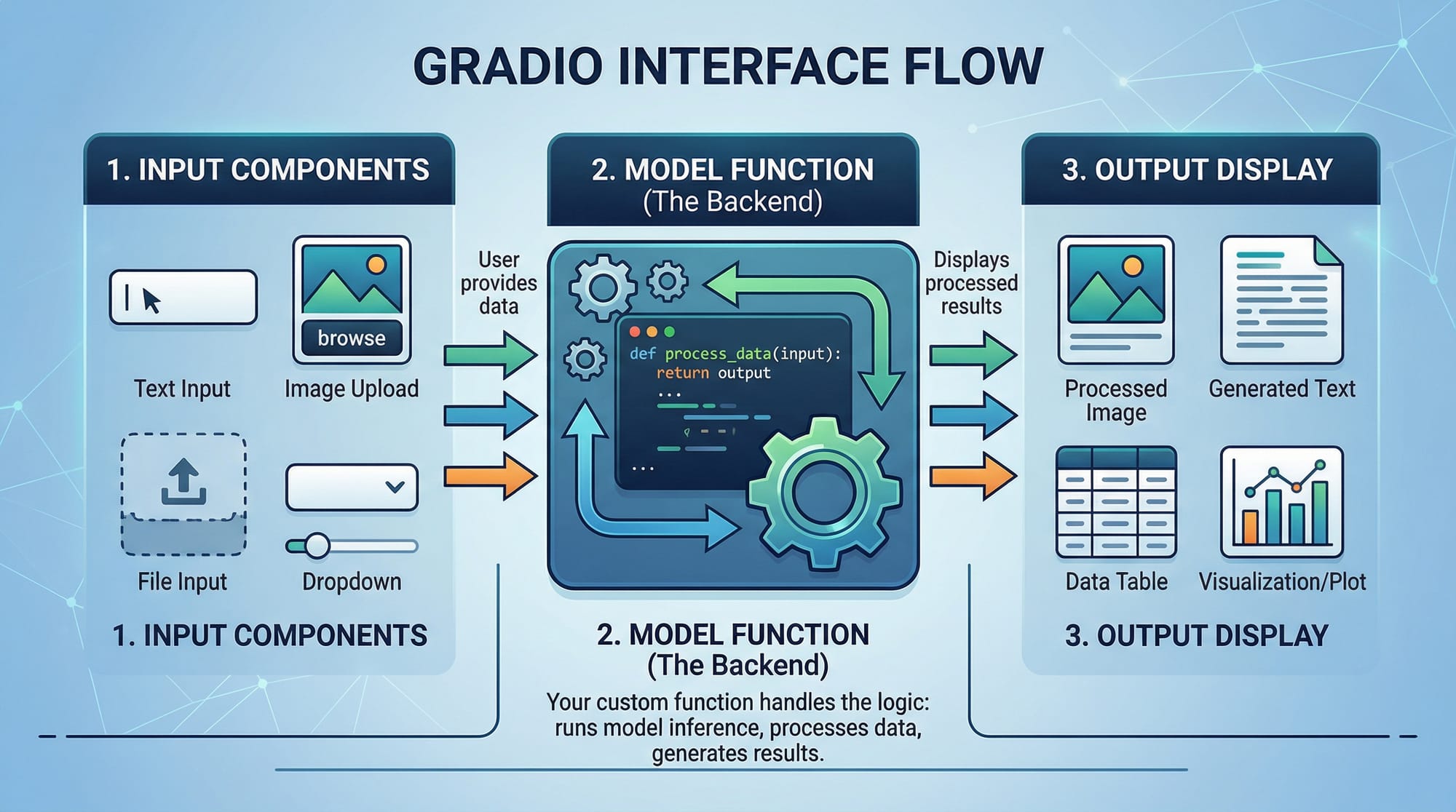
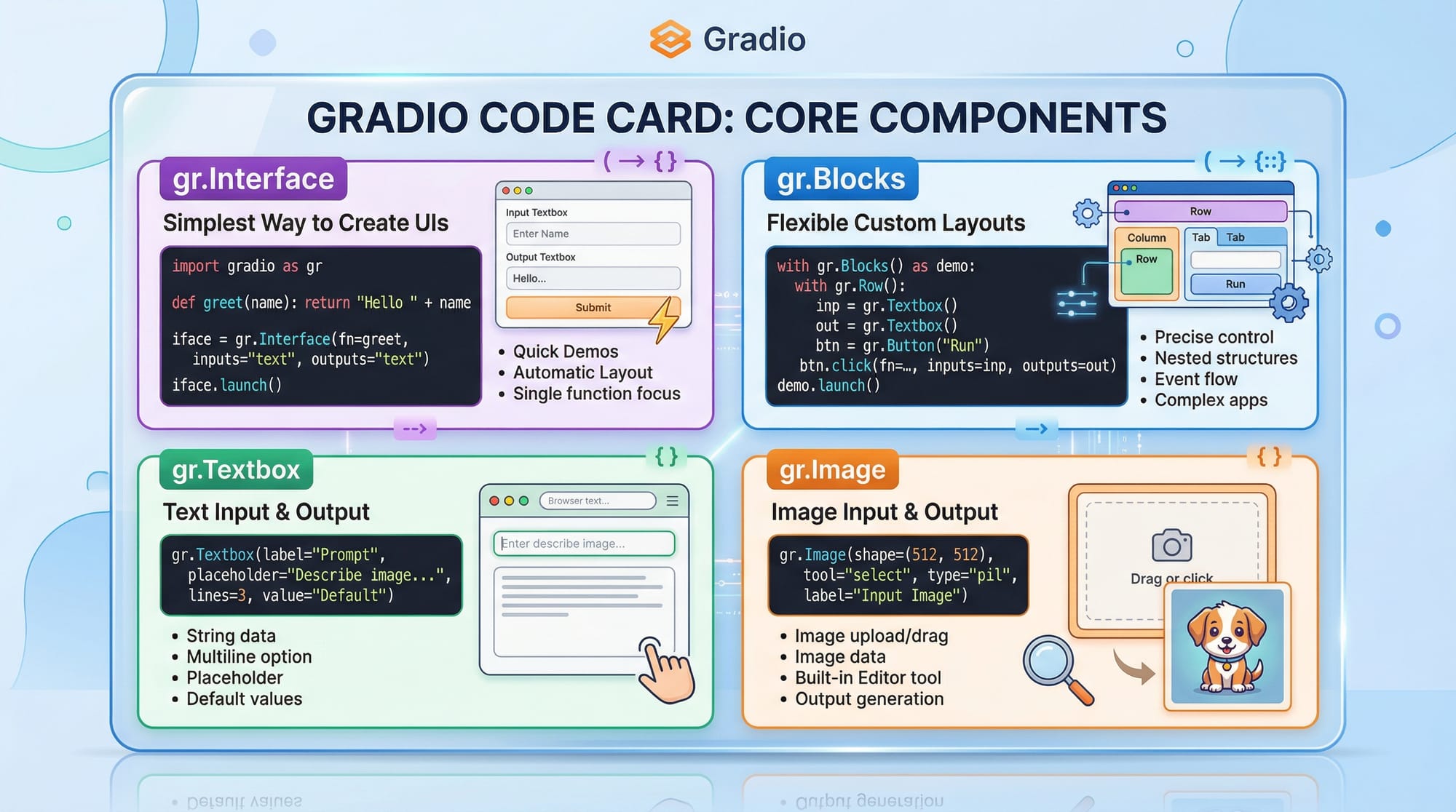
The gr.Interface is the easiest way to create an AI demo app. It connects:
- Input components (e.g., textbox, image)
- A Python function (your model logic)
- Output components (e.g., label, text)
Example Concept:
You write a function that takes input → processes it → returns output. Gradio wraps it into a web UI.
Gradio Blocks: Advanced Layout & Customization
gr.Blocks is a more flexible way to design apps. It allows:
- Multiple inputs/outputs
- Custom layouts (rows, columns)
- Buttons, sliders, and more control
This is useful for complex apps like dashboards or multi-step workflows.
Gradio Components: Building Blocks of UI
Gradio provides ready-made UI components:
gr.Textbox→ for text inputgr.Image→ for image input/outputgr.Button→ triggers actionsgr.Label→ classification results
Practical Code Examples
Example 1: Simple Text Sentiment App
Let’s build a basic AI app that classifies sentiment.
import gradio as gr

def sentiment_analysis(text):
    if "good" in text.lower():
        return "Positive 😊"
    else:
        return "Negative 😞"

interface = gr.Interface(
    fn=sentiment_analysis,
    inputs="text",
    outputs="text"
)

interface.launch()
Line-by-line explanation:
import gradio as gr
→ Imports the Gradio library.def sentiment_analysis(text):
→ Defines a function that takes user input.if "good" in text.lower():
→ Checks if the word “good” exists in the input.return "Positive 😊"
→ Returns positive sentiment.interface = gr.Interface(...)
→ Creates the UI interface.fn=sentiment_analysis
→ Connects function to UI.inputs="text"
→ Defines input type.outputs="text"
→ Defines output type.interface.launch()
→ Runs the app locally in a browser.
Example 2: Real-World Application (Student Marks Predictor)
Let’s create a practical app for Pakistani students to predict grades.
import gradio as gr

def predict_grade(marks):
    if marks >= 85:
        return "A Grade"
    elif marks >= 70:
        return "B Grade"
    elif marks >= 50:
        return "C Grade"
    else:
        return "Fail"

demo = gr.Interface(
    fn=predict_grade,
    inputs=gr.Number(label="Enter Marks"),
    outputs=gr.Textbox(label="Predicted Grade")
)

demo.launch(share=True)
Line-by-line explanation:
def predict_grade(marks):
→ Function takes marks as input.if marks >= 85:
→ Checks grade condition.return "A Grade"
→ Returns result.inputs=gr.Number(...)
→ Numeric input field.outputs=gr.Textbox(...)
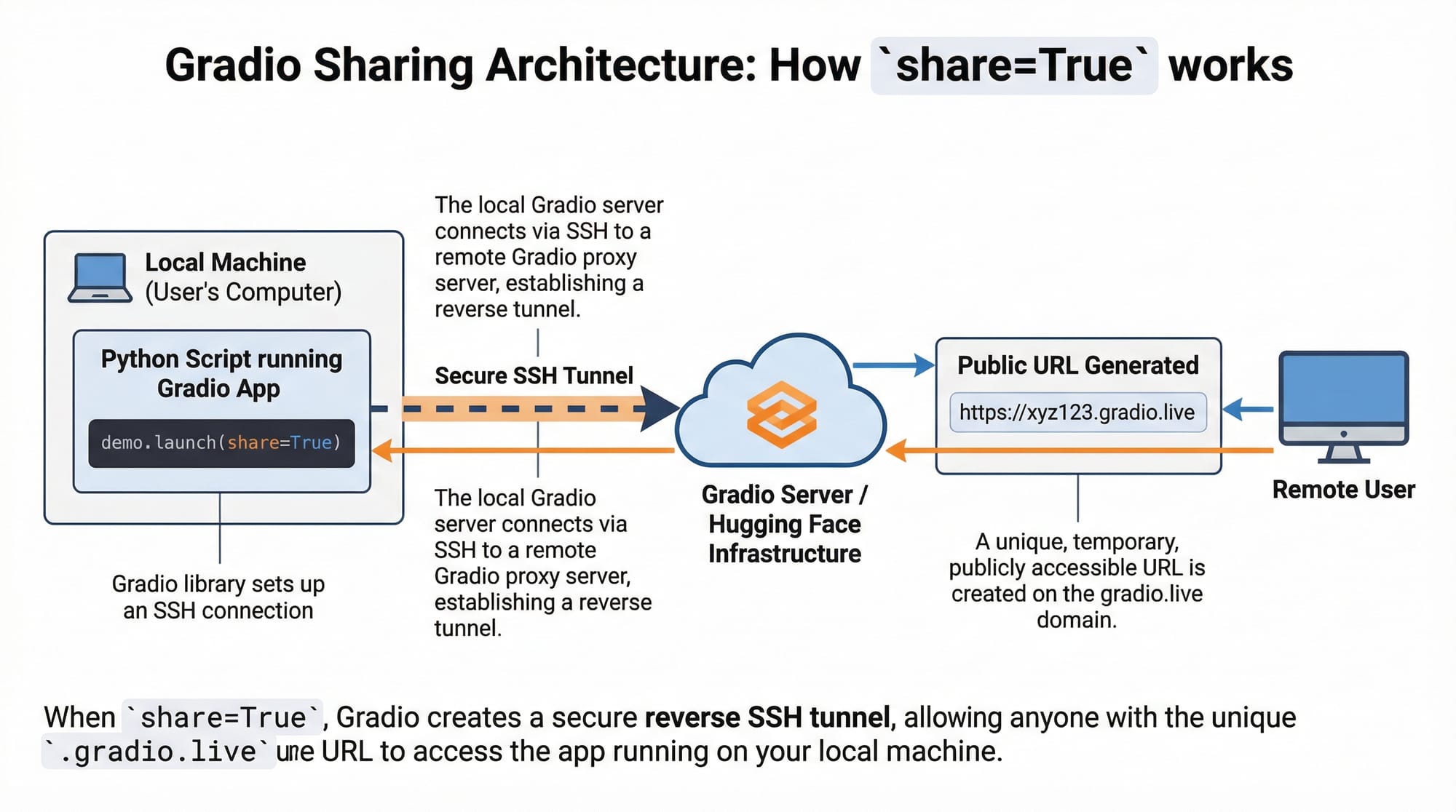
→ Output display box.share=True
→ Generates a public link (useful for sharing with teachers or clients).
Common Mistakes & How to Avoid Them
Mistake 1: Wrong Input/Output Types
Problem:
Using incorrect input/output types causes errors.
inputs="image"
outputs="text"
But function expects text → mismatch.
Fix:
inputs="text"
outputs="text"
Always match input type with function parameter.
Mistake 2: Forgetting to Launch the App
Problem:
Students often forget:
interface.launch()
Without this, the app won’t run.
Fix:
Always include .launch() at the end.
Mistake 3: Not Using share=True for Remote Access
If Ahmad wants to show his project to a client in Karachi, local hosting won’t work.
Fix:
demo.launch(share=True)
Practice Exercises
Exercise 1: Name Greeting App
Problem:
Create an app that takes a name and returns “Hello, [Name] from Pakistan!”
Solution:
import gradio as gr

def greet(name):
    return f"Hello, {name} from Pakistan!"

app = gr.Interface(fn=greet, inputs="text", outputs="text")
app.launch()
Exercise 2: PKR Currency Converter
Problem:
Convert USD to PKR (assume 1 USD = 280 PKR).
Solution:
import gradio as gr

def convert_usd_to_pkr(usd):
    return usd * 280

app = gr.Interface(
    fn=convert_usd_to_pkr,
    inputs=gr.Number(label="USD"),
    outputs=gr.Number(label="PKR")
)

app.launch()
Frequently Asked Questions
What is Gradio in Python?
Gradio is a Python library that allows you to quickly create web interfaces for machine learning models. It connects your Python functions to a browser-based UI without requiring frontend development skills.
How do I install Gradio?
You can install Gradio using pip:
pip install gradio
Make sure your Python environment is properly set up before installation.
Can I deploy Gradio apps online?
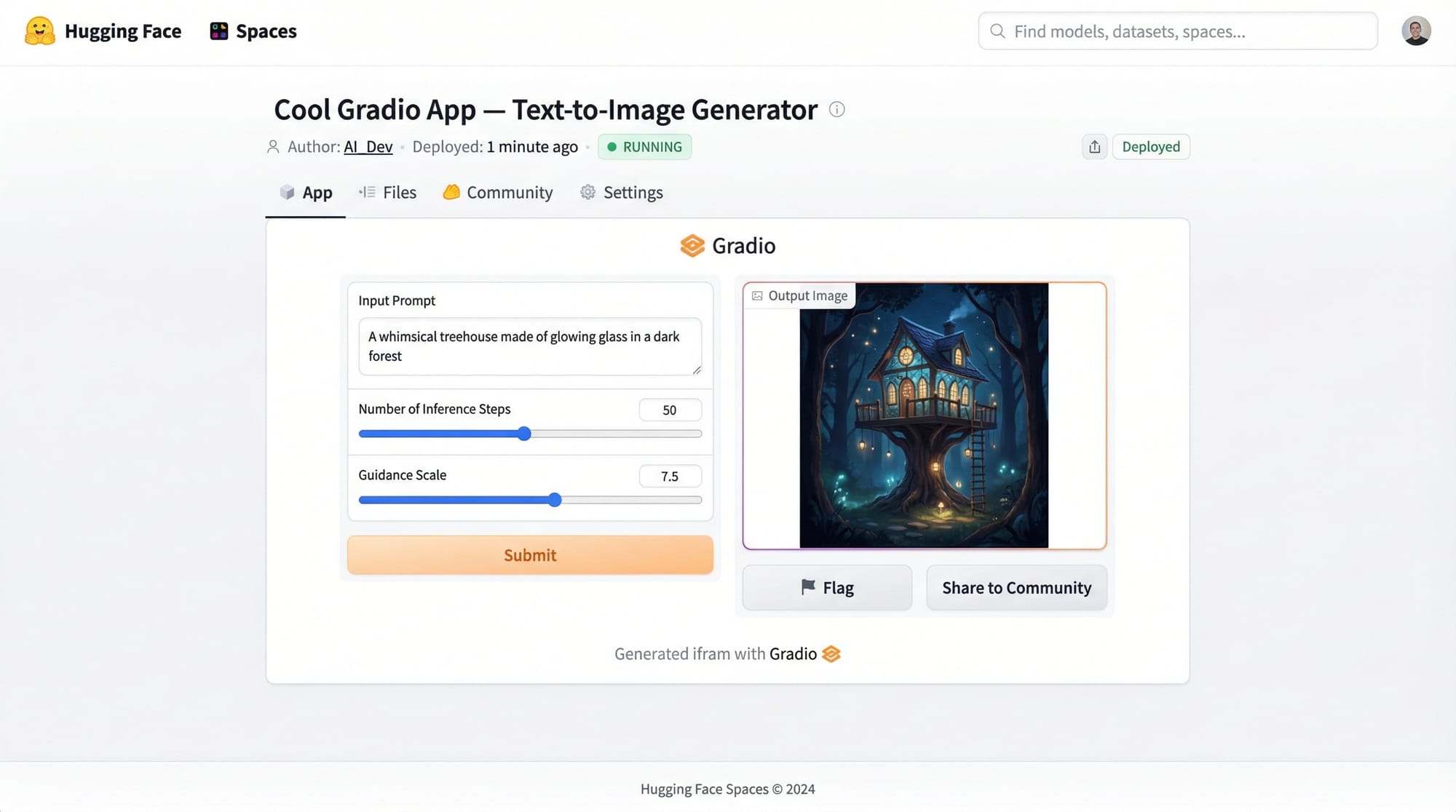
Yes, you can deploy Gradio apps using platforms like Hugging Face Spaces or by using the share=True option for temporary public links.
Is Gradio good for beginners?
Yes, Gradio is beginner-friendly and perfect for students learning AI. It requires minimal code and helps visualize projects quickly.
How is Gradio different from Streamlit?
Gradio focuses more on AI model interfaces, while Streamlit is better for data dashboards. Both are useful, and many developers use them together.
Summary & Key Takeaways
- Gradio is a powerful tool to build AI app Gradio projects quickly
gr.Interfaceis best for simple apps, whilegr.Blocksoffers flexibility- You don’t need frontend skills to create interactive apps
share=Truehelps you showcase projects online- Perfect for Pakistani students building portfolios or freelancing
- Supports multiple input types like text, image, and audio
Next Steps & Related Tutorials
To deepen your learning, explore these related tutorials on theiqra.edu.pk:
- Learn how to build dashboards in our Streamlit Tutorial for Python Beginners
- Explore model hosting in the Hugging Face Tutorial for AI Students
- Understand data handling in the Pandas Tutorial for Data Analysis
- Build APIs with the FastAPI Tutorial for Python Developers
These tutorials will help you expand your skills and become a complete AI developer ready for real-world projects in Pakistan and beyond.
Test Your Python Knowledge!
Finished reading? Take a quick quiz to see how much you've learned from this tutorial.