HTML Canvas API Drawing Animation & Mini Games
Introduction
The HTML Canvas API: Drawing, Animation & Mini Games is a powerful feature of HTML5 that allows developers to draw graphics, animations, and even build games directly in the browser using JavaScript. Unlike static HTML elements, the canvas behaves like a digital drawing board where every pixel can be controlled programmatically.
For Pakistani students learning web development—especially those from schools and universities in Lahore, Karachi, Islamabad, and smaller cities—the canvas API opens the door to real-world creative programming. You can build games like “Car Racing,” educational simulations, and interactive dashboards that work in browsers without any extra software.
It is widely used in modern web apps, online games, data visualizations, and animations. Learning it gives you a strong foundation in JavaScript graphics programming, making you job-ready for frontend and game development roles.
Prerequisites
Before learning the html canvas tutorial, make sure you understand the following basics:
- HTML fundamentals (tags, structure, elements)
- Basic CSS styling
- JavaScript basics (variables, functions, loops, events)
- DOM manipulation (querySelector, event listeners)
If you are not confident in these, first complete:
- HTML Basics tutorial on theiqra.edu.pk
- JavaScript Tutorial on theiqra.edu.pk
Having these skills will make the canvas api javascript concepts much easier to understand.
Core Concepts & Explanation
1. Canvas Element and 2D Context
The <canvas> element is a container for graphics. By itself, it has no drawing ability. You must use JavaScript to access its drawing “context.”
Example:
<canvas id="myCanvas" width="400" height="300"></canvas>
let canvas = document.getElementById("myCanvas");
let ctx = canvas.getContext("2d");
Line-by-line explanation:
let canvas = document.getElementById("myCanvas");→ Selects the canvas element from HTMLlet ctx = canvas.getContext("2d");→ Gets the 2D drawing tool (context) used for shapes, lines, and animations
This ctx object is the heart of all canvas drawing.
2. Drawing Shapes on Canvas
The canvas API allows drawing rectangles, circles, lines, and paths.
Example:
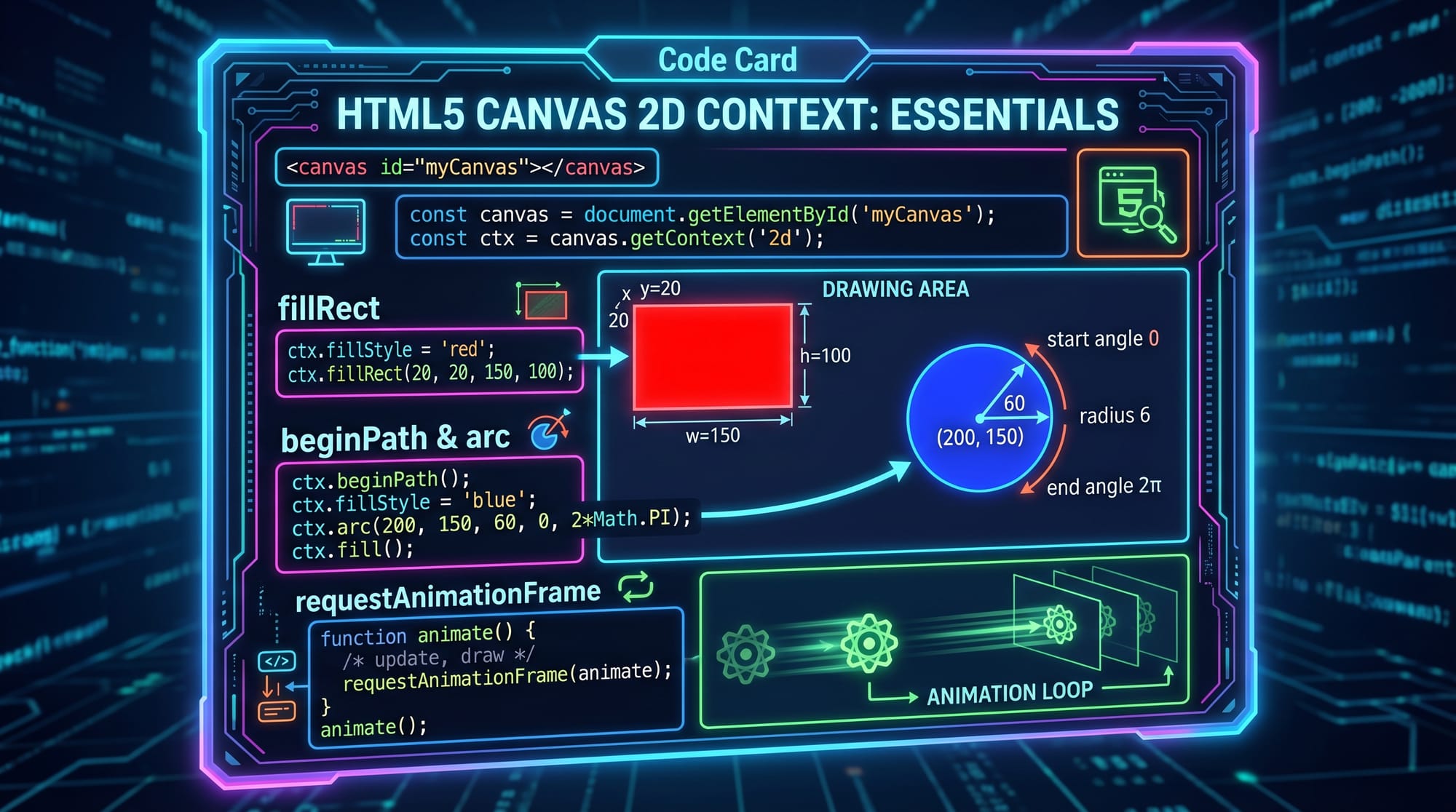
ctx.fillStyle = "blue";
ctx.fillRect(50, 50, 150, 100);
Line-by-line explanation:
ctx.fillStyle = "blue";→ Sets the fill color to bluectx.fillRect(50, 50, 150, 100);→ Draws a rectangle at (x=50, y=50) with width 150 and height 100
To draw a circle:
ctx.beginPath();
ctx.arc(200, 150, 50, 0, Math.PI * 2);
ctx.fill();
Explanation:
beginPath()→ Starts a new shapearc()→ Creates a circle (center x, center y, radius, start angle, end angle)fill()→ Fills the circle with color
3. Animation Using requestAnimationFrame
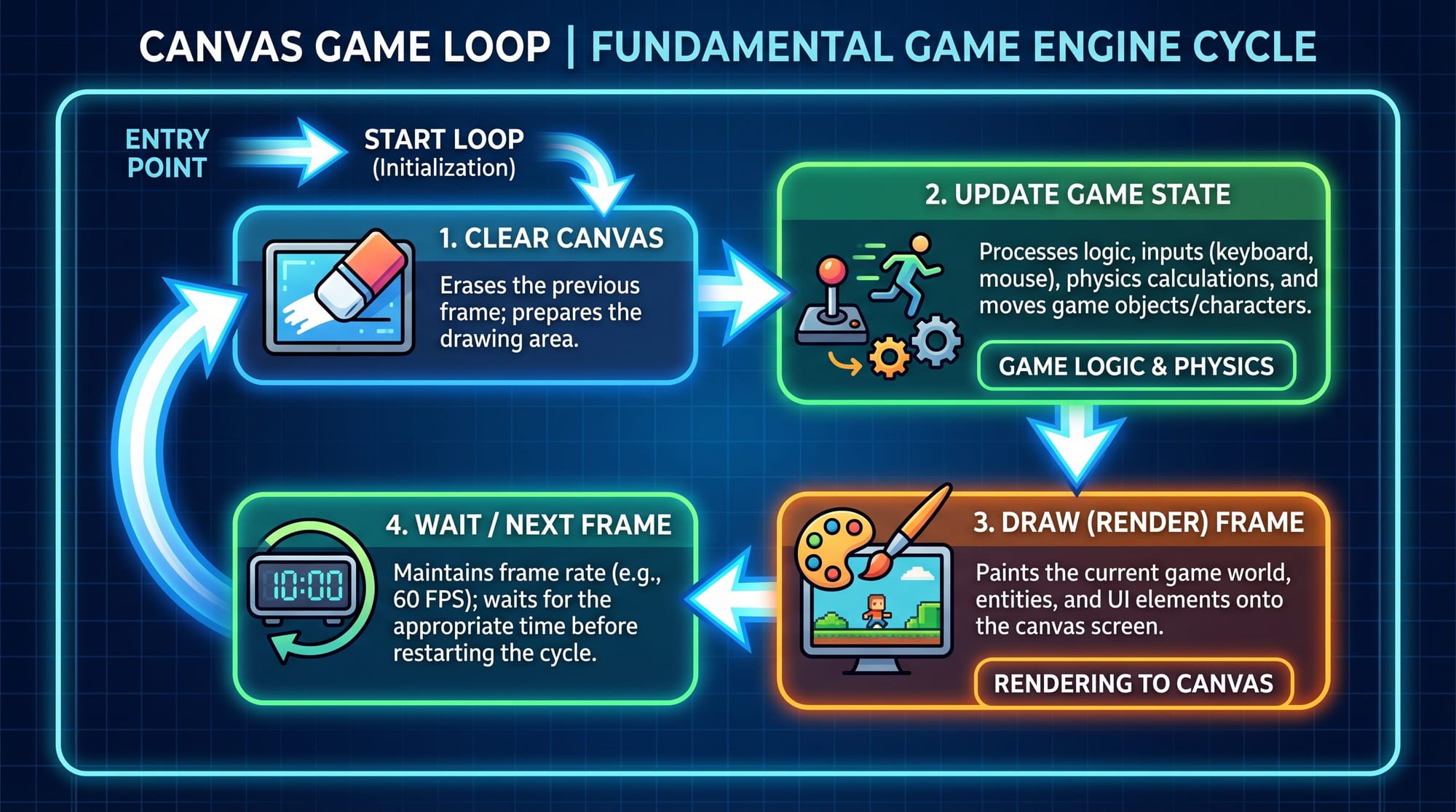
Animation in canvas works by repeatedly drawing frames.
function animate() {
    ctx.clearRect(0, 0, canvas.width, canvas.height);

    ctx.fillStyle = "red";
    ctx.fillRect(x, 100, 50, 50);

    x += 2;

    requestAnimationFrame(animate);
}

let x = 0;
animate();
Line-by-line explanation:
function animate()→ Creates animation loopclearRect(...)→ Clears previous frame to avoid trailsfillRect(...)→ Draws moving squarex += 2;→ Moves object to the rightrequestAnimationFrame(animate);→ Calls function again for smooth animation
This is the foundation of all canvas games and animations.
Practical Code Examples
Example 1: Bouncing Ball Animation
This example demonstrates a ball bouncing inside the canvas.
let x = 100;
let y = 100;
let dx = 3;
let dy = 2;
let radius = 20;

function drawBall() {
    ctx.clearRect(0, 0, canvas.width, canvas.height);

    ctx.beginPath();
    ctx.arc(x, y, radius, 0, Math.PI * 2);
    ctx.fillStyle = "green";
    ctx.fill();

    x += dx;
    y += dy;

    if (x + radius > canvas.width || x - radius < 0) {
        dx = -dx;
    }

    if (y + radius > canvas.height || y - radius < 0) {
        dy = -dy;
    }

    requestAnimationFrame(drawBall);
}

drawBall();
Line-by-line explanation:
- Variables
x,y→ ball position dx,dy→ movement speedclearRect()→ clears old framearc()→ draws ballfillStyle→ sets colorx += dx→ moves horizontallyy += dy→ moves verticallyifconditions → reverse direction when hitting edgesrequestAnimationFrame()→ keeps animation running
Example 2: Simple Mini Game (Paddle & Ball)
This is a basic canvas mini game similar to Pong.
let paddleX = 150;
let ballX = 200;
let ballY = 100;
let dx = 2;
let dy = 2;

document.addEventListener("keydown", function(e) {
    if (e.key === "ArrowLeft") paddleX -= 20;
    if (e.key === "ArrowRight") paddleX += 20;
});

function gameLoop() {
    ctx.clearRect(0, 0, canvas.width, canvas.height);

    // Paddle
    ctx.fillStyle = "black";
    ctx.fillRect(paddleX, 280, 80, 10);

    // Ball
    ctx.beginPath();
    ctx.arc(ballX, ballY, 10, 0, Math.PI * 2);
    ctx.fillStyle = "red";
    ctx.fill();

    ballX += dx;
    ballY += dy;

    // Wall collision
    if (ballX > canvas.width || ballX < 0) dx = -dx;
    if (ballY < 0) dy = -dy;

    // Paddle collision
    if (ballY + 10 >= 280 && ballX > paddleX && ballX < paddleX + 80) {
        dy = -dy;
    }

    requestAnimationFrame(gameLoop);
}

gameLoop();
Line-by-line explanation:
paddleX→ position of paddleballX,ballY→ ball positionkeydown event→ moves paddle left/rightfillRect()→ draws paddlearc()→ draws ball- collision logic → reverses direction on hit
requestAnimationFrame()→ smooth game loop
Common Mistakes & How to Avoid Them
Mistake 1: Not Clearing Canvas Before Drawing
Many beginners forget to clear the canvas, causing trails and overlapping graphics.
Wrong:
ctx.fillRect(x, 100, 50, 50);
x++;
Fix:
ctx.clearRect(0, 0, canvas.width, canvas.height);
ctx.fillRect(x, 100, 50, 50);
x++;
Explanation:
- Without clearing, previous frames remain visible
clearRect()resets the frame each time
Mistake 2: Using Wrong Coordinate System
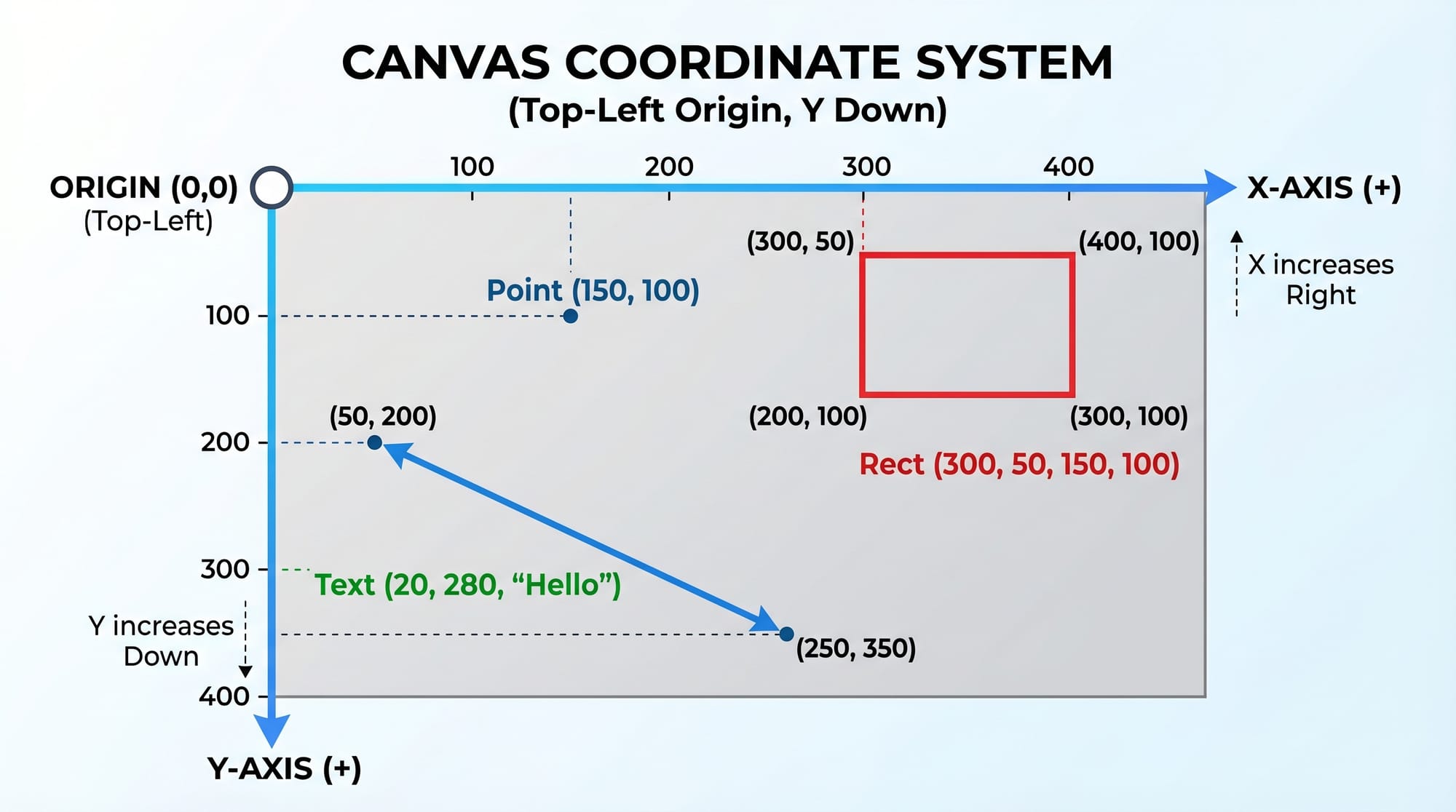
Beginners often assume the center is (0,0), but in canvas:
- (0,0) is TOP-LEFT
- X increases → right
- Y increases → down
Fix strategy:
- Always calculate positions based on canvas width/height
- Use variables like
canvas.width / 2
Practice Exercises
Exercise 1: Moving Square
Problem: Create a square that moves diagonally across the screen.
Solution:
let x = 0;
let y = 0;

function moveSquare() {
    ctx.clearRect(0, 0, canvas.width, canvas.height);

    ctx.fillStyle = "blue";
    ctx.fillRect(x, y, 40, 40);

    x += 2;
    y += 2;

    requestAnimationFrame(moveSquare);
}

moveSquare();
Explanation:
- Square starts at (0,0)
- Moves diagonally using x and y increments
- Animation loop keeps it running
Exercise 2: Color-Changing Circle
Problem: Draw a circle that changes color every second.
Solution:
let colors = ["red", "blue", "green", "orange"];
let i = 0;

function drawCircle() {
    ctx.clearRect(0, 0, canvas.width, canvas.height);

    ctx.beginPath();
    ctx.arc(200, 150, 40, 0, Math.PI * 2);
    ctx.fillStyle = colors[i];
    ctx.fill();

    i = (i + 1) % colors.length;
}

setInterval(drawCircle, 1000);
Explanation:
colors[]→ list of colorssetInterval()→ runs every 1 second%operator cycles through colors
Frequently Asked Questions
What is HTML Canvas API used for?
The HTML Canvas API is used to draw graphics, animations, and games in web browsers using JavaScript. It allows developers to create dynamic visuals instead of static images.
How do I start learning canvas in JavaScript?
Start by learning basic HTML and JavaScript. Then practice drawing shapes using fillRect, arc, and understanding getContext('2d').
Can I create games using Canvas API?
Yes, you can build simple to advanced browser games like Pong, Flappy Bird clones, and racing games using canvas and JavaScript logic.
Why is requestAnimationFrame important?
It ensures smooth animations by syncing with the browser’s refresh rate, making movement look natural and efficient.
Is Canvas API useful for Pakistani students?
Yes, it is highly useful for students in Pakistan because it builds strong programming skills needed for freelancing, internships, and frontend development jobs.
Summary & Key Takeaways
- Canvas API allows drawing graphics using JavaScript
- It uses a coordinate system starting from top-left
getContext('2d')is essential for all drawingsrequestAnimationFrameis used for smooth animations- Canvas is widely used for games and interactive web apps
- Learning canvas improves frontend development skills
Next Steps & Related Tutorials
Now that you understand the html canvas tutorial, you should continue learning advanced JavaScript concepts and UI development.
Recommended tutorials on theiqra.edu.pk:
- JavaScript Tutorial → Learn variables, loops, and functions in depth
- HTML Basics → Strengthen your foundation in web structure
- CSS Animations Guide → Learn how animations work in modern websites
- Interactive Web Apps with JavaScript → Build real-world projects
If you want, I can also turn this into a step-by-step mini game project (Flappy Bird or Car Racing in Canvas) for your students.
Test Your Python Knowledge!
Finished reading? Take a quick quiz to see how much you've learned from this tutorial.