HTML Drag and Drop API Interactive UIs Tutorial
Introduction
The HTML Drag and Drop API: Interactive UIs Tutorial is a powerful feature of modern web development that allows users to move elements on a webpage using a mouse or touch gestures. This makes websites more interactive, user-friendly, and closer to real-world desktop applications.
With the html drag and drop feature, users can drag items like images, text, files, or cards and drop them into different areas of a webpage. It is widely used in applications such as task boards, file upload zones, shopping carts, and educational tools.
For Pakistani students learning web development in cities like Lahore, Karachi, and Islamabad, mastering the drag drop api javascript is a valuable skill. It helps you build modern UI features seen in platforms like Trello, Google Drive, and online learning dashboards.
Prerequisites
Before learning the HTML Drag and Drop API, students should understand:
- Basic HTML structure (tags, attributes)
- CSS fundamentals (styling, positioning)
- JavaScript basics (functions, events, DOM manipulation)
- Understanding of event listeners in JavaScript
If you are new, first check:
- HTML Basics tutorial on theiqra.edu.pk
- JavaScript DOM tutorial on theiqra.edu.pk
Core Concepts & Explanation
Understanding draggable HTML Elements
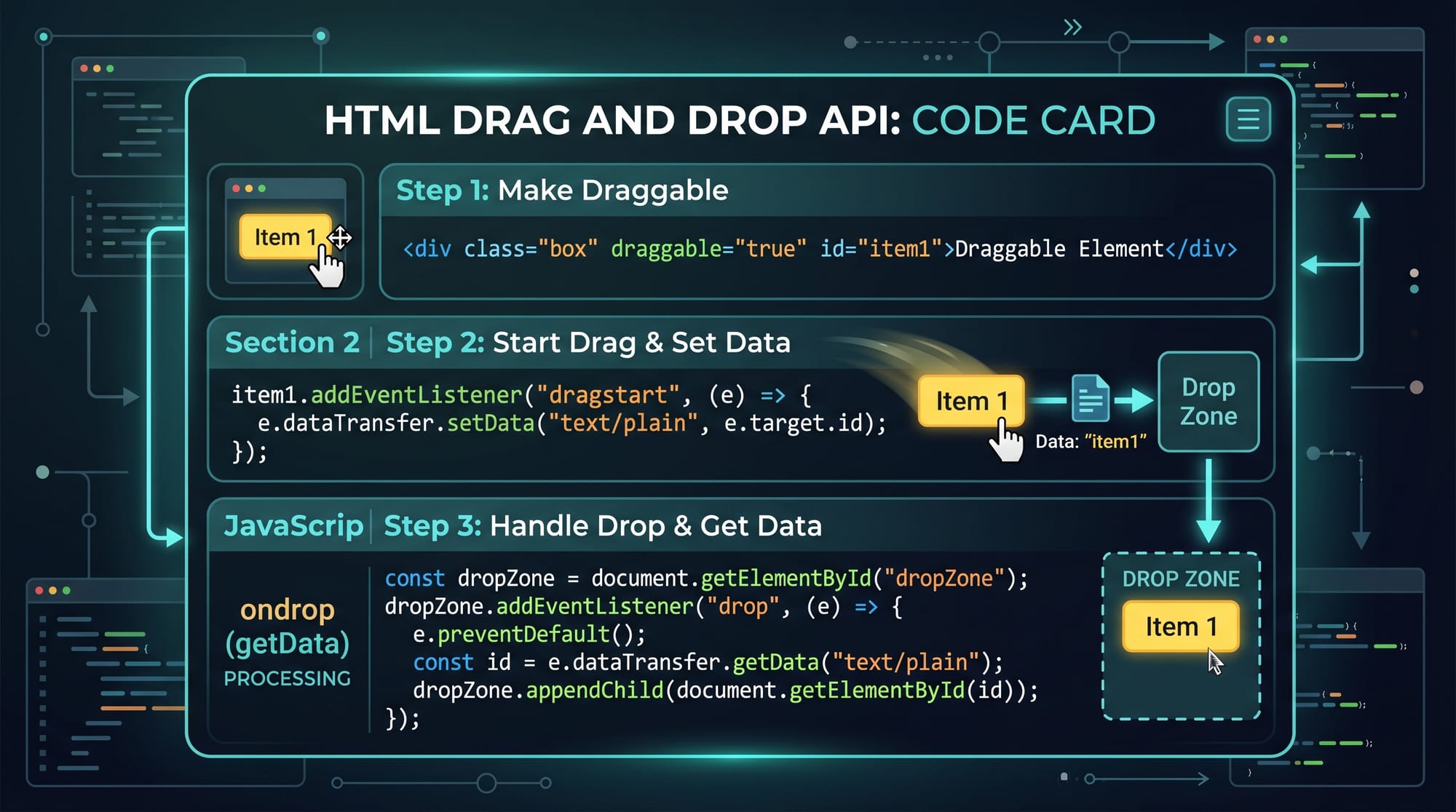
To make any HTML element draggable, we use the draggable="true" attribute. This tells the browser that the element can be moved.
Example:
<div draggable="true">Drag Me</div>
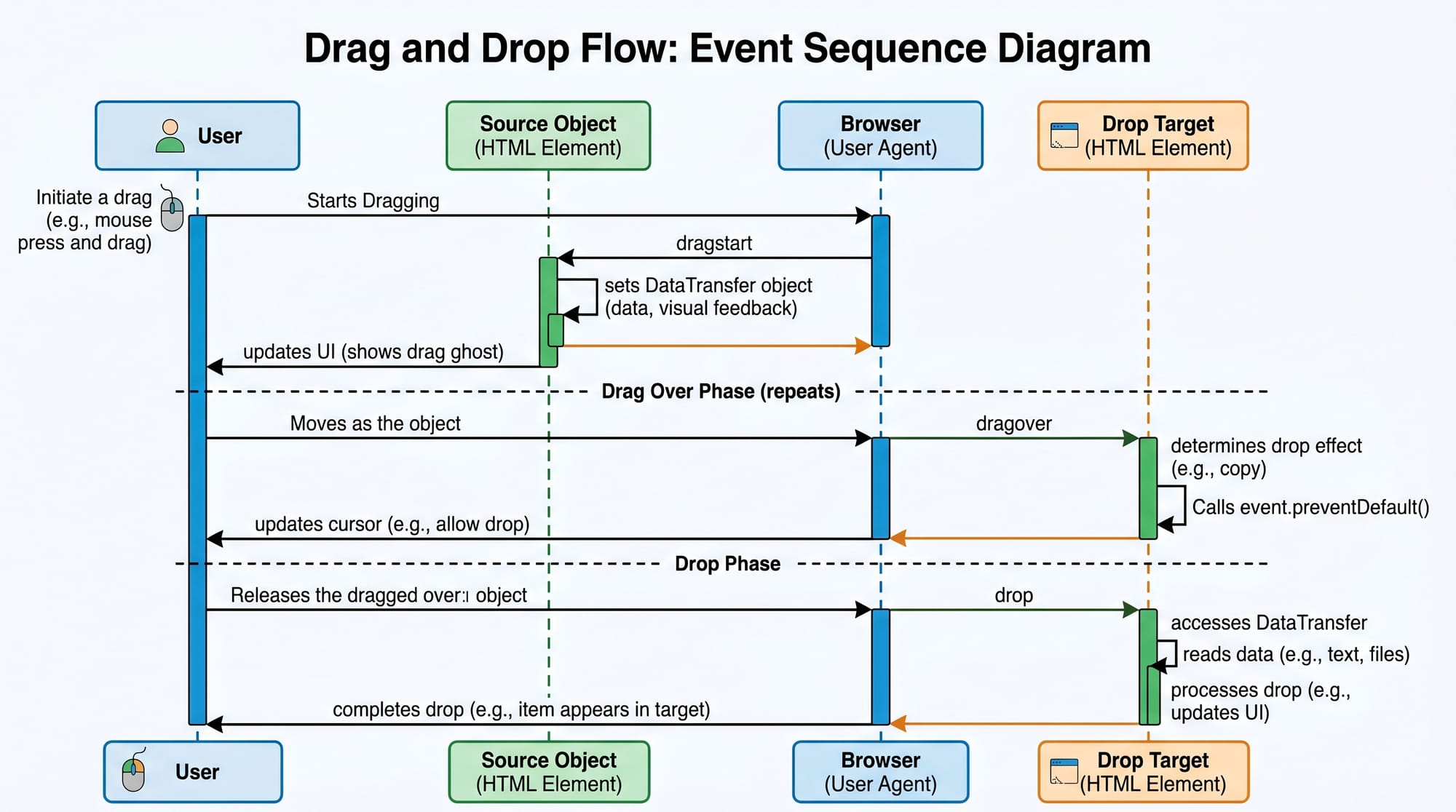
When this element is dragged, JavaScript events are triggered like:
dragstartdragoverdrop
These events control how dragging behaves.
How Drag and Drop Events Work in JavaScript
The Drag and Drop API works through event handling:
- dragstart → triggered when dragging begins
- dragover → triggered when item is over a drop zone
- drop → triggered when item is dropped
Example:
element.addEventListener("dragstart", function(e) {
  e.dataTransfer.setData("text", e.target.id);
});
Here:
e.dataTransferstores dragged datasetData()saves element information
Practical Code Examples
Example 1: Simple Drag and Drop Box
This example shows how to drag a box into a drop area.
<!DOCTYPE html>
<html>
<head>
  <style>
    #box {
      width: 100px;
      height: 100px;
      background: blue;
      color: white;
      text-align: center;
      line-height: 100px;
      margin: 10px;
    }

    #dropzone {
      width: 200px;
      height: 200px;
      border: 2px dashed black;
    }
  </style>
</head>
<body>

<div id="box" draggable="true">Drag</div>
<div id="dropzone">Drop Here</div>

<script>
const box = document.getElementById("box");
const dropzone = document.getElementById("dropzone");

box.addEventListener("dragstart", function(e) {
  e.dataTransfer.setData("text", e.target.id);
});

dropzone.addEventListener("dragover", function(e) {
  e.preventDefault();
});

dropzone.addEventListener("drop", function(e) {
  e.preventDefault();
  const id = e.dataTransfer.getData("text");
  const draggedElement = document.getElementById(id);
  dropzone.appendChild(draggedElement);
});
</script>

</body>
</html>
Line-by-line Explanation:
draggable="true"→ enables draggingdragstart→ stores element IDdragover→ prevents default (allows drop)drop→ retrieves ID and moves element
Example 2: Real-World Application — Task Board (Like Trello)
This example simulates a simple task manager used by students like Ali (Karachi) or Fatima (Lahore).
<div class="task" draggable="true" id="task1">Complete Assignment</div>
<div class="task" draggable="true" id="task2">Study JavaScript</div>

<div class="column" id="todo">To Do</div>
<div class="column" id="done">Done</div>

<script>
const tasks = document.querySelectorAll(".task");
const columns = document.querySelectorAll(".column");

tasks.forEach(task => {
  task.addEventListener("dragstart", e => {
    e.dataTransfer.setData("text", e.target.id);
  });
});

columns.forEach(col => {
  col.addEventListener("dragover", e => e.preventDefault());

  col.addEventListener("drop", e => {
    e.preventDefault();
    const id = e.dataTransfer.getData("text");
    const task = document.getElementById(id);
    col.appendChild(task);
  });
});
</script>
Explanation:
- Tasks are draggable cards
- Columns act as drop zones
- Users can move tasks between "To Do" and "Done"

Common Mistakes & How to Avoid Them
Mistake 1: Forgetting preventDefault() in dragover
If you do not use e.preventDefault(), dropping will not work.
❌ Wrong:
dropzone.addEventListener("dragover", e => {});
✔ Correct:
dropzone.addEventListener("dragover", e => e.preventDefault());
Mistake 2: Not setting or getting data properly
If setData() or getData() is missing, the dragged element will not transfer.
❌ Wrong:
e.dataTransfer.getData();
✔ Correct:
e.dataTransfer.getData("text");
Practice Exercises
Exercise 1: Create a Color Sorting App
Task: Create 3 boxes (Red, Green, Blue) and drag colored items into correct boxes.
Solution Idea:
- Use
draggable="true"for color items - Use
dropevent to sort items
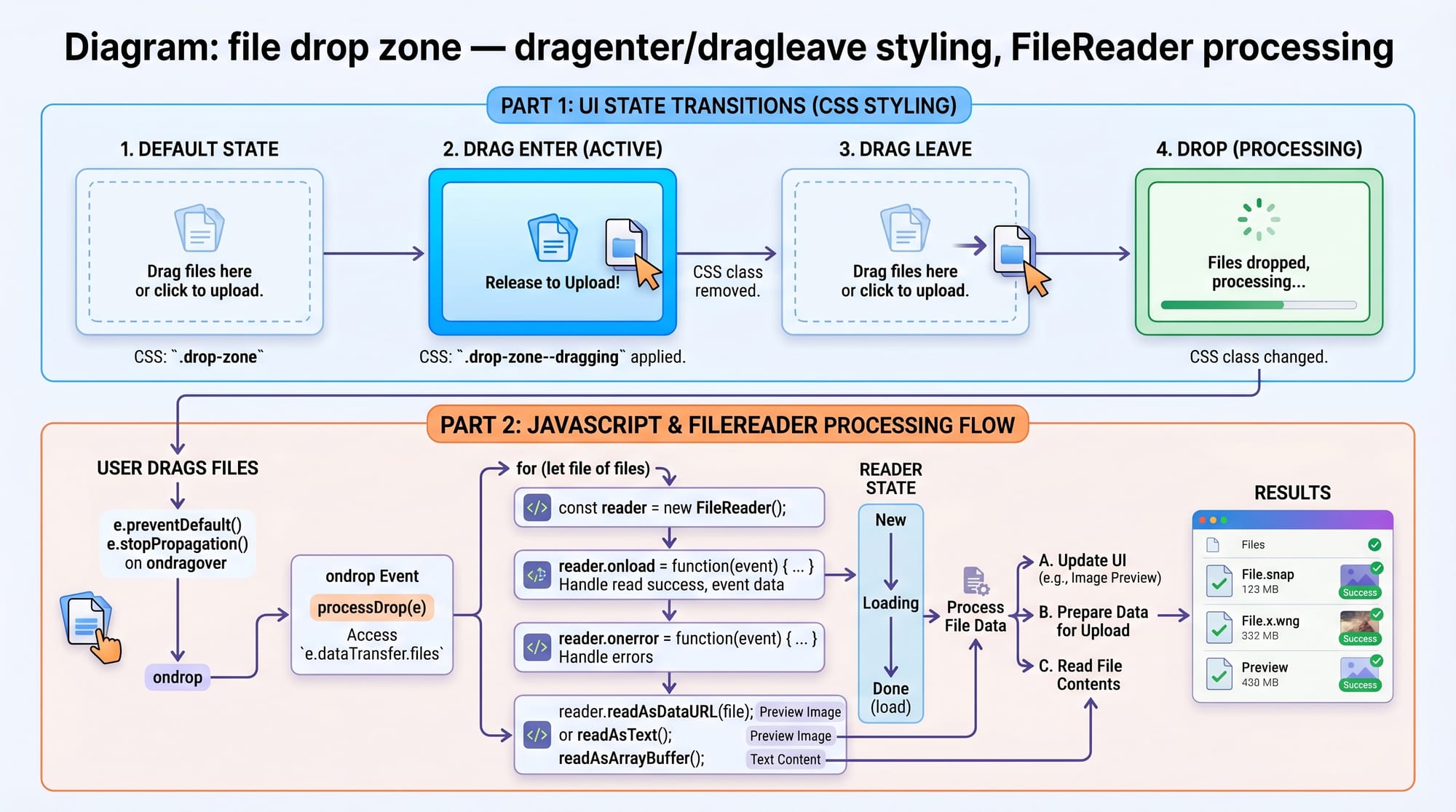
Exercise 2: Build a Simple Image Uploader
Task: Create a drop zone where users can drag images.
Solution Idea:
- Use
FileReader - Display preview after drop
Frequently Asked Questions
What is HTML Drag and Drop API?
The HTML Drag and Drop API is a feature that allows users to move elements on a webpage using mouse drag actions. It is used to build interactive UI components like file uploaders and task boards.
How do I make an element draggable in HTML?
You can make an element draggable by adding the attribute draggable="true" in the HTML tag. Then use JavaScript events like dragstart to handle behavior.
What is the purpose of dataTransfer in drag and drop?
The dataTransfer object is used to store and retrieve data during drag and drop operations. It helps pass information from the dragged element to the drop target.
Can drag and drop work on mobile devices?
Yes, but support varies. Modern browsers support touch-based drag and drop, but developers often use additional libraries for better mobile experience.
Why is preventDefault() important in drag and drop?
It is important because it allows the drop event to occur. Without it, the browser blocks dropping behavior by default.
Summary & Key Takeaways
- HTML Drag and Drop API enables interactive UI development
draggable="true"makes elements movable- Events like
dragstart,dragover, anddropcontrol behavior dataTransferis used to pass data between elements- Useful for task boards, file uploads, and sortable lists
- Common mistakes include missing
preventDefault()and incorrect data handling
Next Steps & Related Tutorials
To strengthen your skills, continue learning:
- Learn how to manipulate elements using JavaScript DOM
- Understand page structure in HTML Basics
- Explore dynamic UI building with JavaScript Events
- Build real projects like a To-Do App using Drag and Drop
Related tutorials on theiqra.edu.pk:
- Advanced JavaScript DOM Manipulation
- Building Responsive Web Layouts with HTML & CSS
- Interactive Web Apps with JavaScript Events
Test Your Python Knowledge!
Finished reading? Take a quick quiz to see how much you've learned from this tutorial.