HTML Forms Advanced Validation FormData & File Uploads
Introduction
HTML forms are one of the most important parts of web development because they allow users to send data to a website. When you log in to Facebook, register for a university portal, or submit an online job application in Pakistan (for example, for jobs in Lahore, Karachi, or Islamabad), you are using HTML forms.
In this html forms tutorial: validation, FormData API & file uploads, you will learn advanced form techniques such as validation rules, handling form data using JavaScript, and uploading files like images and documents.
These skills are essential for Pakistani students who want to become professional front-end or full-stack developers, especially in freelancing platforms like Fiverr or Upwork where clients expect secure and user-friendly forms.
By the end of this tutorial, you will understand:
- How to validate HTML forms properly
- How to use the FormData API
- How to upload files using JavaScript
- How to avoid common mistakes in real projects
Prerequisites
Before learning this html forms tutorial, you should already know:
- Basic HTML (form, input, button tags)
- Basic JavaScript (variables, functions, events)
- Understanding of DOM manipulation
- Basic CSS (optional but helpful)
If you are not comfortable with these, first review:
- HTML Basics
- JavaScript DOM Introduction
Core Concepts & Explanation
HTML Form Validation Basics
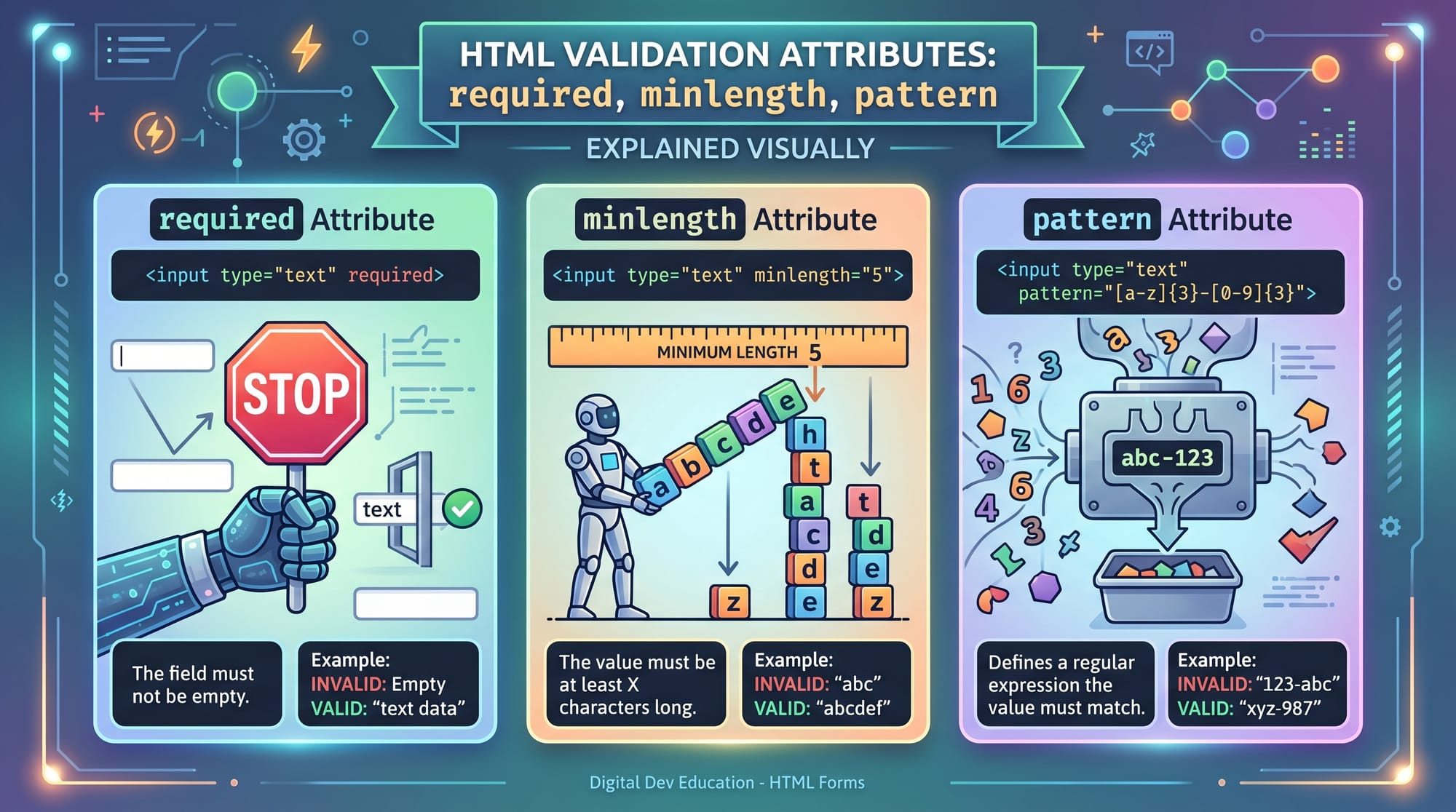
HTML form validation is the process of checking user input before sending it to the server. It helps prevent incorrect or empty data.
HTML provides built-in validation features:
required→ ensures field is not emptyminlength/maxlength→ controls text lengthpattern→ regex-based validationtype→ email, number, url validationmin/max→ numeric limits
Example:
<form>
  <input type="text" name="username" required minlength="3" />
  <input type="email" name="email" required />
  <input type="password" name="password" required minlength="6" />
  <button type="submit">Submit</button>
</form>
Line-by-line explanation:
<form>→ Creates a form containerinput type="text"→ Accepts username inputrequired→ Forces user to fill fieldminlength="3"→ Username must be at least 3 charactersinput type="email"→ Validates email format automaticallyinput type="password"→ Password field hides text- Submit button sends the form
Understanding the FormData API
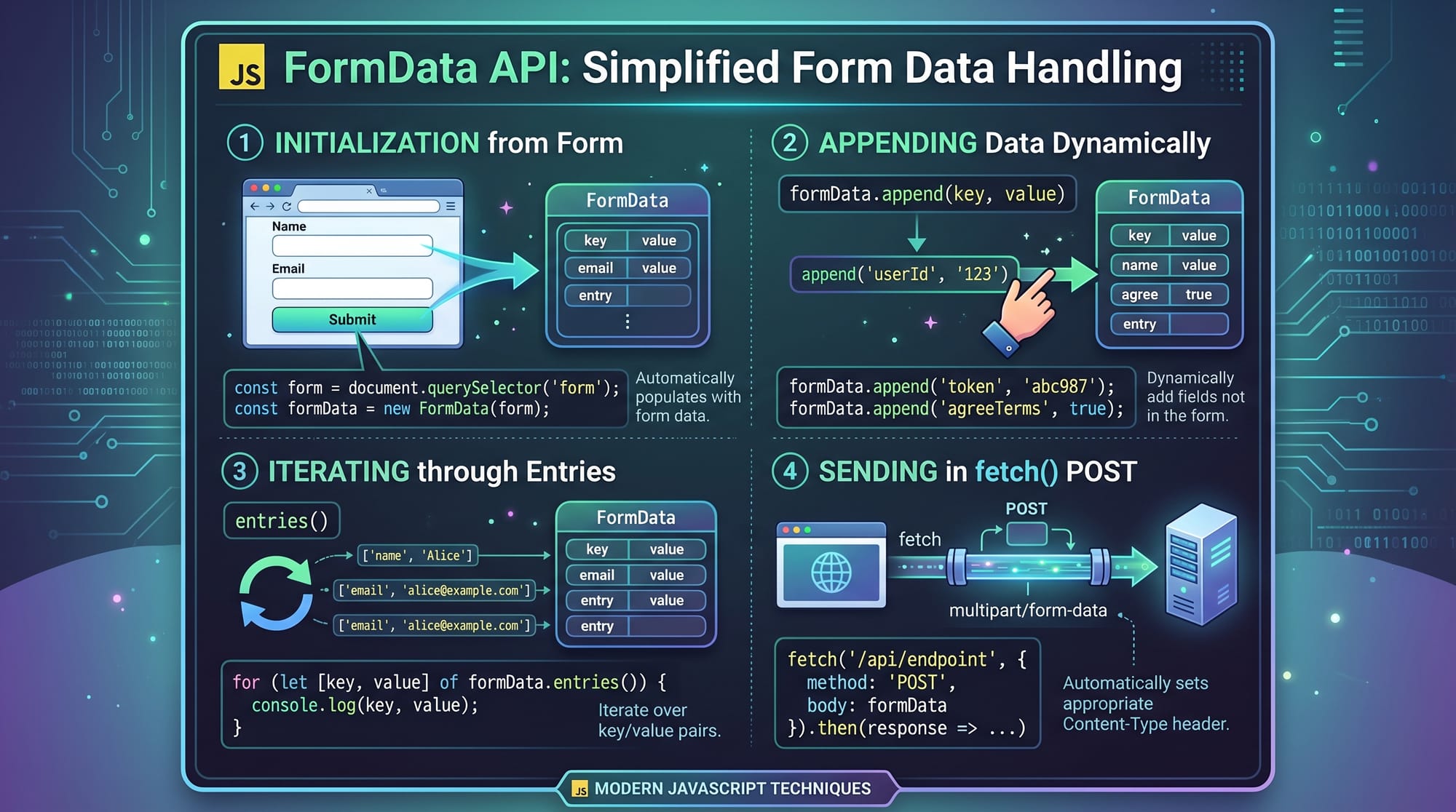
The FormData API is a JavaScript feature used to collect form data easily and send it to the server without reloading the page.
It is widely used in modern web applications, especially for AJAX form submissions.
Key methods:
new FormData(form)→ collects form data.append()→ adds extra data.entries()→ loops through data
Example:
const form = document.querySelector("form");

form.addEventListener("submit", function (e) {
  e.preventDefault();

  const formData = new FormData(form);

  for (let [key, value] of formData.entries()) {
    console.log(key, value);
  }
});
Line-by-line explanation:
- Selects form using
querySelector - Adds submit event listener
- Prevents page reload
- Creates FormData object from form
- Loops through all key-value pairs
- Logs data in console
Practical Code Examples
Example 1: Client-Side Validation Form
This example shows a registration form for a student in Karachi applying for an online course.
<form id="registerForm">
  <input type="text" name="name" placeholder="Enter Name" required />
  <input type="email" name="email" placeholder="Enter Email" required />
  <input type="number" name="age" min="18" max="40" required />
  <button type="submit">Register</button>
</form>

<script>
const form = document.getElementById("registerForm");

form.addEventListener("submit", function(e) {
  e.preventDefault();

  const formData = new FormData(form);

  console.log("Student Name:", formData.get("name"));
  console.log("Email:", formData.get("email"));
  console.log("Age:", formData.get("age"));
});
</script>
Line-by-line explanation:
- Form created with id
registerForm - Name input required for student identity
- Email input ensures valid email format
- Age restricted between 18–40 (useful for course eligibility in Pakistan)
- Button submits form
- JavaScript selects form
- Prevents page reload
- Creates FormData object
- Retrieves name value
- Retrieves email value
- Retrieves age value
Example 2: Real-World Application — File Upload System
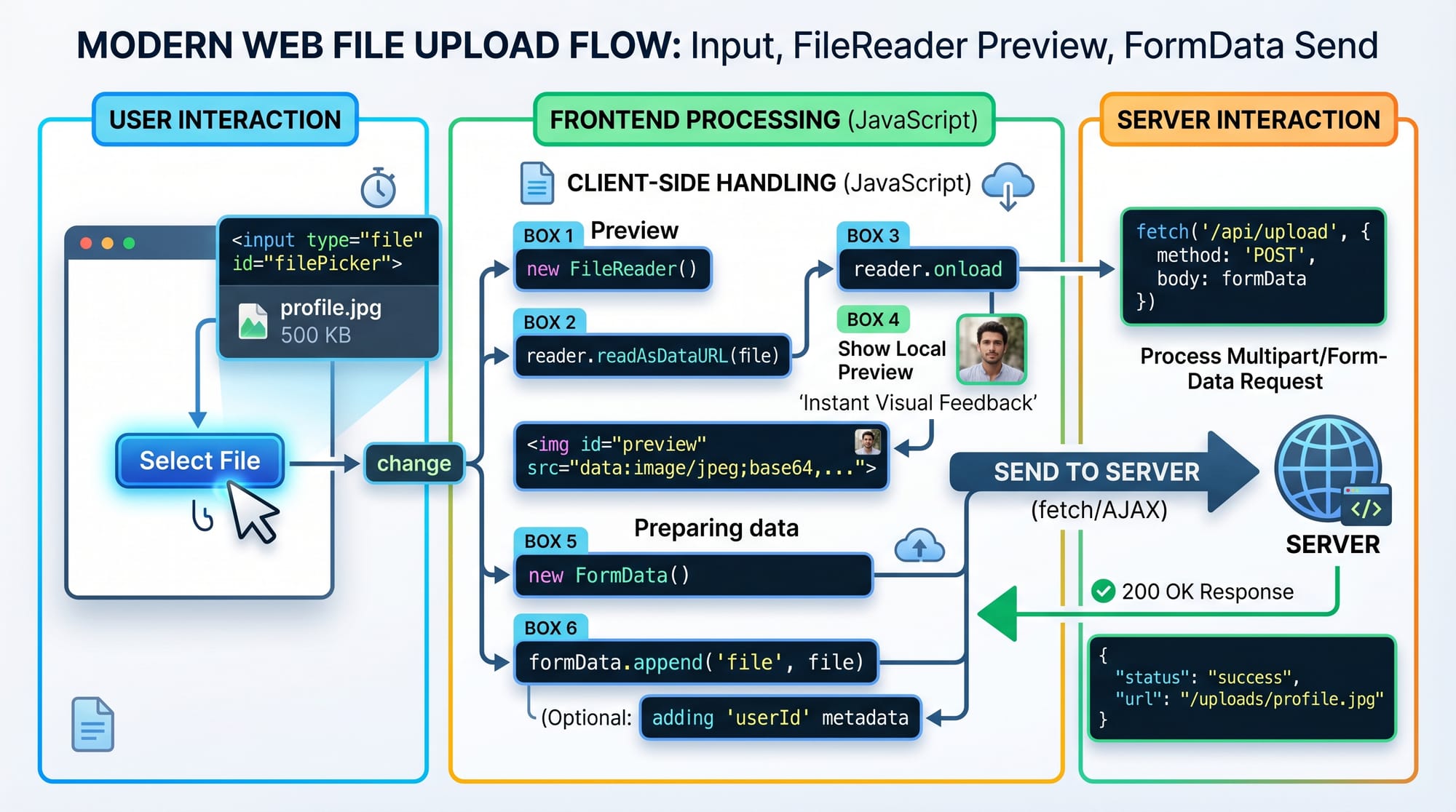
This example simulates a job portal in Islamabad where users upload CVs.
<form id="uploadForm">
  <input type="text" name="fullname" placeholder="Full Name" required />
  <input type="file" name="cv" accept=".pdf,.doc,.docx" required />
  <button type="submit">Upload CV</button>
</form>

<img id="preview" width="200" />

<script>
const form = document.getElementById("uploadForm");
const preview = document.getElementById("preview");

form.addEventListener("submit", async function(e) {
  e.preventDefault();

  const formData = new FormData(form);

  const file = formData.get("cv");

  const reader = new FileReader();

  reader.onload = function() {
    preview.src = reader.result;
  };

  if (file) {
    reader.readAsDataURL(file);
  }

  await fetch("/upload", {
    method: "POST",
    body: formData
  });
});
</script>
Line-by-line explanation:
- Form created for CV upload
- Full name input required
- File input accepts CV formats
- Image tag used for preview
- Form selected in JS
- Prevent default reload
- FormData collects inputs
- Extracts file from form
- FileReader created for preview
- Defines onload event
- Displays image preview
- Reads file as URL
- Sends data to server using POST request
Common Mistakes & How to Avoid Them
Mistake 1: Not Using Required Validation Properly
Many beginners forget to use validation attributes, causing empty submissions.
❌ Wrong:
<input type="text" name="username">
✔ Correct:
<input type="text" name="username" required minlength="3">
Explanation:
Without required, users can submit empty data which leads to broken forms.
Mistake 2: Incorrect File Upload Handling
Some developers try to manually send file values instead of using FormData.
❌ Wrong:
const file = document.querySelector("input").value;
✔ Correct:
const formData = new FormData(form);
Explanation:
File inputs must be handled using FormData, otherwise file data is lost.
Practice Exercises
Exercise 1: Student Registration Form
Create a form for a student in Lahore with:
- Name (required)
- Email (valid email)
- Password (min 6 characters)
Then validate using HTML only.
Solution:
Use required, type="email", and minlength="6" attributes.
Exercise 2: Simple File Upload
Create a form that uploads:
- Profile picture
- Name field
Then log the file using FormData in console.
Solution:
Use input type="file" and FormData.get("file").
Frequently Asked Questions
What is HTML form validation?
HTML form validation is the process of checking user input before submission. It ensures data is correct using attributes like required, pattern, and minlength.
How does the FormData API work?
The FormData API collects all form inputs and converts them into key-value pairs. It is commonly used for sending data to servers using fetch or AJAX.
How do I upload files using HTML forms?
You can upload files using <input type="file"> and then send them using FormData in JavaScript with a POST request.
Why is my form submitting empty data?
This usually happens when you forget the name attribute or required validation. Without names, FormData cannot collect values.
Can I validate forms without JavaScript?
Yes, HTML provides built-in validation using attributes like required, pattern, min, and max without needing JavaScript.
Summary & Key Takeaways
- HTML forms are essential for web applications
- Validation improves data quality and user experience
- FormData API simplifies form handling in JavaScript
- File uploads require FormData and FileReader
- Always use proper validation to avoid empty submissions
- Real-world apps rely heavily on secure and validated forms
Next Steps & Related Tutorials
To strengthen your skills, continue learning:
- Learn HTML Basics for foundational understanding
- Master JavaScript DOM Manipulation for dynamic forms
- Explore AJAX & Fetch API for server communication
- Study Backend Form Handling for full-stack development
Related tutorials on theiqra.edu.pk:
- HTML Forms Basics Guide
- JavaScript DOM Events Tutorial
- Fetch API Complete Guide
Test Your Python Knowledge!
Finished reading? Take a quick quiz to see how much you've learned from this tutorial.