How to Install Python on Windows, Mac & Linux 2026
Whether you are a student in Lahore building your first calculator app or a fresh graduate in Karachi preparing for a software engineering interview, installing Python correctly is the very first step of your programming journey. This complete, beginner-friendly guide will walk you through every click, command, and checkbox so you can install Python on any operating system — Windows, macOS, or Linux — and start writing code today.
Introduction
Python is one of the most popular programming languages in the world, and for good reason. Its simple, English-like syntax makes it the perfect first language for beginners, while its powerful libraries let professionals build everything from web applications to artificial intelligence models.
In Pakistan, the demand for Python developers has grown enormously. From freelancing platforms where developers in Islamabad earn in USD, to data science roles in Karachi's tech companies, Python skills open real doors. Organizations like PITB (Punjab Information Technology Board) and NIC Peshawar actively encourage young Pakistanis to learn Python for careers in technology.
This tutorial covers the complete Python installation process on all three major operating systems. By the end, you will have Python running on your machine, your first program executed, and the confidence to move forward with your learning. Let us get started!
Prerequisites
Before you begin the Python setup, make sure you have the following:
- A working computer running Windows 10/11, macOS 12 or later, or a modern Linux distribution (Ubuntu 22.04+, Fedora, etc.).
- Administrator access on your computer — you will need permission to install software.
- A stable internet connection to download the Python installer (approximately 30–40 MB).
- Basic computer literacy — you should know how to open a web browser, download a file, and navigate folders.
No prior programming knowledge is needed. This guide is written for absolute beginners.
Core Concepts & Explanation
Before jumping into the installation, let us understand a few key ideas that will make the whole process smoother.
What Is Python and Why Does It Matter?
Python is a high-level, interpreted programming language created by Guido van Rossum in 1991. "High-level" means it reads almost like English, so you do not need to worry about complex hardware details. "Interpreted" means you can run your code immediately without a separate compilation step.
Here is a quick example. Suppose Ahmad in Lahore wants to print a greeting:
# Ahmad's first Python program
print("Assalam-o-Alaikum! Welcome to Python.")
That single line is a complete, runnable program. Compare that to languages like C++ or Java, which require several lines of boilerplate code for the same task.
Python is used in web development (Django, Flask), data science (Pandas, NumPy), machine learning (TensorFlow, PyTorch), automation, game development, and much more.
Understanding Python Versions: Python 3 vs Python 2
Python has two major versions you will hear about:
- Python 2 — Released in 2000, officially discontinued since January 2020. Do not install Python 2.
- Python 3 — The current, actively maintained version. As of 2026, Python 3.13 is the latest stable release.
Always install Python 3. Every modern tutorial, library, and framework targets Python 3. If you see any guide that still recommends Python 2, it is outdated.
What Is pip — Python's Package Manager?
When you install Python, you also get a tool called pip (short for "pip installs packages"). Think of pip as an app store for Python — it lets you download and install thousands of free libraries with a single command.
For example, Fatima in Karachi wants to work with Excel files in Python. She simply runs:
pip install openpyxl
And the library is ready to use. You do not need to install pip separately; it comes bundled with every modern Python installation.
What Is PATH and Why Does It Matter?
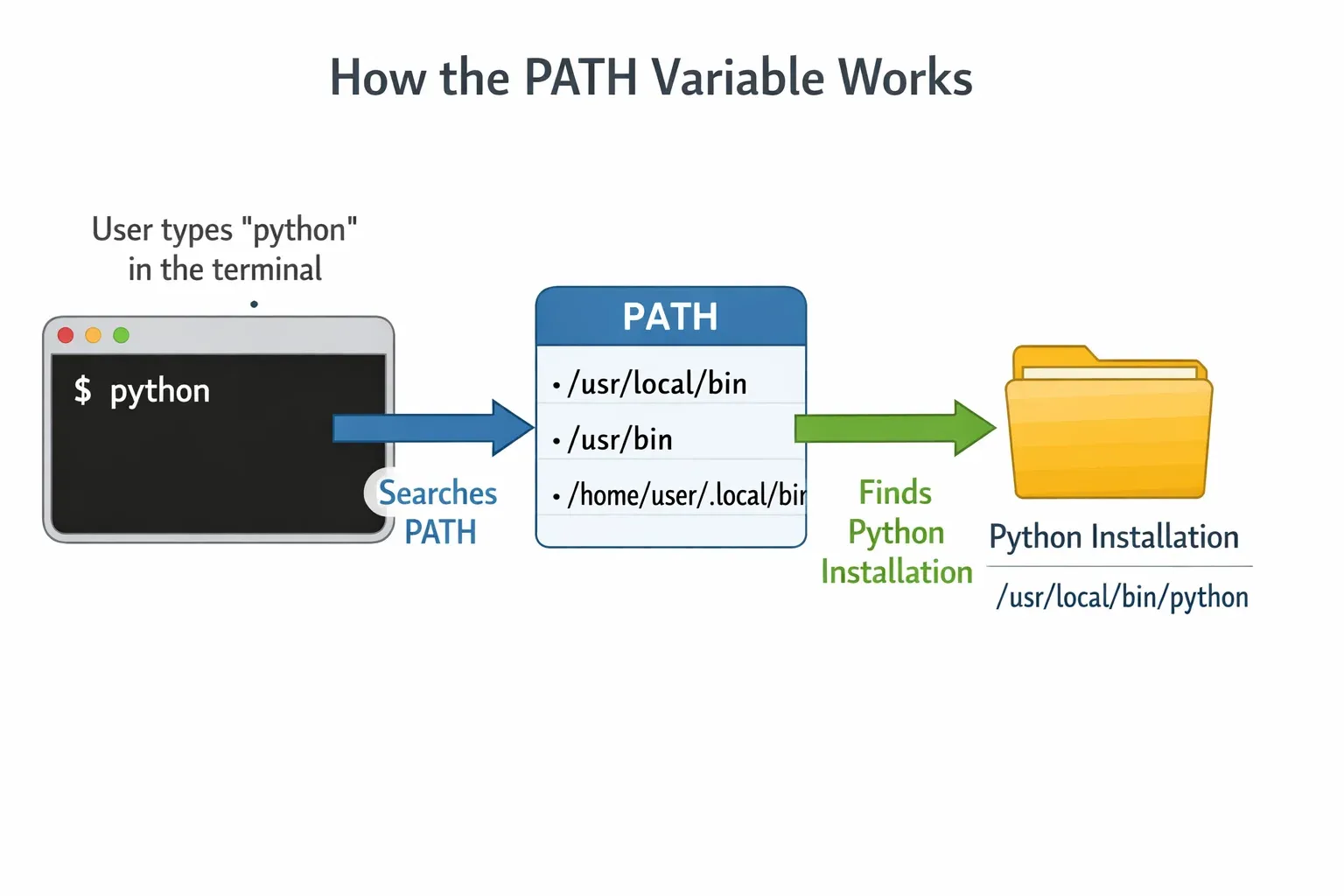
The PATH is an environment variable — a list of folders your operating system searches when you type a command in the terminal. If Python's folder is not in your PATH, typing python in the terminal will produce an error like "command not found."
During installation, you will see an option to "Add Python to PATH." Always check this box. It is the single most common source of frustration for beginners.
Practical Code Examples
Let us now go through the actual installation steps for each operating system, followed by verification and your first program.
Example 1: Installing Python on Windows (Step-by-Step)
This is the most common scenario for Pakistani students, since the majority use Windows PCs.
Step 1: Open your browser and go to python.org/downloads.
Step 2: Click the large yellow button that says "Download Python 3.13.x" (the exact minor version may differ).
Step 3: Once the installer (.exe file) is downloaded, double-click it to run.
Step 4 (CRITICAL): On the very first screen of the installer, you will see a checkbox at the bottom that says "Add python.exe to PATH". Check this box. Then click "Install Now".
Step 5: Wait for the installation to complete. Click "Close" when finished.
Step 6: Open the Command Prompt (press Win + R, type cmd, press Enter) and verify:
# Check Python version
python --version
Expected output:
Python 3.13.2
Now verify pip:
# Check pip version
pip --version
Expected output:
pip 24.3.1 from C:\Users\Ahmad\...\pip (python 3.13)
Step 7: Run your first program directly in the terminal:
# Type 'python' to open the interactive interpreter
python

# Then type:
print("Mera pehla Python program! Hello from Pakistan!")
# Press Enter — you will see the output immediately
Line-by-line explanation:
python— launches the Python interactive shell (you will see>>>as the prompt).print(...)— the built-in function that displays text on screen.- The text inside the quotes is a string — your message.
Example 2: Installing Python on macOS
Many students at LUMS, NUST, or FAST who use MacBooks will follow these steps.
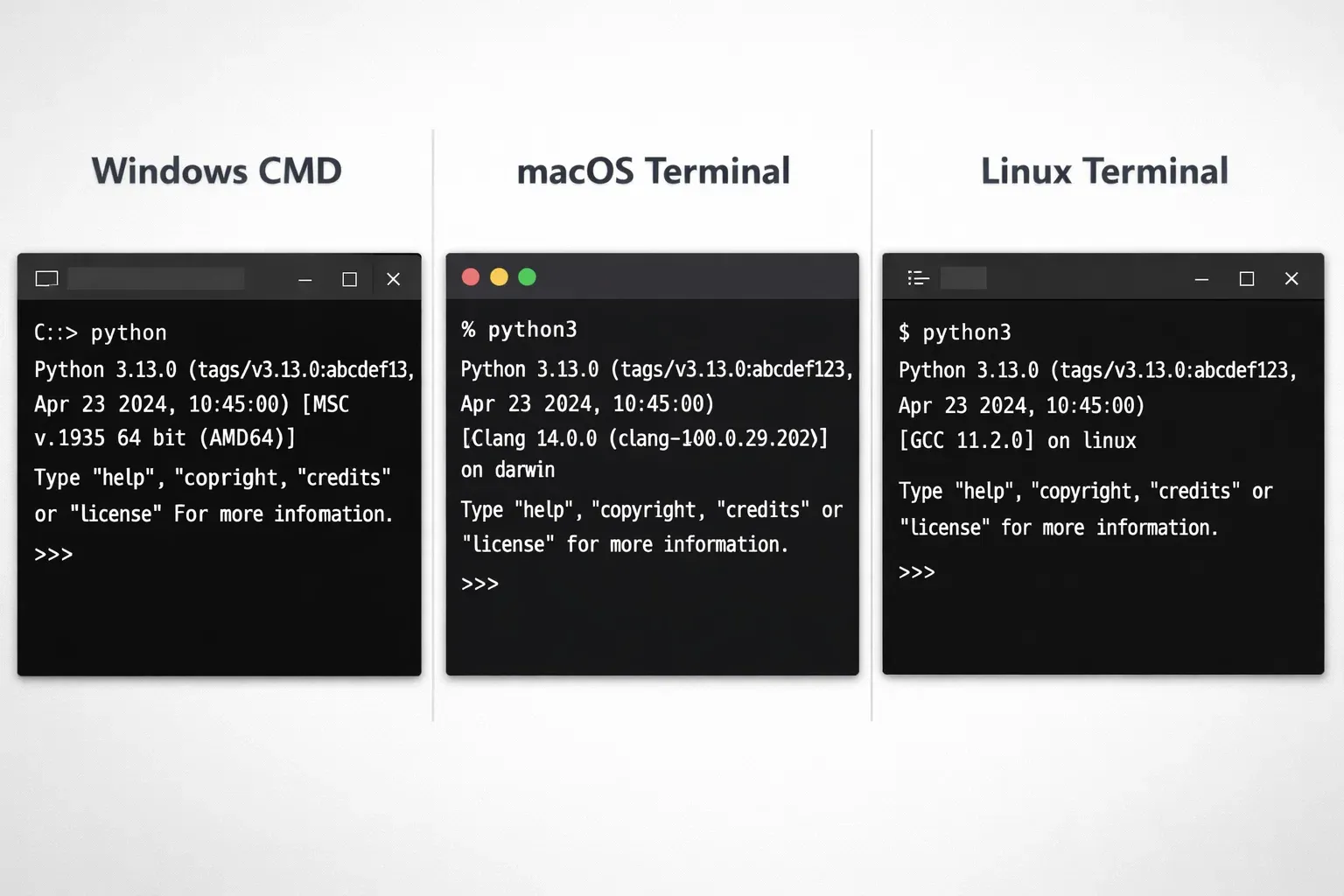
Step 1: Open Terminal (press Cmd + Space, type "Terminal", press Enter).
Step 2: Check if Python 3 is already installed:
# Check for existing Python 3
python3 --version
macOS often ships with an older Python. If the version shown is below 3.12, you should upgrade.
Step 3 (Recommended Method — Homebrew):
First, install Homebrew if you do not have it:
# Install Homebrew package manager
/bin/bash -c "$(curl -fsSL https://raw.githubusercontent.com/Homebrew/install/HEAD/install.sh)"
Then install Python:
# Install the latest Python via Homebrew
brew install python
Step 4: Verify the installation:
# Verify Python
python3 --version

# Verify pip
pip3 --version
Important note for macOS users: On Mac, you typically use python3 and pip3 commands (not python and pip) to avoid conflicts with the system Python.
Step 5: Run your first program:
# Open the Python interpreter
python3

# Type this at the >>> prompt:
name = "Fatima"             # Store a name in a variable
city = "Islamabad"          # Store a city in a variable
print(f"Hi, I am {name} from {city}!")  # Print using an f-string
Line-by-line explanation:
name = "Fatima"— creates a variable callednameand assigns it the text "Fatima".city = "Islamabad"— creates another variable for the city.f"Hi, I am {name} from {city}!"— an f-string that lets you embed variables directly inside text using curly braces.
Example 3: Installing Python on Linux (Ubuntu/Debian)
Linux is popular among computer science students and professionals. Ubuntu, the most common distro in Pakistan, usually has Python pre-installed.
Step 1: Open Terminal (Ctrl + Alt + T).
Step 2: Update your package list:
# Always update before installing new packages
sudo apt update && sudo apt upgrade -y
Step 3: Install Python 3 and pip:
# Install Python 3 and pip
sudo apt install python3 python3-pip python3-venv -y
Line-by-line explanation:
sudo— runs the command with administrator privileges.apt install— the package installer for Debian/Ubuntu.python3— the Python interpreter.python3-pip— the pip package manager.python3-venv— tool for creating virtual environments (very useful for projects).-y— automatically answers "yes" to confirmation prompts.
Step 4: Verify:
python3 --version
pip3 --version
Step 5: Write and run a small script. Create a file called hello.py:
# hello.py — Ali's first Python script
# This program calculates the total cost of samosas for a party

price_per_samosa = 30         # Price in PKR
quantity = 50                 # Number of samosas for the party
total = price_per_samosa * quantity  # Calculate total cost

print(f"Total cost for {quantity} samosas: PKR {total}")
# Output: Total cost for 50 samosas: PKR 1500
Run the script:
python3 hello.py
Line-by-line explanation:
price_per_samosa = 30— assigns the integer value 30 to a variable (representing 30 PKR).quantity = 50— the number of samosas.total = price_per_samosa * quantity— multiplies price by quantity and stores the result.print(f"...")— displays the result using an f-string with the calculated total.
Common Mistakes & How to Avoid Them
Mistake 1: Forgetting to Add Python to PATH (Windows)
This is by far the most common beginner mistake. You install Python, open the command prompt, type python, and see:
'python' is not recognized as an internal or external command
How to fix it:
If you forgot to check the PATH box during installation, you have two options:
- Easiest: Uninstall Python completely, download the installer again, and this time check "Add python.exe to PATH" before clicking Install.
- Manual fix: Add Python to PATH manually:
- Press
Win + S, search for "Environment Variables." - Click "Edit the system environment variables" → "Environment Variables."
- Under "User variables," find
Path, click "Edit." - Click "New" and add the path to your Python installation, typically:
C:\Users\YourName\AppData\Local\Programs\Python\Python313\ - Also add the
Scriptssubfolder:C:\Users\YourName\AppData\Local\Programs\Python\Python313\Scripts\ - Click OK on all windows, then restart your command prompt.
- Press
Mistake 2: Confusing Python 2 and Python 3 Commands
On macOS and Linux, typing python might launch Python 2 (or produce an error), while python3 launches Python 3. This causes silent bugs where your code runs with the wrong version.
How to fix it:
Always use python3 and pip3 on macOS and Linux. To check which version python points to:
# See which Python 'python' refers to
python --version

# If it shows Python 2.x, always use python3 instead
python3 --version
On Ubuntu, you can set python to point to Python 3:
# Create an alias (add this to your ~/.bashrc file)
alias python=python3
alias pip=pip3
Mistake 3: Running pip Install Without a Virtual Environment
As a beginner, you might install dozens of packages globally. Over time, different projects need different versions of the same package, creating conflicts.
How to fix it:
Use virtual environments from the start:
# Create a virtual environment named 'myenv'
python3 -m venv myenv

# Activate it (Linux/Mac)
source myenv/bin/activate

# Activate it (Windows)
myenv\Scripts\activate

# Now install packages safely inside this environment
pip install requests
This keeps each project's packages separate and clean.
Practice Exercises
Exercise 1: Verify Your Installation
Problem: After installing Python, write a script that prints your Python version, your name, and your city.
Solution:
# exercise1.py — Verify your Python installation
import sys   # Import the sys module to access version info

name = "Ahmad"
city = "Lahore"

print(f"Python Version: {sys.version}")
print(f"Name: {name}")
print(f"City: {city}")
print("Python installation successful! 🎉")
Line-by-line explanation:
import sys— loads Python's built-insysmodule, which contains system information.sys.version— a string containing the full Python version details.- The rest uses f-strings to display your personal information alongside the version.
Save this as exercise1.py and run it with python exercise1.py (Windows) or python3 exercise1.py (Mac/Linux).
Exercise 2: Build a Simple PKR to USD Converter
Problem: Create a program that converts Pakistani Rupees to US Dollars. Ask the user to enter an amount in PKR and display the equivalent in USD (use an exchange rate of 1 USD = 280 PKR).
Solution:
# exercise2.py — PKR to USD Converter

exchange_rate = 280           # 1 USD = 280 PKR (approximate rate)

# Ask the user for input
pkr_amount = float(input("Enter amount in PKR: "))  # Convert input to decimal number

# Calculate USD equivalent
usd_amount = pkr_amount / exchange_rate

# Display the result rounded to 2 decimal places
print(f"PKR {pkr_amount:,.0f} = USD {usd_amount:,.2f}")
Line-by-line explanation:
exchange_rate = 280— stores the conversion rate as a variable.input("Enter amount in PKR: ")— displays a prompt and waits for the user to type a value.float(...)— converts the typed text into a decimal number so we can do math with it.pkr_amount / exchange_rate— performs the conversion.f"PKR {pkr_amount:,.0f}"— the:,.0fformat adds comma separators and shows zero decimal places for the PKR amount.{usd_amount:,.2f}— shows the USD amount with two decimal places.
Sample output:
Enter amount in PKR: 50000
PKR 50,000 = USD 178.57
Frequently Asked Questions
Which Python version should I install in 2026?
Install the latest stable release of Python 3, which is Python 3.13 as of early 2026. Always download from the official website python.org. Avoid Python 2, as it has been discontinued and no longer receives security updates.
Can I install multiple versions of Python on one computer?
Yes, you can have multiple Python versions installed simultaneously. On Windows, the Python Launcher (py command) lets you choose which version to run, such as py -3.12 or py -3.13. On macOS and Linux, different versions are accessed by their specific commands like python3.12 or python3.13.
Is Python free to install in Pakistan?
Absolutely. Python is completely free and open-source software. You do not need to pay anything to download, install, or use Python for personal, educational, or commercial purposes. There are no regional restrictions — students anywhere in Pakistan can download it from python.org.
Do I need to install an IDE or code editor separately?
Python comes with a basic editor called IDLE, which is fine for beginners. However, for a better experience, most developers install a separate code editor. Popular free options include VS Code (Visual Studio Code) by Microsoft, PyCharm Community Edition by JetBrains, and Sublime Text. We recommend VS Code for Pakistani students because it is lightweight, free, and has excellent Python support.
How do I update Python to a newer version?
On Windows, download the new installer from python.org and run it — it will update your existing installation. On macOS with Homebrew, run brew upgrade python. On Ubuntu/Linux, run sudo apt update && sudo apt upgrade python3. Always back up your projects and virtual environments before upgrading, as some packages may need to be reinstalled.
Summary & Key Takeaways
- Always download Python from the official website (python.org) to ensure you get a safe, up-to-date version.
- Check "Add Python to PATH" during installation on Windows — this single checkbox prevents the most common beginner error.
- Use
python3andpip3on macOS and Linux to make sure you are running Python 3, not an older Python 2 installation. - pip comes bundled with Python — you do not need to install it separately, and it gives you access to thousands of free packages.
- Use virtual environments (
python -m venv) from the beginning of your journey to keep your projects organized and avoid package conflicts. - Python is 100% free — there is no cost to download, install, or use it anywhere in Pakistan or the world.
Next Steps & Related Tutorials
Congratulations! You have successfully completed your Python installation and run your first program. Here is what to learn next:
- Python Variables and Data Types for Beginners — Learn how to store and work with different kinds of data like numbers, text, and lists.
- How to Install and Use VS Code for Python Development — Set up a professional code editor that will make writing Python much easier and more enjoyable.
- Python If-Else Statements Explained with Examples — Understand how to make your programs make decisions using conditional logic.
- Build Your First Python Project: Student Grade Calculator — Apply your new Python skills to build a practical project relevant to Pakistani students.
Keep learning, keep coding, and remember every expert programmer once started exactly where you are right now. You have got this!
Test Your Python Knowledge!
Finished reading? Take a quick quiz to see how much you've learned from this tutorial.