Jetpack Compose Tutorial Modern Android UI 2026
Introduction
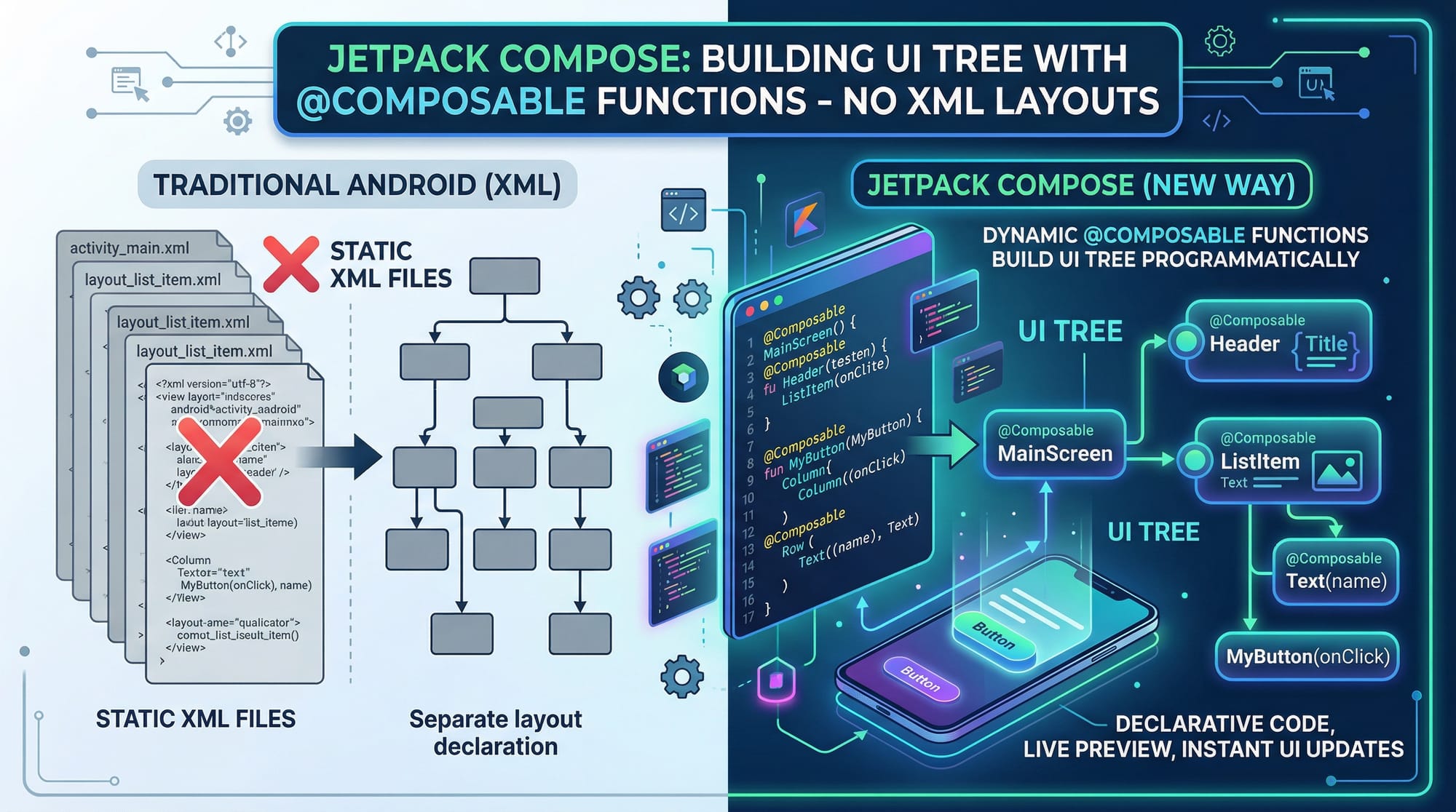
Jetpack Compose Tutorial: Modern Android UI 2026 is your complete guide to building Android user interfaces using Android Jetpack Compose, Google’s modern toolkit for creating native UI with less code, better performance, and intuitive state management.
Unlike traditional Android UI development (which relied heavily on XML layouts), Compose UI allows you to design interfaces using pure Kotlin code. This makes development faster, more flexible, and easier to maintain.
For Pakistani students—whether you're in Lahore, Karachi, or Islamabad—learning Jetpack Compose is a career-boosting skill. Many local startups and international companies now expect developers to know modern Android tools. If Ahmad is building a food delivery app or Fatima is creating a student portal for her university, Compose helps them build apps quickly and efficiently.
Prerequisites
Before starting this jetpack compose tutorial, you should have:
- Basic understanding of Kotlin programming
- Familiarity with Android Studio
- Knowledge of Android fundamentals (Activities, Intents, Lifecycle)
- Understanding of OOP concepts
- Basic Git knowledge (optional but helpful)
If you’re new, consider starting with a Kotlin Tutorial and basic Android development concepts first.
Core Concepts & Explanation
Declarative UI Approach in Compose
Jetpack Compose uses a declarative UI paradigm, meaning you describe what the UI should look like based on the current state.
Example:
@Composable
fun Greeting(name: String) {
    Text(text = "Hello $name!")
}
Explanation:
@Composable: Marks this function as a UI componentfun Greeting: Function namename: String: Input parameterText(...): Displays text on screen"Hello $name!": Dynamic content
💡 If the value of name changes, Compose automatically updates the UI.
State Management in Compose
State is the backbone of Compose. UI updates automatically when state changes.
Example:
@Composable
fun Counter() {
    var count by remember { mutableStateOf(0) }

    Button(onClick = { count++ }) {
        Text("Count: $count")
    }
}
Explanation:
var count: Variable to store countremember {}: Keeps value during recompositionmutableStateOf(0): Creates observable stateButton(onClick = { count++ }): Increments countText("Count: $count"): Displays updated value
Layout System: Column, Row, and Box
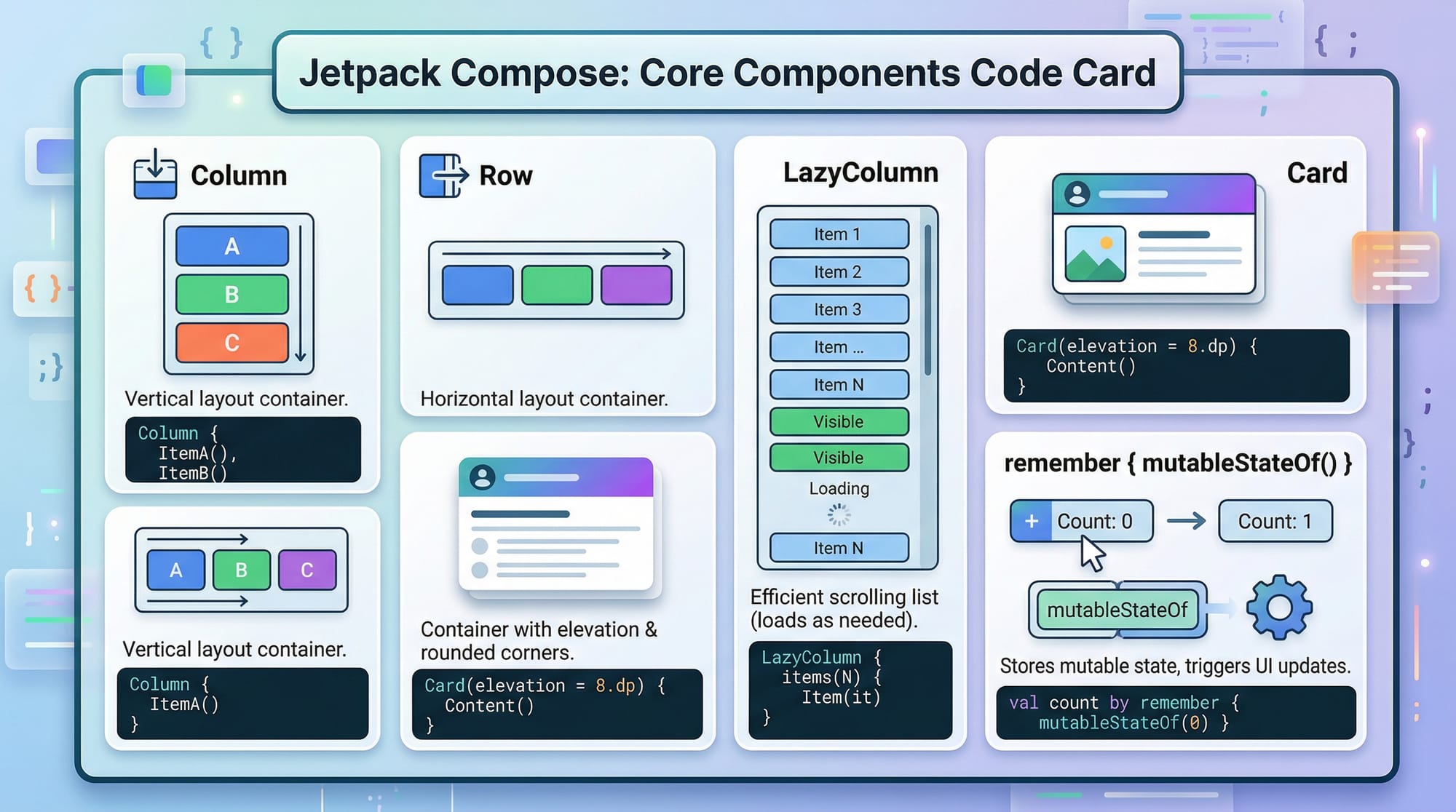
Compose replaces XML layouts with Kotlin-based layout components.
Example:
@Composable
fun LayoutExample() {
    Column {
        Text("Top Text")
        Row {
            Text("Left")
            Text("Right")
        }
    }
}
Explanation:
Column: Vertical layoutRow: Horizontal layoutText: UI element- Nested layouts create complex UI
Lazy Components for Lists
Efficient lists using LazyColumn.
@Composable
fun StudentList() {
    val students = listOf("Ali", "Ahmad", "Fatima")

    LazyColumn {
        items(students) { student ->
            Text(student)
        }
    }
}
Explanation:
val students: List of namesLazyColumn: Efficient scrolling listitems(...): Iterates over listText(student): Displays each item
Practical Code Examples
Example 1: Simple Login UI
@Composable
fun LoginScreen() {
    var username by remember { mutableStateOf("") }
    var password by remember { mutableStateOf("") }

    Column {
        TextField(
            value = username,
            onValueChange = { username = it },
            label = { Text("Username") }
        )

        TextField(
            value = password,
            onValueChange = { password = it },
            label = { Text("Password") }
        )

        Button(onClick = { println("Login Clicked") }) {
            Text("Login")
        }
    }
}
Line-by-line Explanation:
var username: Stores usernameremember: Preserves valueTextField: Input fieldvalue: Current textonValueChange: Updates valuelabel: Placeholder labelButton: Clickable buttonprintln: Logs click action
Example 2: Real-World Application (Shopping List in PKR)
@Composable
fun ShoppingList() {
    val items = listOf(
        "Milk - PKR 200",
        "Bread - PKR 150",
        "Eggs - PKR 300"
    )

    LazyColumn {
        items(items) { item ->
            Card {
                Text(text = item)
            }
        }
    }
}
Explanation:
val items: List with prices in PKRLazyColumn: Scrollable listitems: Loop through listCard: Styled containerText: Displays item
Common Mistakes & How to Avoid Them
Mistake 1: Not Using remember for State
Problem:
var count = 0
Fix:
var count by remember { mutableStateOf(0) }
Explanation:
- Without
remember, state resets on recomposition - Always use Compose state APIs
Mistake 2: Overusing Recomposition
Problem:
Too many unnecessary UI updates.
Fix:
Use state hoisting:
@Composable
fun Parent() {
    var count by remember { mutableStateOf(0) }
    Child(count, { count++ })
}
Explanation:
Parent: Holds stateChild: Receives state and event- Improves performance
Practice Exercises
Exercise 1: Counter App
Problem:
Create a counter with increment and decrement buttons.
Solution:
@Composable
fun CounterApp() {
    var count by remember { mutableStateOf(0) }

    Column {
        Text("Count: $count")

        Button(onClick = { count++ }) {
            Text("Increase")
        }

        Button(onClick = { count-- }) {
            Text("Decrease")
        }
    }
}
Explanation:
count: State variable- Two buttons modify value
- UI updates automatically
Exercise 2: Student Card UI
Problem:
Display student name and city.
Solution:
@Composable
fun StudentCard() {
    Card {
        Column {
            Text("Name: Ali")
            Text("City: Lahore")
        }
    }
}
Explanation:
Card: UI containerColumn: Vertical layoutText: Displays data
Frequently Asked Questions
What is Jetpack Compose?
Jetpack Compose is a modern Android UI toolkit that allows developers to build interfaces using Kotlin instead of XML. It simplifies UI development with a declarative approach and reactive state handling.
How do I start learning Compose UI?
Start by learning Kotlin, then install Android Studio and create a new Compose project. Follow tutorials like this one and practice building small apps.
Is Jetpack Compose better than XML?
Yes, for most cases. Compose reduces boilerplate code, improves readability, and makes UI updates easier through state-driven design.
Can I use Compose in existing apps?
Yes, Compose can be integrated into existing Android apps alongside XML-based layouts. This allows gradual migration.
What jobs require Jetpack Compose?
Many Android developer roles now require Compose skills, especially in startups and remote jobs targeting global clients.
Summary & Key Takeaways
- Jetpack Compose uses a declarative UI approach
- No XML — everything is built using Kotlin
- State management is central to UI updates
- Components like
Column,Row, andLazyColumnsimplify layouts - Real-world apps (e.g., shopping, student portals) are easy to build
- Essential skill for modern Android developers in Pakistan
Next Steps & Related Tutorials
To continue your journey, explore these tutorials on theiqra.edu.pk:
- Learn the basics with a Kotlin Tutorial for Beginners
- Build full apps with Android Development Complete Guide
- Understand backend integration with REST API Tutorial
- Advance your skills with Firebase Android Tutorial
These resources will help you move from beginner to professional Android developer 🚀
Test Your Python Knowledge!
Finished reading? Take a quick quiz to see how much you've learned from this tutorial.