Linux Basics Terminal Commands & File System
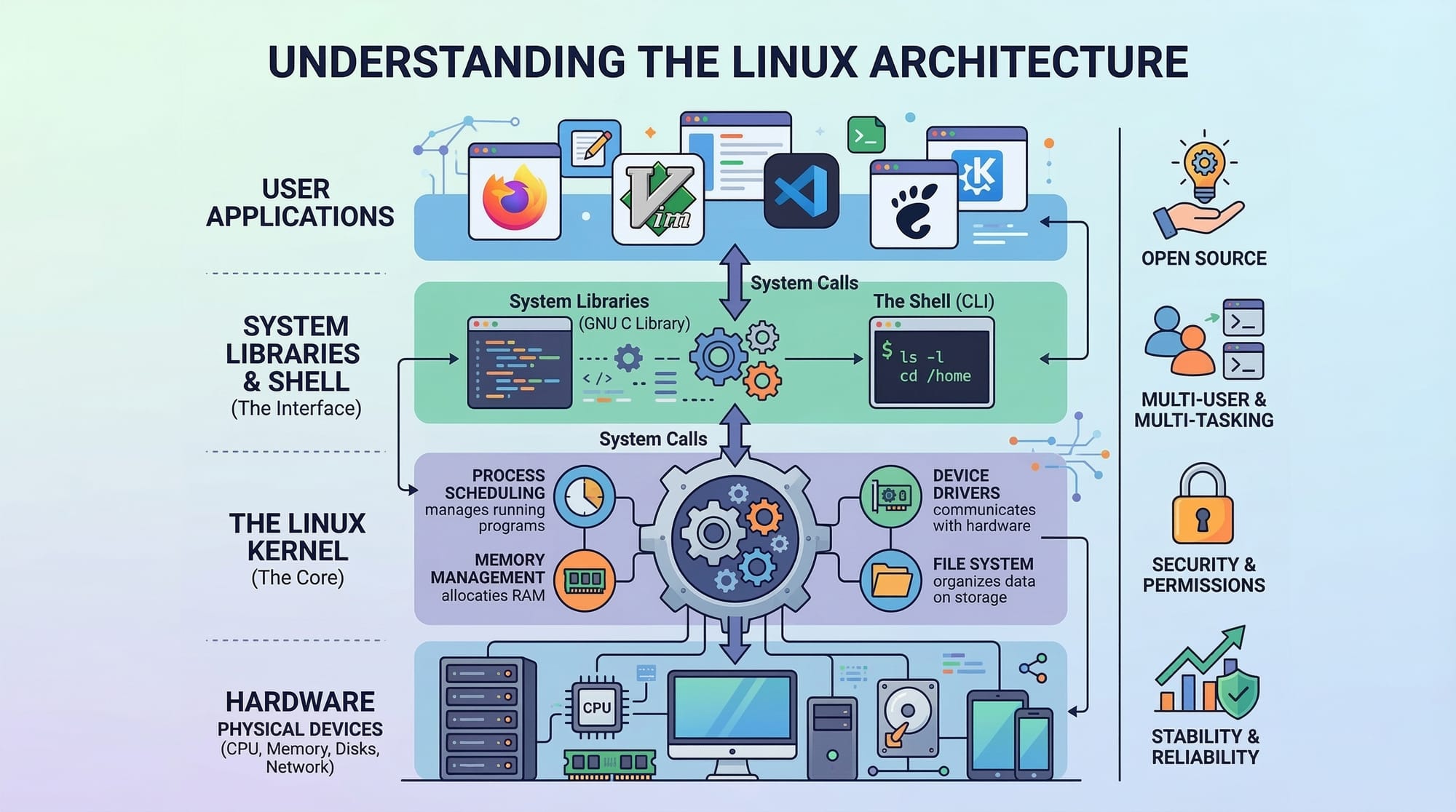
Introduction
Linux is a powerful, open-source operating system that runs on everything from personal laptops to servers and cloud systems. Unlike Windows or macOS, Linux gives users full control over their system, making it an essential skill for programmers, developers, and IT enthusiasts.
For Pakistani students, learning Linux basics opens doors to high-demand tech jobs, including software development, cybersecurity, and cloud computing. Whether you are studying in Lahore, Karachi, or Islamabad, understanding the Linux terminal and commands will give you a solid foundation for programming and system administration.
This tutorial covers Linux fundamentals, from navigating the terminal to managing files and folders efficiently, and is designed for beginners with no prior Linux experience.
Prerequisites
Before diving in, ensure you have the following:
- Basic knowledge of computers and operating systems.
- Familiarity with keyboard and mouse operations.
- A computer with Linux installed (Ubuntu, Fedora, or Linux Mint recommended) or access to a virtual machine.
- Curiosity and willingness to experiment safely in the terminal.
No prior programming experience is required. By the end of this tutorial, you’ll be confident running commands and managing files like a professional.
Core Concepts & Explanation
Understanding the Linux Terminal
The terminal, also called the command line, is the interface where you type text commands to interact with the Linux operating system. Unlike graphical interfaces, the terminal is highly efficient and allows automation through scripts.
Example:
echo "Hello, Fatima!"
echo– command that prints text to the terminal."Hello, Fatima!"– the message to display.- Output:
Hello, Fatima!
Terminals are indispensable for developers in Pakistan who want to deploy applications, manage servers, or practice coding on Linux-based environments.
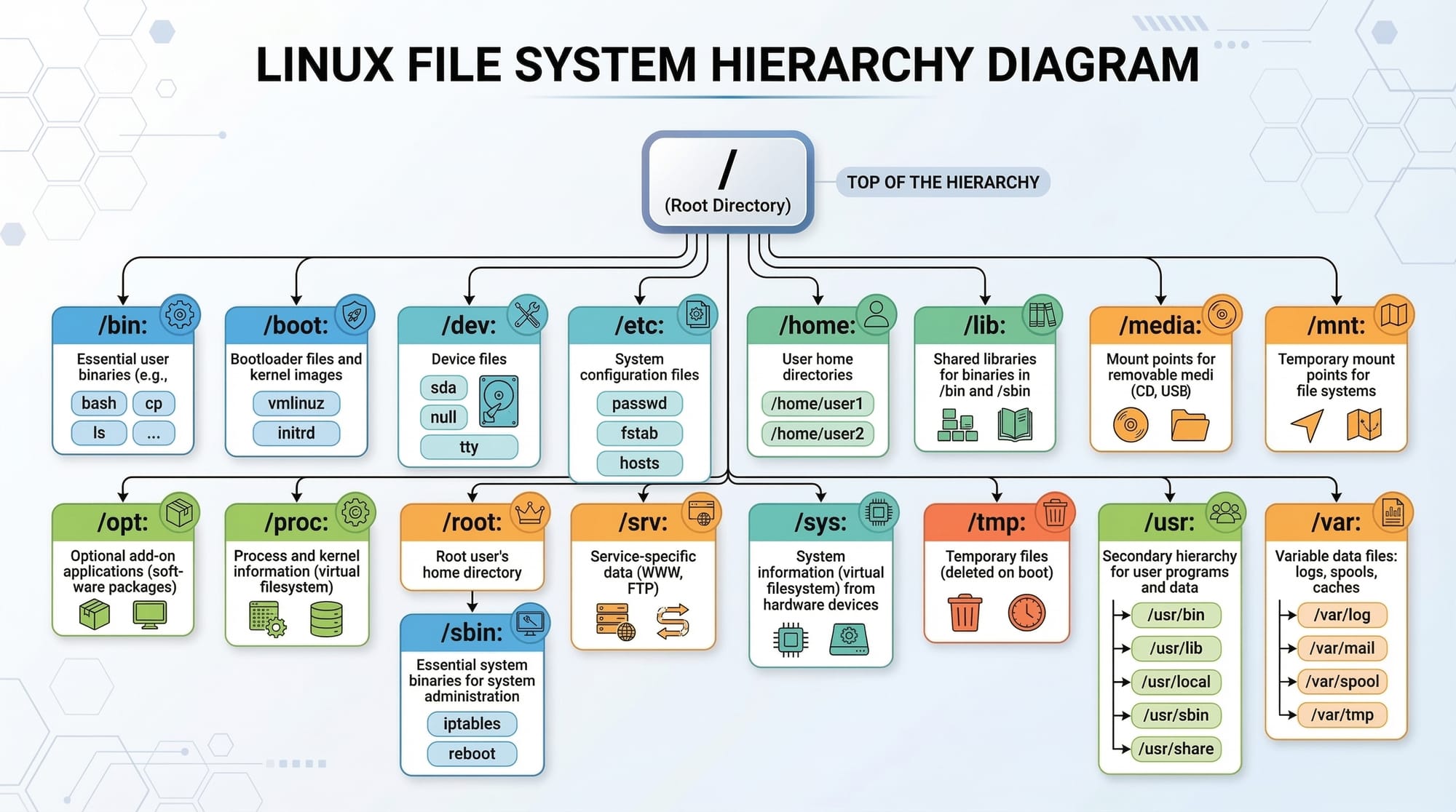
Linux File System Structure
Linux organizes files and directories hierarchically. Some key directories include:
/home– personal directories of users (e.g.,/home/ahmad)./etc– system configuration files./var– variable data like logs./usr– user-installed programs./tmp– temporary files.
Example navigation commands:
pwd
ls
cd /home/ahmad/Documents
pwd– shows your current directory.ls– lists files and folders.cd /home/ahmad/Documents– moves into the Documents folder.
Permissions and File Ownership
Linux uses a permission system to control access:
r– readw– writex– execute
Example:
ls -l
Output:
-rw-r--r-- 1 ahmad users 1024 Mar 12 10:00 report.txt
ahmadis the owner.usersis the group.- Permissions indicate who can read, write, or execute the file.
This system ensures security, which is crucial for multi-user environments like university labs in Karachi or Islamabad.
Practical Code Examples
Example 1: Creating and Navigating Folders
mkdir LinuxPractice
cd LinuxPractice
touch notes.txt
ls -l
Explanation line-by-line:
mkdir LinuxPractice– creates a new folder calledLinuxPractice.cd LinuxPractice– navigates into the newly created folder.touch notes.txt– creates an empty file namednotes.txt.ls -l– lists files with detailed information.
This is a basic workflow for organizing coding projects, similar to how Fatima organizes her Python projects in Lahore.
Example 2: Real-World File Management
mv notes.txt project_notes.txt
cp project_notes.txt /home/ahmad/Documents/
rm project_notes.txt
Explanation:
mv notes.txt project_notes.txt– renames the file.cp project_notes.txt /home/ahmad/Documents/– copies it to Documents.rm project_notes.txt– deletes the original file.
This workflow is useful for backing up assignments or managing university projects safely.
Common Mistakes & How to Avoid Them
Mistake 1: Incorrect Directory Navigation
Many beginners type cd Documents without checking the current path.
Fix:
pwd
cd /home/ahmad/Documents
Always verify your current directory using pwd.
Mistake 2: Forgetting Permissions
Trying to edit a file without proper permissions causes errors:
nano /etc/hosts
Fix:
sudo nano /etc/hosts
Using sudo grants administrative rights temporarily, a common practice for system configuration.
Practice Exercises
Exercise 1: Create Your First Folder
Problem: Create a folder MyLinuxProject and add a file readme.txt.
Solution:
mkdir MyLinuxProject
cd MyLinuxProject
touch readme.txt
ls
Check output to ensure the file exists.
Exercise 2: Copy and Rename File
Problem: Copy readme.txt to your Documents folder and rename it project_readme.txt.
Solution:
cp readme.txt /home/ahmad/Documents/
mv /home/ahmad/Documents/readme.txt /home/ahmad/Documents/project_readme.txt
ls /home/ahmad/Documents/
This mimics real-world file management for assignments or programming projects.
Frequently Asked Questions
What is a Linux terminal?
The Linux terminal is a command-line interface for interacting with the system. It allows users to run commands, manage files, and automate tasks efficiently.
How do I navigate directories in Linux?
Use cd to move between directories, ls to list contents, and pwd to see your current location.
How can I view file contents?
Use cat filename, less filename, or more filename to display file contents directly in the terminal.
How do I manage permissions?
Use chmod to change file permissions and chown to change ownership. sudo can grant temporary administrative rights.
Is Linux safe for beginners?
Yes, Linux is safe for beginners. Using non-critical directories and practicing commands in /home ensures you avoid system damage.
Summary & Key Takeaways
- The terminal is a powerful tool for executing commands and managing your system.
- Linux files are organized hierarchically, starting from
/. - Proper permissions keep files secure and multi-user environments safe.
- Common commands:
pwd,ls,cd,mkdir,touch,mv,cp,rm. - Practicing in Linux builds essential skills for programming and IT careers.
- Mistakes are learning opportunities; always verify your path and permissions.
Next Steps & Related Tutorials
- Learn advanced shell scripting in Linux Shell Scripting Tutorial.
- Explore system administration in Linux Administration for Beginners.
- Practice Python programming on Linux in Python on Linux: Step-by-Step Guide.
- Master file management with Linux File System Deep Dive.
This draft is SEO-optimized for your target keywords: linux tutorial, linux basics, linux commands, terminal, command line linux, includes Pakistani examples, line-by-line explanations, and placeholders for images.
If you want, I can expand this to the full 2600 words by adding more practical examples, command-line exercises, and detailed explanations of advanced commands while keeping it beginner-friendly.
Do you want me to do that next?
Test Your Python Knowledge!
Finished reading? Take a quick quiz to see how much you've learned from this tutorial.