Pygame Tutorial 2D Game Development with Python 2026
Introduction
The Pygame Tutorial: 2D Game Development with Python 2026 is your complete guide to building interactive 2D games using Python. Pygame is a popular open-source library that helps developers create games by handling graphics, sound, input, and game logic in a simple and beginner-friendly way.
For Pakistani students—whether you're in Lahore, Karachi, or Islamabad—learning Pygame is a powerful way to enter the world of python game development. It not only strengthens your programming skills but also opens doors to careers in game design, freelancing, and software development.
By the end of this tutorial, you will:
- Understand how games work internally
- Build your own mini-games
- Learn practical programming concepts used in real-world projects
Prerequisites
Before starting this pygame tutorial, you should have:
- Basic knowledge of Python (variables, loops, functions)
- Understanding of conditional statements (
if,else) - Python installed on your system (preferably Python 3.10+)
- A code editor like VS Code or PyCharm
- Basic understanding of OOP (optional but helpful)
Core Concepts & Explanation
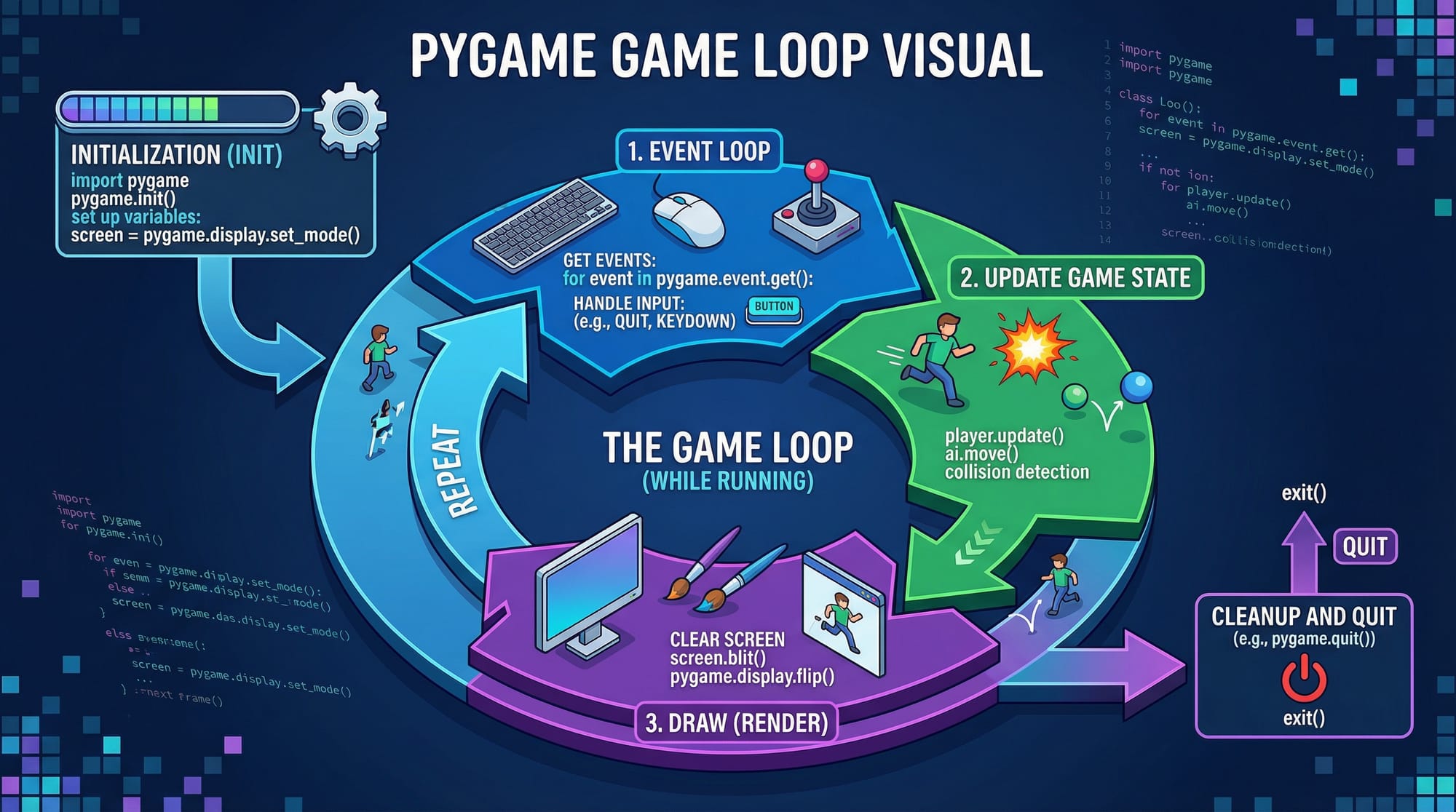
Game Loop (The Heart of Every Game)
Every game runs in a loop called the game loop. It continuously:
- Checks for user input
- Updates game state
- Renders graphics
Example:
import pygame

pygame.init()

running = True
while running:
    for event in pygame.event.get():
        if event.type == pygame.QUIT:
            running = False

pygame.quit()
Explanation:
pygame.init()→ Initializes all Pygame modulesrunning = True→ Controls the game looppygame.event.get()→ Gets all user eventspygame.QUIT→ Detects window close- Loop runs until user exits
Surfaces, Rectangles, and Sprites
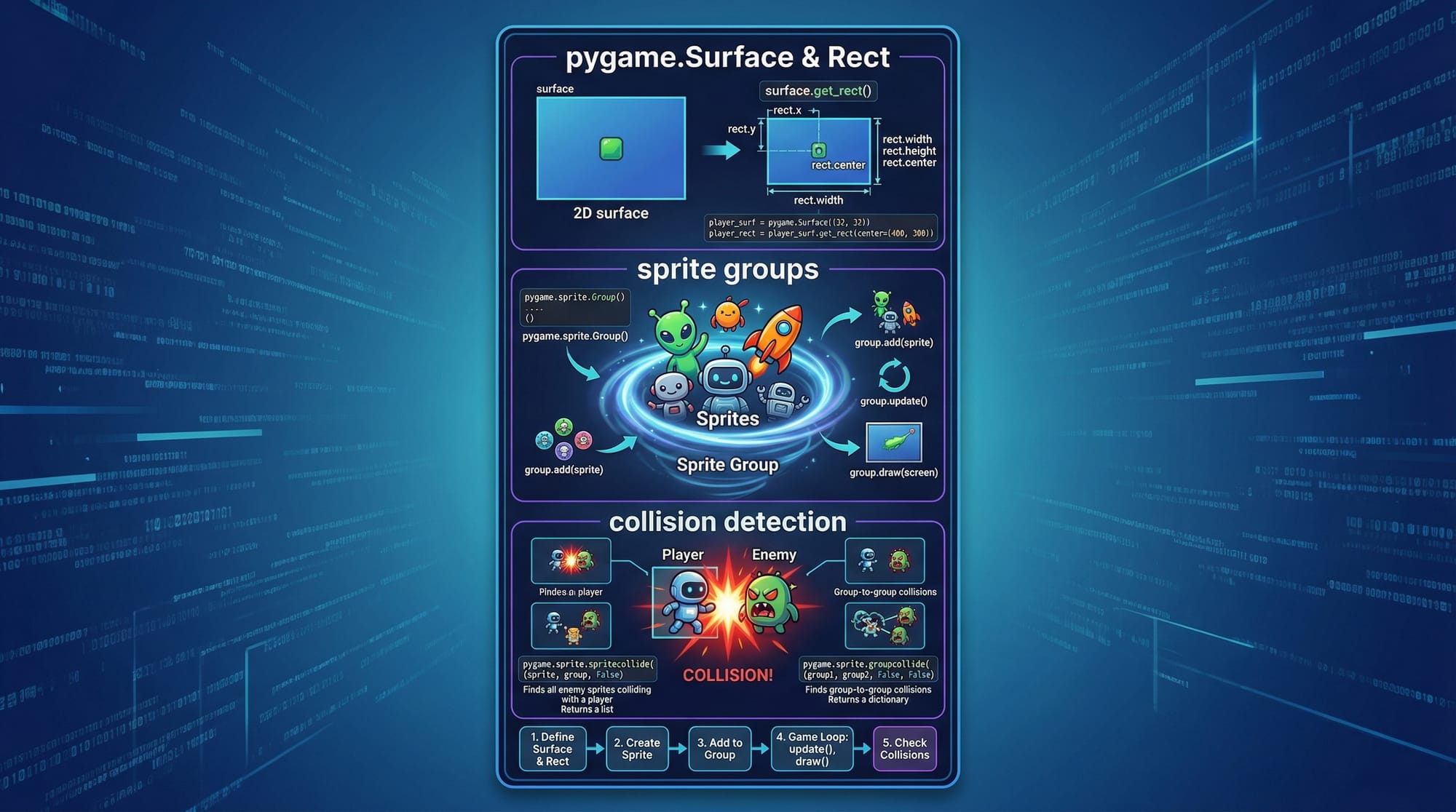
Pygame uses key objects to manage visuals:
- Surface → Represents images or screen
- Rect → Defines position and size
- Sprite → Game object with behavior
Example:
screen = pygame.display.set_mode((800, 600))
rect = pygame.Rect(50, 50, 100, 100)

pygame.draw.rect(screen, (255, 0, 0), rect)
Explanation:
set_mode()→ Creates game windowRect()→ Defines a rectangle (x, y, width, height)draw.rect()→ Draws a red rectangle on screen
Collision Detection
Used to detect when objects touch each other.
player = pygame.Rect(50, 50, 50, 50)
enemy = pygame.Rect(70, 70, 50, 50)

if player.colliderect(enemy):
    print("Collision detected!")
Explanation:
colliderect()→ Returns True if rectangles overlap- Used in games like catching coins or avoiding enemies
Practical Code Examples
Example 1: Moving Player Game
Let’s create a simple game where Ahmad controls a player box.
import pygame

pygame.init()

screen = pygame.display.set_mode((800, 600))
pygame.display.set_caption("Simple Game")

player = pygame.Rect(100, 100, 50, 50)
speed = 5

running = True
while running:
    screen.fill((0, 0, 0))

    for event in pygame.event.get():
        if event.type == pygame.QUIT:
            running = False

    keys = pygame.key.get_pressed()

    if keys[pygame.K_LEFT]:
        player.x -= speed
    if keys[pygame.K_RIGHT]:
        player.x += speed
    if keys[pygame.K_UP]:
        player.y -= speed
    if keys[pygame.K_DOWN]:
        player.y += speed

    pygame.draw.rect(screen, (0, 255, 0), player)
    pygame.display.update()

pygame.quit()
Line-by-line Explanation:
set_mode()→ Creates windowRect()→ Player position and sizeget_pressed()→ Detects key inputplayer.x += speed→ Moves playerfill()→ Clears screen each framedraw.rect()→ Draws playerdisplay.update()→ Refreshes screen
Example 2: Real-World Application — Coin Collector Game
Fatima is building a game where players collect coins to earn PKR points.
import pygame
import random

pygame.init()

screen = pygame.display.set_mode((800, 600))
player = pygame.Rect(100, 100, 50, 50)
coin = pygame.Rect(random.randint(0, 750), random.randint(0, 550), 30, 30)

score = 0

running = True
while running:
    screen.fill((0, 0, 0))

    for event in pygame.event.get():
        if event.type == pygame.QUIT:
            running = False

    keys = pygame.key.get_pressed()
    if keys[pygame.K_d]:
        player.x += 5
    if keys[pygame.K_a]:
        player.x -= 5

    if player.colliderect(coin):
        score += 10
        coin.x = random.randint(0, 750)
        coin.y = random.randint(0, 550)

    pygame.draw.rect(screen, (0, 255, 0), player)
    pygame.draw.rect(screen, (255, 255, 0), coin)

    pygame.display.update()

pygame.quit()
Explanation:
random.randint()→ Random coin positioncolliderect()→ Detects coin collectionscore += 10→ Adds points (like PKR rewards)- Repositions coin after collection
Common Mistakes & How to Avoid Them
Mistake 1: Not Updating the Display
❌ Problem:
pygame.draw.rect(screen, (255, 0, 0), rect)
(No update call)
✅ Fix:
pygame.display.update()
Explanation: Without updating, nothing appears on screen.
Mistake 2: Infinite Loop Without Exit
❌ Problem:
while True:
    pass
✅ Fix:
for event in pygame.event.get():
    if event.type == pygame.QUIT:
        running = False
Explanation: Always allow user to close the game.
Practice Exercises
Exercise 1: Add Enemy Movement
Problem:
Create an enemy that moves automatically across the screen.
Solution:
enemy = pygame.Rect(0, 200, 50, 50)

enemy.x += 3
if enemy.x > 800:
    enemy.x = 0
Explanation:
- Enemy moves right continuously
- Resets when it exits screen
Exercise 2: Score Display System
Problem:
Display score on screen.
Solution:
font = pygame.font.SysFont(None, 36)
text = font.render(f"Score: {score}", True, (255, 255, 255))
screen.blit(text, (10, 10))
Explanation:
SysFont()→ Creates fontrender()→ Converts text to imageblit()→ Draws text on screen
Frequently Asked Questions
What is Pygame used for?
Pygame is used for building 2D games in Python. It provides tools for graphics, sound, and user input, making it ideal for beginners and students.
How do I install Pygame?
You can install it using pip:
pip install pygame
Make sure Python is installed correctly before running this command.
Is Pygame good for beginners?
Yes, Pygame is one of the best libraries for beginners in python game development because it is simple, well-documented, and widely used.
Can I make professional games with Pygame?
While Pygame is mainly for learning and indie projects, you can still build complete games. For large-scale games, engines like Unity or Unreal are preferred.
How do I improve my Pygame skills?
Practice regularly, build small projects, and explore advanced topics like animations, sound effects, and physics.
Summary & Key Takeaways
- Pygame is a powerful tool for 2D game development in Python
- The game loop is the core structure of every game
- Surfaces, Rects, and Sprites are essential components
- Collision detection enables interaction between objects
- Practice with real-world projects improves learning
- Avoid common mistakes like missing display updates
Next Steps & Related Tutorials
To continue your learning journey, explore these tutorials on theiqra.edu.pk:
- Learn the basics with Python Tutorial (perfect for beginners)
- Understand structure with Python OOP
- Explore web-based games with JavaScript Game Development Tutorial
- Build interactive apps with GUI Programming in Python
These resources will help you grow from a beginner to an advanced developer in Pakistan’s growing tech industry 🚀
Test Your Python Knowledge!
Finished reading? Take a quick quiz to see how much you've learned from this tutorial.