Python CLI Tools Click Typer & Rich Terminal Apps
Introduction
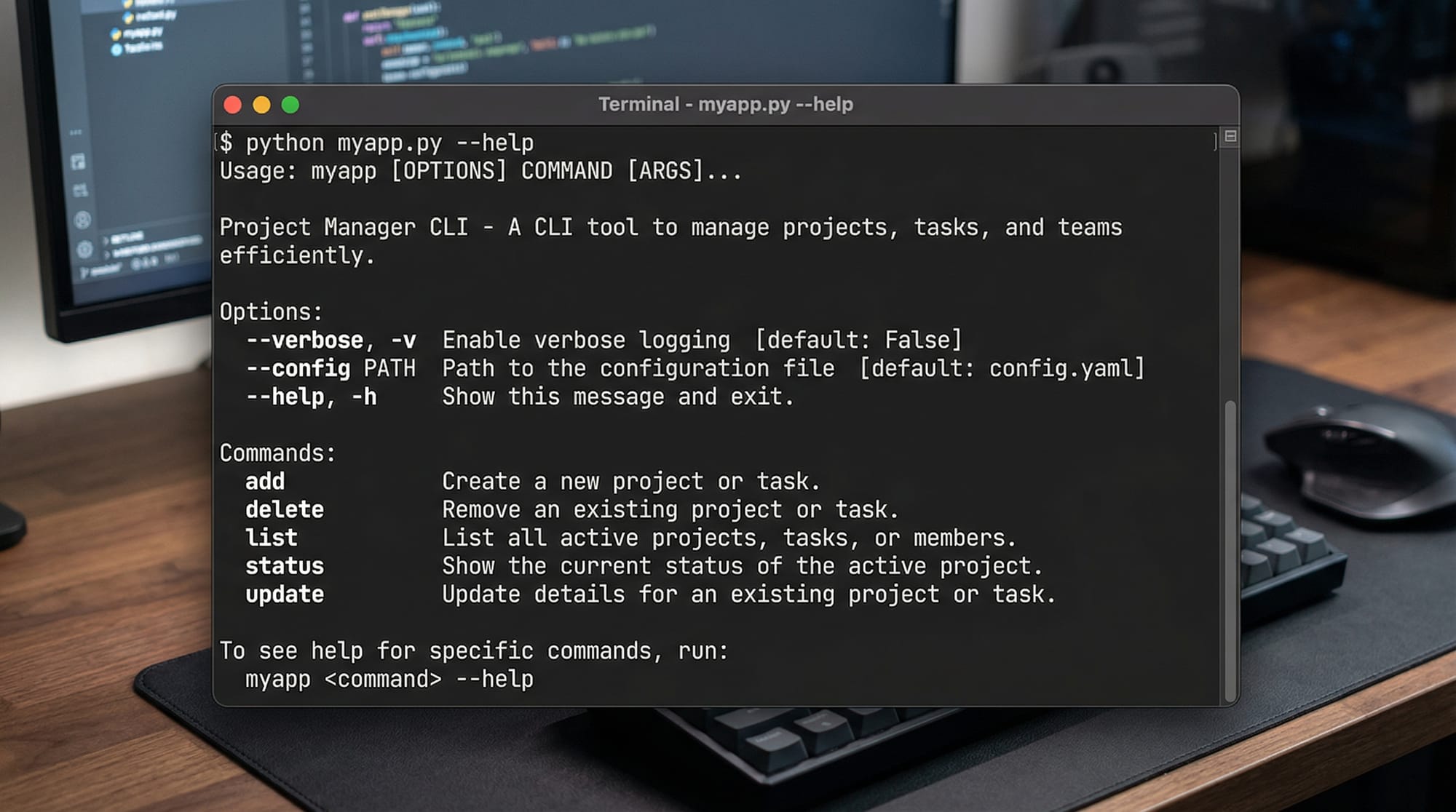
Python CLI (Command Line Interface) tools are programs you run from the terminal instead of a graphical interface. Libraries like Click, Typer, and Rich make it easy to build powerful, user-friendly CLI applications in Python.
In this python cli tutorial, you’ll learn how to create professional command-line tools using:
- Click Python – a mature and flexible CLI framework
- Typer Python – modern, fast, and based on type hints
- Rich library – for beautiful terminal output (colors, tables, progress bars)
For Pakistani students in cities like Lahore, Karachi, and Islamabad, CLI tools are extremely valuable. Whether you're automating tasks, building developer tools, or preparing for freelancing on platforms like Fiverr and Upwork, mastering CLI development can give you a competitive edge.
Prerequisites
Before starting this tutorial, you should have:
- Basic knowledge of Python (variables, functions, loops)
- Understanding of how to run Python scripts
- Familiarity with terminal/command prompt (Windows CMD, PowerShell, or Linux shell)
- Python installed (3.8 or above recommended)
Optional but helpful:
- Experience with pip for installing packages
- Basic understanding of decorators
Core Concepts & Explanation
Command-Line Interfaces in Python
A CLI tool allows users to interact with a program using commands and arguments.
Example:
python app.py greet Ahmad
Here:
greetis a commandAhmadis an argument
Without libraries, you'd use Python’s built-in argparse, but it can be complex. Libraries like Click and Typer simplify this process significantly.
Click vs Typer: Modern CLI Development
Click Python is a popular library that uses decorators to define commands.
Example:
import click

@click.command()
@click.argument("name")
def greet(name):
    print(f"Hello {name}!")

greet()
Explanation line-by-line:
import click→ Imports the Click library@click.command()→ Marks the function as a CLI command@click.argument("name")→ Defines a required argumentdef greet(name):→ Function receives inputprint(...)→ Outputs greetinggreet()→ Runs the CLI app
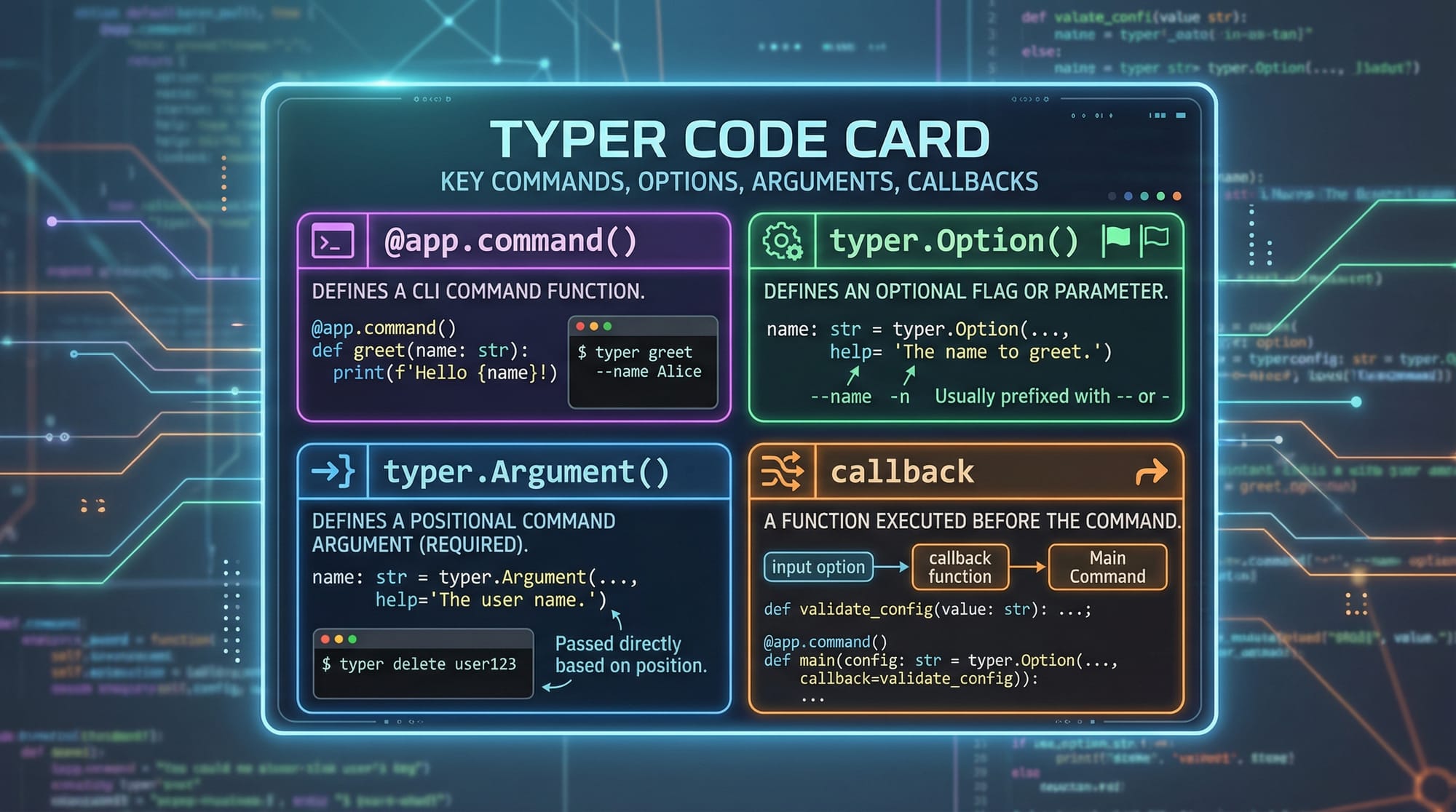
Typer Python builds on Click but uses Python type hints, making it cleaner and beginner-friendly.
Example:
import typer

app = typer.Typer()

@app.command()
def greet(name: str):
    print(f"Hello {name}!")

app()
Explanation:
import typer→ Imports Typerapp = typer.Typer()→ Creates CLI app instance@app.command()→ Registers a commandname: str→ Type hint for inputprint(...)→ Displays messageapp()→ Runs the app
Typer automatically generates help messages, making it ideal for modern CLI apps.
Enhancing CLI with Rich Library
The Rich library makes your CLI visually appealing.
Example:
from rich import print

print("[bold green]Welcome Ahmad![/bold green]")
Explanation:
from rich import print→ Uses Rich’s enhanced print[bold green]...[/bold green]→ Adds styling- Outputs colored text in terminal
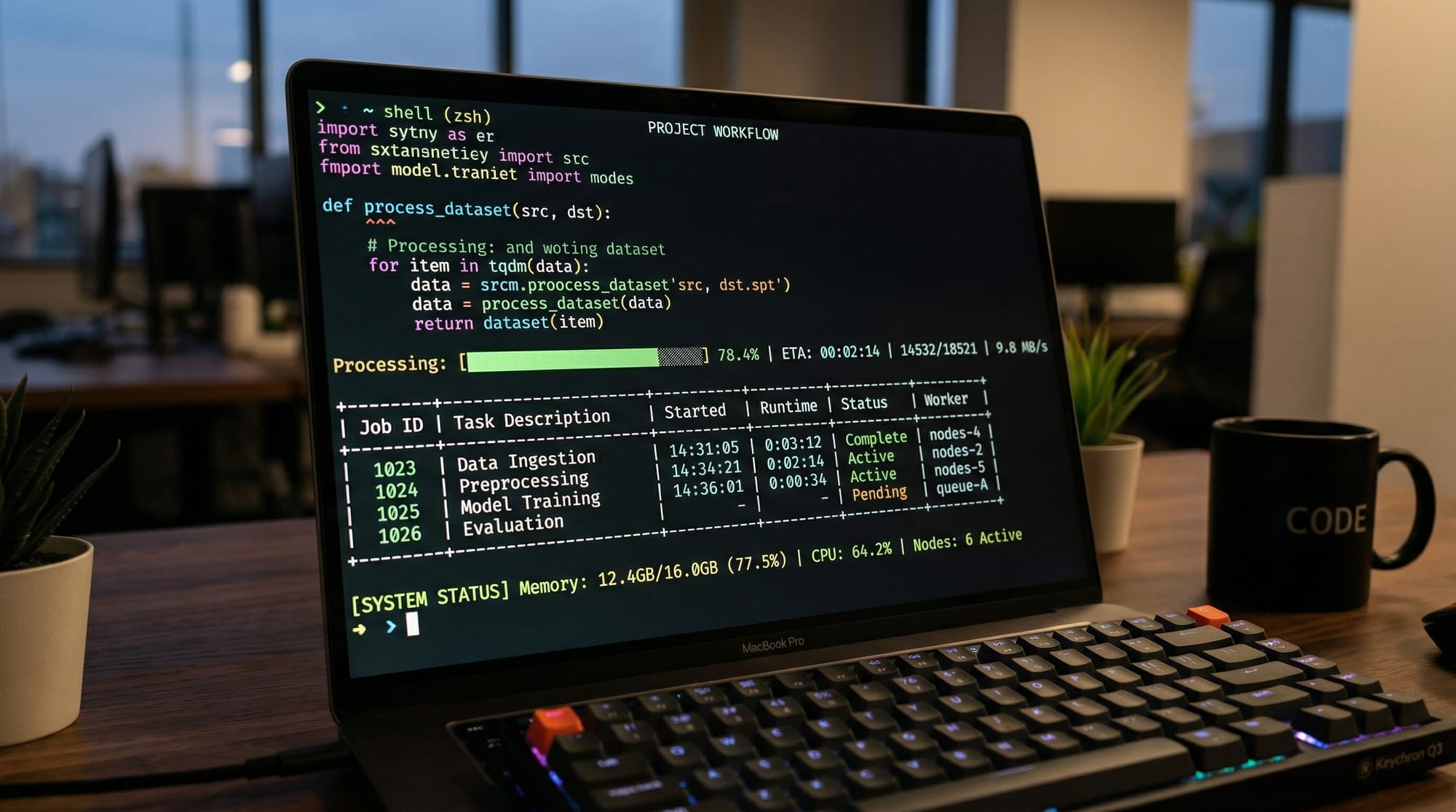
You can also create tables, progress bars, and syntax-highlighted output.
Practical Code Examples
Example 1: Simple CLI Tool with Typer
import typer

app = typer.Typer()

@app.command()
def calculate_price(amount: float, tax: float = 0.15):
    total = amount + (amount * tax)
    print(f"Total price: {total} PKR")

app()
Explanation line-by-line:
import typer→ Imports Typer libraryapp = typer.Typer()→ Creates CLI app@app.command()→ Registers a commandamount: float→ Required input (price)tax: float = 0.15→ Optional parameter with defaulttotal = ...→ Calculates total priceprint(...)→ Displays result in PKRapp()→ Runs CLI
Usage:
python app.py calculate-price 1000
Output:
Total price: 1150 PKR
Example 2: Real-World Application – Student Fee Manager
import typer
from rich import print
from rich.table import Table

app = typer.Typer()

students = [
    {"name": "Ali", "fee": 5000},
    {"name": "Fatima", "fee": 7000},
]

@app.command()
def show_fees():
    table = Table(title="Student Fees")

    table.add_column("Name")
    table.add_column("Fee (PKR)")

    for student in students:
        table.add_row(student["name"], str(student["fee"]))

    print(table)

app()
Explanation line-by-line:
import typer→ CLI frameworkfrom rich import print→ Styled outputfrom rich.table import Table→ Table featureapp = typer.Typer()→ Initialize appstudents = [...]→ Sample data@app.command()→ Register commanddef show_fees():→ Function for commandtable = Table(...)→ Create tableadd_column(...)→ Define columnsfor student in students:→ Loop through dataadd_row(...)→ Add rowsprint(table)→ Display styled tableapp()→ Run app
Common Mistakes & How to Avoid Them
Mistake 1: Forgetting to Call the App
❌ Wrong:
@app.command()
def hello():
    print("Hello")
✔ Fix:
app()
Explanation:
Without calling app(), the CLI tool will not execute.
Mistake 2: Not Using Type Hints in Typer
❌ Wrong:
def greet(name):
✔ Fix:
def greet(name: str):
Explanation:
Typer relies on type hints to parse inputs correctly.
Mistake 3: Mixing Click and Typer Incorrectly
Avoid combining both unnecessarily. Stick to one framework per project unless you understand their integration.
Practice Exercises
Exercise 1: Greeting Tool
Problem:
Create a CLI tool that greets a user with their city.
Solution:
import typer

app = typer.Typer()

@app.command()
def greet(name: str, city: str):
    print(f"Hello {name} from {city}!")

app()
Explanation:
- Takes two inputs
- Prints a personalized message
Exercise 2: Expense Calculator
Problem:
Build a CLI tool to calculate daily expenses in PKR.
Solution:
import typer

app = typer.Typer()

@app.command()
def expense(food: float, transport: float):
    total = food + transport
    print(f"Total expense: {total} PKR")

app()
Explanation:
- Accepts food and transport costs
- Calculates total
- Displays result
Frequently Asked Questions
What is Python CLI development?
Python CLI development involves creating programs that run in the terminal and accept user input through commands and arguments. It’s widely used for automation, scripting, and developer tools.
How do I install Click, Typer, and Rich?
You can install them using pip:
pip install click typer rich
These libraries are lightweight and easy to set up.
Which is better: Click or Typer?
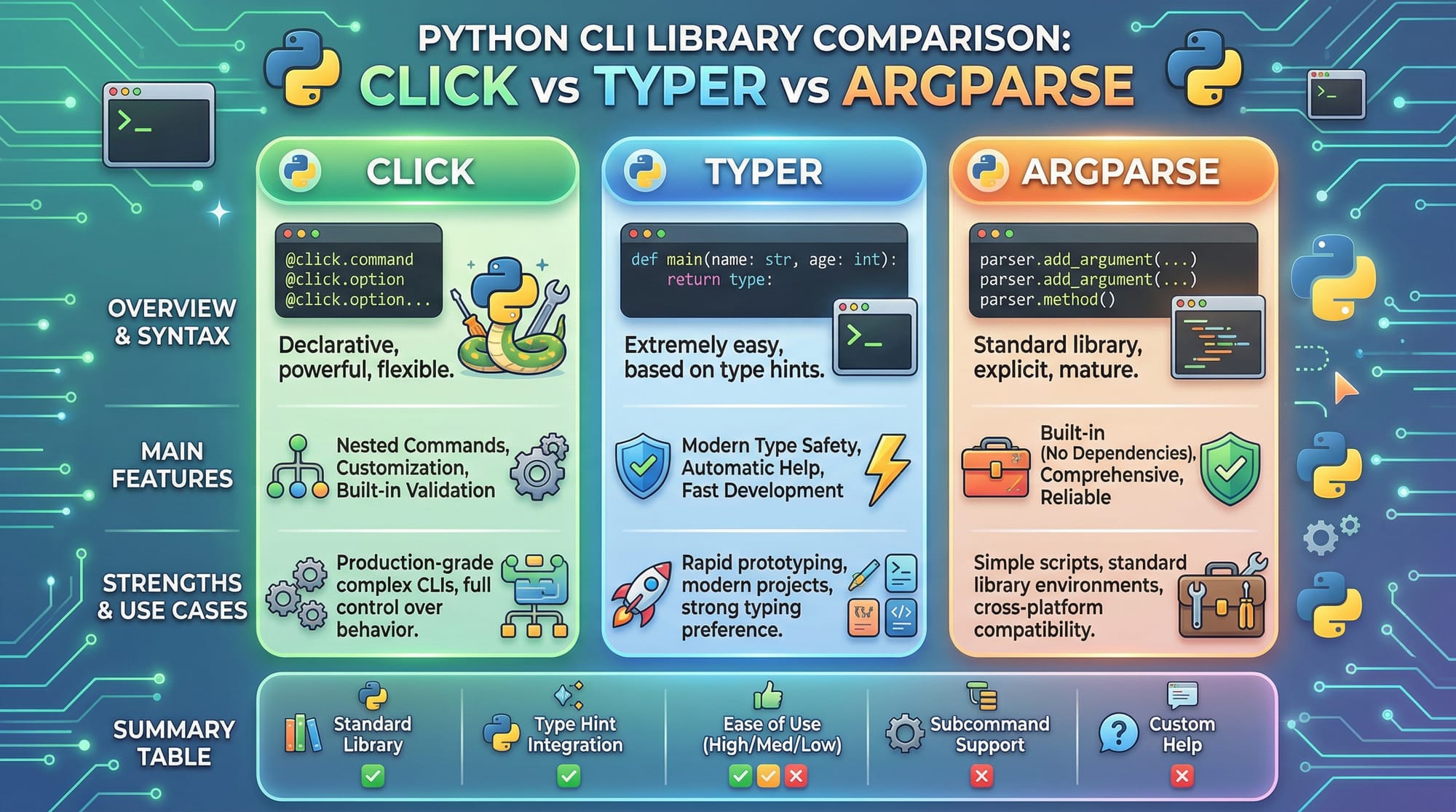
Typer is generally better for beginners due to its simplicity and type hints. Click is more mature and flexible for complex applications.
Can I use CLI tools for freelancing?
Yes! Many clients need automation scripts, data tools, and CLI utilities. Pakistani freelancers often build such tools for international clients.
How do I make my CLI tool look professional?
Use the Rich library for colors, tables, and progress bars. It significantly improves user experience and makes your tools stand out.
Summary & Key Takeaways
- CLI tools are powerful for automation and developer workflows
- Click Python is flexible and widely used
- Typer Python simplifies CLI creation using type hints
- Rich library enhances terminal output visually
- Pakistani students can use CLI skills for freelancing and projects
- Real-world tools (like fee managers) are easy to build with these libraries
Next Steps & Related Tutorials
To continue your learning journey, explore these tutorials on theiqra.edu.pk:
- Learn Python Automation scripts to automate daily tasks
- Explore Python Packaging and Distribution to share your CLI tools
- Build interactive apps with Streamlit for data apps
- Create AI demos using Gradio Python tutorials
By combining CLI tools with automation and packaging, you can build professional-grade Python applications and even launch your own developer tools.
Test Your Python Knowledge!
Finished reading? Take a quick quiz to see how much you've learned from this tutorial.