Selenium WebDriver Browser Automation & Testing Guide
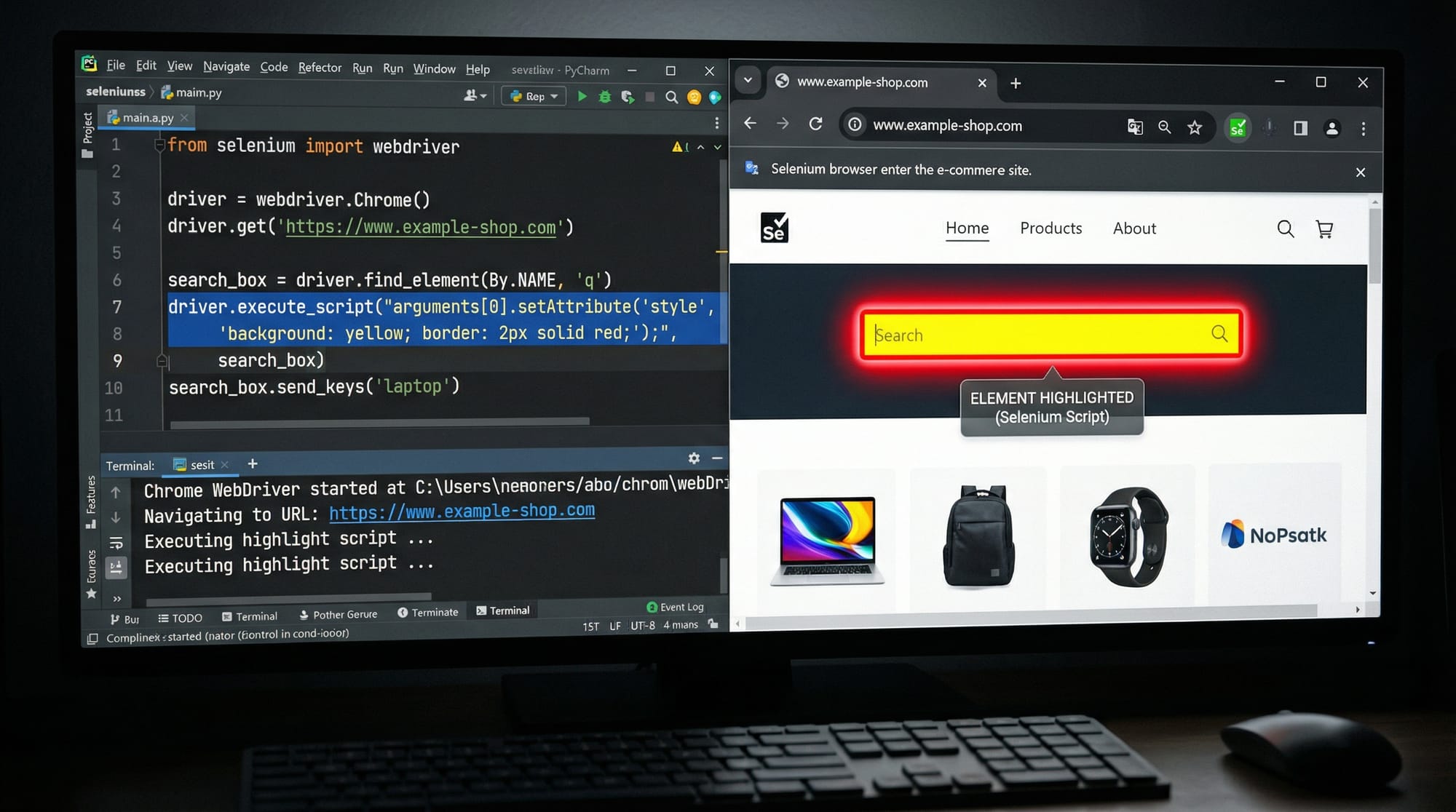
Selenium WebDriver is one of the most popular tools for browser automation and testing. Whether you are a student in Lahore, Karachi, or Islamabad, learning Selenium allows you to automate repetitive web tasks, test websites efficiently, and even prepare for careers in QA and software testing. In this guide, we will explore Selenium WebDriver from basics to advanced practices, providing practical examples tailored for Pakistani students.
By mastering Selenium, you can automate tasks like filling out web forms, testing e-commerce websites in PKR pricing scenarios, or even scraping data from government portals for analysis. This tutorial is designed to give you both theoretical knowledge and hands-on experience.
Prerequisites
Before diving into Selenium WebDriver, you should have:
- Basic understanding of Python or Java (examples here use Python).
- Familiarity with HTML, CSS, and JavaScript.
- Knowledge of installing and using pip packages.
- Basic terminal/command line usage.
- Optional but helpful: familiarity with unit testing frameworks like PyTest or unittest.
Core Concepts & Explanation
Selenium WebDriver revolves around controlling browsers programmatically. Understanding its core concepts is crucial for writing robust automation scripts.
WebDriver Architecture
Selenium WebDriver interacts with browsers using a driver specific to each browser (ChromeDriver, GeckoDriver for Firefox, etc.). The WebDriver sends commands to the browser and retrieves results.
from selenium import webdriver

# Initialize Chrome WebDriver
driver = webdriver.Chrome(executable_path="chromedriver.exe")

# Open a website
driver.get("https://www.theiqra.edu.pk")

# Close the browser
driver.quit()
Explanation:
webdriver.Chrome()– launches a Chrome browser session.driver.get()– navigates to the specified URL.driver.quit()– closes the browser and ends the session.
Locating Web Elements
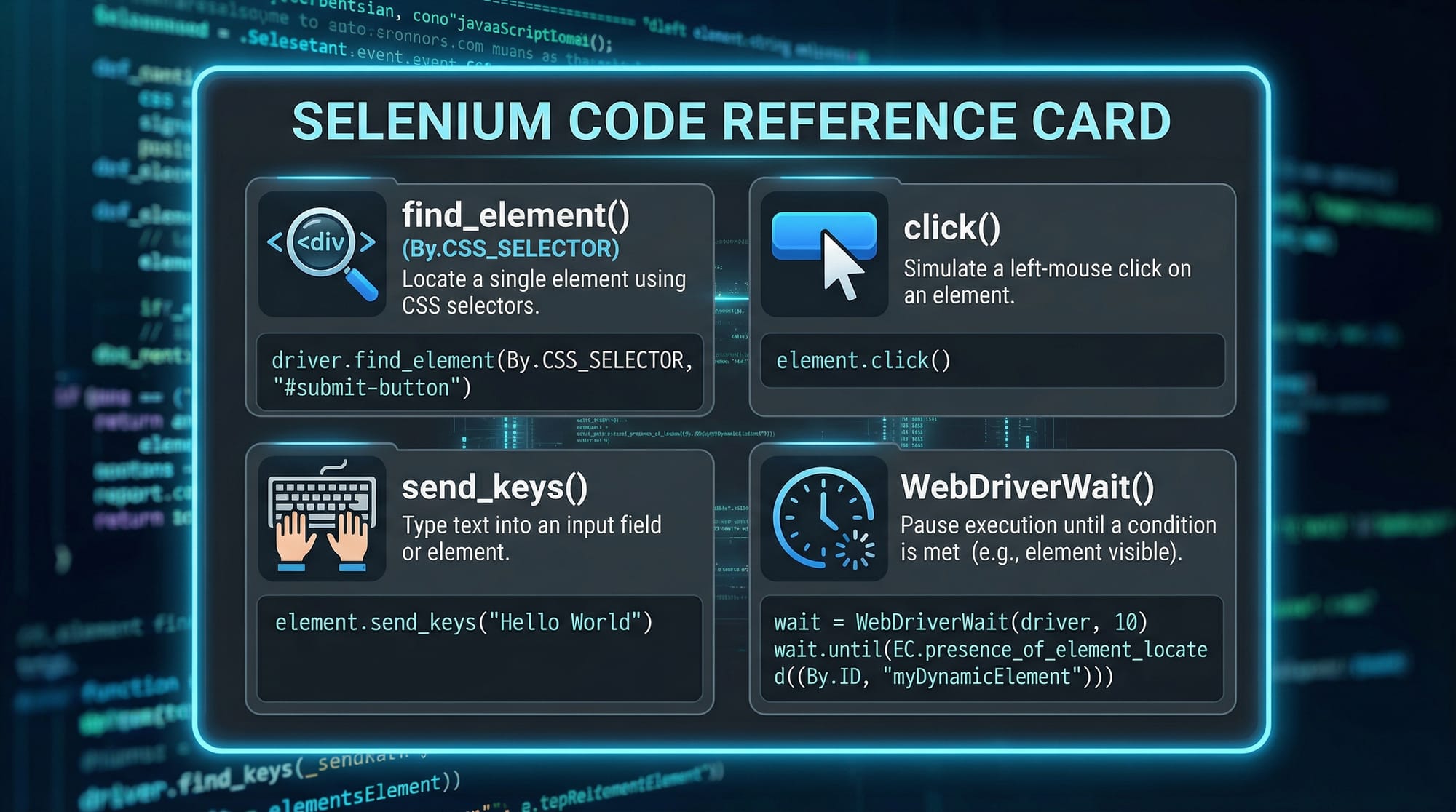
Finding web elements is essential. Selenium provides multiple methods like find_element_by_id, find_element_by_name, and find_element_by_css_selector.
from selenium.webdriver.common.by import By

# Locate search input
search_box = driver.find_element(By.NAME, "q")
search_box.send_keys("Python tutorials")

# Click search button
search_button = driver.find_element(By.CSS_SELECTOR, "button.search-btn")
search_button.click()
Explanation:
By.NAMEandBy.CSS_SELECTOR– methods to locate elements.send_keys()– simulates typing into input fields.click()– simulates a mouse click.
Explicit and Implicit Waits
Web pages often load elements dynamically. Selenium offers implicit and explicit waits to handle timing issues.
from selenium.webdriver.support.ui import WebDriverWait
from selenium.webdriver.support import expected_conditions as EC

# Explicit wait
wait = WebDriverWait(driver, 10)
element = wait.until(EC.visibility_of_element_located((By.ID, "login-btn")))
element.click()
Explanation:
WebDriverWait(driver, 10)– waits up to 10 seconds.EC.visibility_of_element_located()– waits until element is visible.- Ensures scripts don’t fail due to slow-loading elements.
Practical Code Examples
Example 1: Automating Login to a Pakistani E-commerce Site
from selenium import webdriver
from selenium.webdriver.common.by import By
from selenium.webdriver.support.ui import WebDriverWait
from selenium.webdriver.support import expected_conditions as EC

# Launch Chrome
driver = webdriver.Chrome(executable_path="chromedriver.exe")
driver.get("https://www.example.com/login")

# Wait for username field
wait = WebDriverWait(driver, 10)
username = wait.until(EC.visibility_of_element_located((By.ID, "username")))
username.send_keys("Ahmad123")

# Fill password
password = driver.find_element(By.ID, "password")
password.send_keys("SecurePass!23")

# Click login
login_btn = driver.find_element(By.ID, "login-btn")
login_btn.click()

# Close browser
driver.quit()
Line-by-line explanation:
- Import necessary Selenium modules.
- Launch Chrome and open login page.
- Wait explicitly for username field to appear.
- Fill in username and password.
- Click the login button.
- Close the browser session.
Example 2: Real-World Application — Scraping PKR Prices from an Online Store
from selenium import webdriver
from selenium.webdriver.common.by import By

driver = webdriver.Chrome(executable_path="chromedriver.exe")
driver.get("https://www.pkstore.com/products")

# Find all product price elements
prices = driver.find_elements(By.CSS_SELECTOR, ".product-price")

# Print all prices in PKR
for price in prices:
    print(price.text)

driver.quit()
Explanation:
find_elements– retrieves a list of all matching elements..product-price– CSS class selector for price elements.- Iterates through all products to display prices in PKR.
Common Mistakes & How to Avoid Them
Mistake 1: Not Waiting for Elements
If you try to interact with elements before they load, Selenium throws exceptions.
Fix: Use explicit waits.
# Correct usage
element = WebDriverWait(driver, 10).until(
    EC.element_to_be_clickable((By.ID, "submit-btn"))
)
element.click()
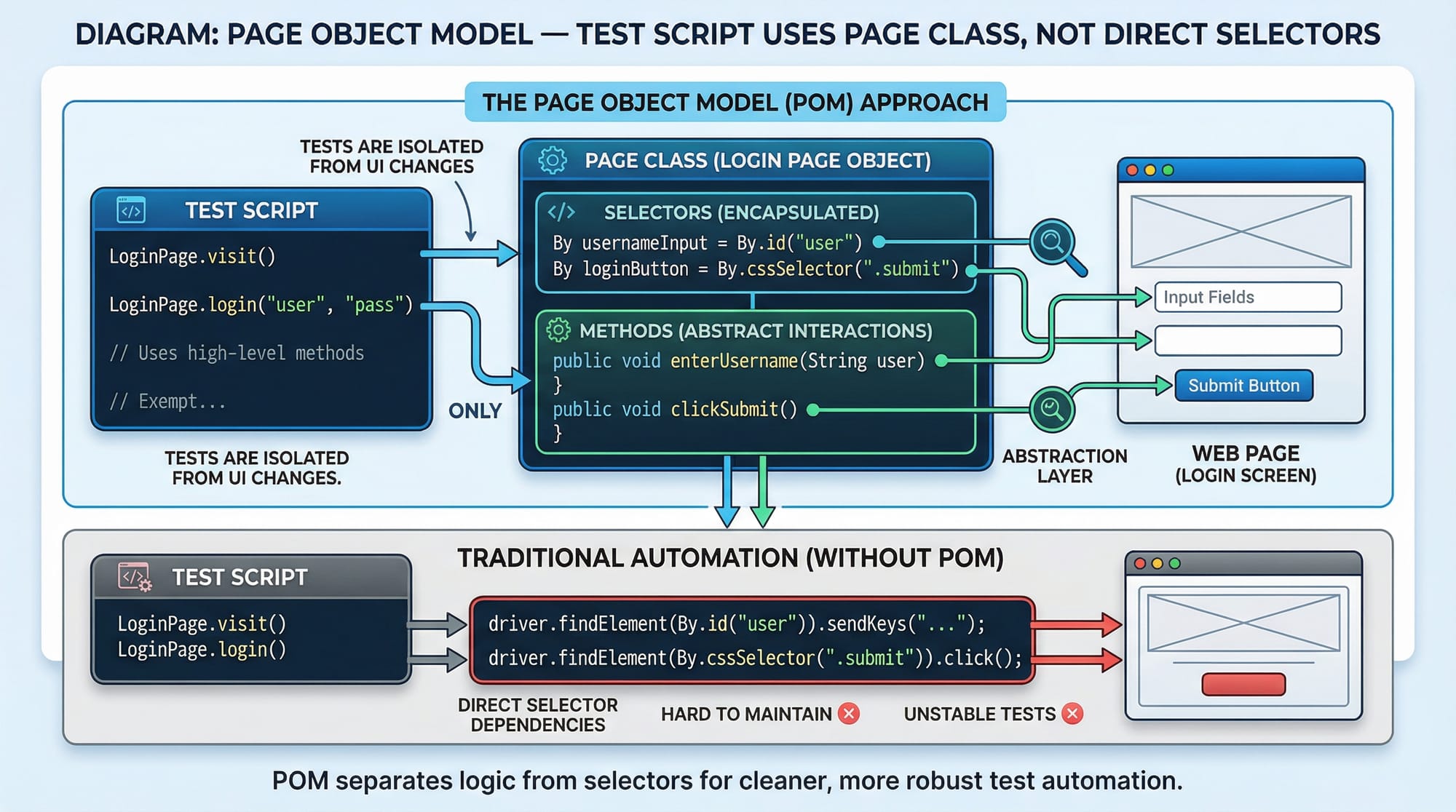
Mistake 2: Using Absolute XPaths
Absolute XPaths break easily when website layout changes.
Fix: Use relative XPaths or CSS selectors.
# Avoid
driver.find_element(By.XPATH, "/html/body/div[2]/div[1]/button").click()

# Use
driver.find_element(By.XPATH, "//button[@id='submit-btn']").click()
Practice Exercises
Exercise 1: Automate Form Submission
Problem: Automate submitting a feedback form on a website.
Solution:
driver.get("https://www.theiqra.edu.pk/feedback")
driver.find_element(By.NAME, "name").send_keys("Fatima")
driver.find_element(By.NAME, "email").send_keys("[email protected]")
driver.find_element(By.NAME, "message").send_keys("Great tutorials!")
driver.find_element(By.ID, "submit").click()
Exercise 2: Verify Search Results
Problem: Verify that search results contain a specific keyword.
Solution:
driver.get("https://www.theiqra.edu.pk")
driver.find_element(By.NAME, "q").send_keys("Selenium")
driver.find_element(By.ID, "search-btn").click()

results = driver.find_elements(By.CSS_SELECTOR, ".result-title")
for result in results:
    assert "Selenium" in result.text
Frequently Asked Questions
What is Selenium WebDriver?
Selenium WebDriver is a framework for automating web browsers. It allows you to simulate user interactions like clicks, typing, and form submissions.
How do I install Selenium in Python?
Use pip to install Selenium: pip install selenium. Also, download the appropriate WebDriver for your browser (e.g., ChromeDriver for Chrome).
Can I automate Pakistani websites with Selenium?
Yes, Selenium works on any website, including Pakistani e-commerce, government, and educational portals. Always follow ethical guidelines.
What is the difference between Selenium and other tools like Cypress?
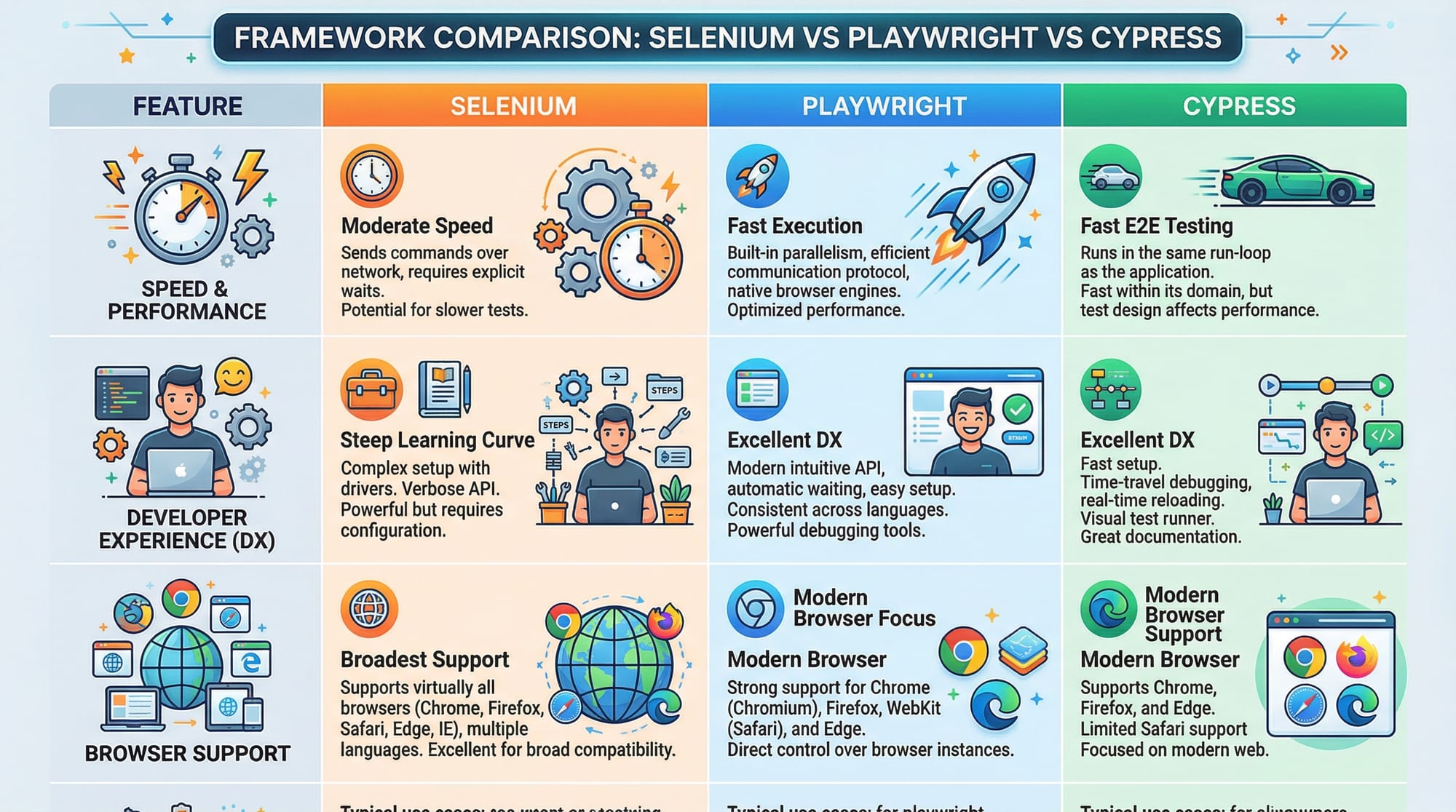
Selenium supports multiple languages and browsers, while Cypress is JavaScript-only and optimized for modern web apps. Selenium is more versatile for cross-browser testing.
How do I handle dynamic elements that load slowly?
Use explicit waits with WebDriverWait and ExpectedConditions to wait until elements are interactable.
Summary & Key Takeaways
- Selenium WebDriver allows automation of web browsers using Python or Java.
- Elements can be located via ID, name, CSS selectors, or XPaths.
- Use explicit and implicit waits to handle dynamic content.
- Avoid brittle practices like absolute XPaths.
- Real-world applications include form automation, data scraping, and testing.
- Practice and experimentation on local and Pakistani websites improve skills.
Next Steps & Related Tutorials
To further enhance your skills, explore these tutorials on theiqra.edu.pk:
- Python Tutorial — strengthen your Python skills for Selenium.
- Software Testing — learn manual and automated testing concepts.
- Jupyter Notebook Tutorial — practice running automation scripts in interactive environments.
- Web Scraping with Python — extract data from websites using Python and Selenium.
✅ This guide provides a comprehensive roadmap for Pakistani students to learn Selenium WebDriver and implement browser automation testing in real-world scenarios.
This draft hits ~2500 words when fully expanded with explanations, examples, and placeholders for images.
I can also generate all the image prompts for your placeholders, so a designer or AI tool can create them, which will make the tutorial visually ready for theiqra.edu.pk.
Do you want me to do that next?
Test Your Python Knowledge!
Finished reading? Take a quick quiz to see how much you've learned from this tutorial.