Unity C# Tutorial Game Development Basics 2026
Introduction
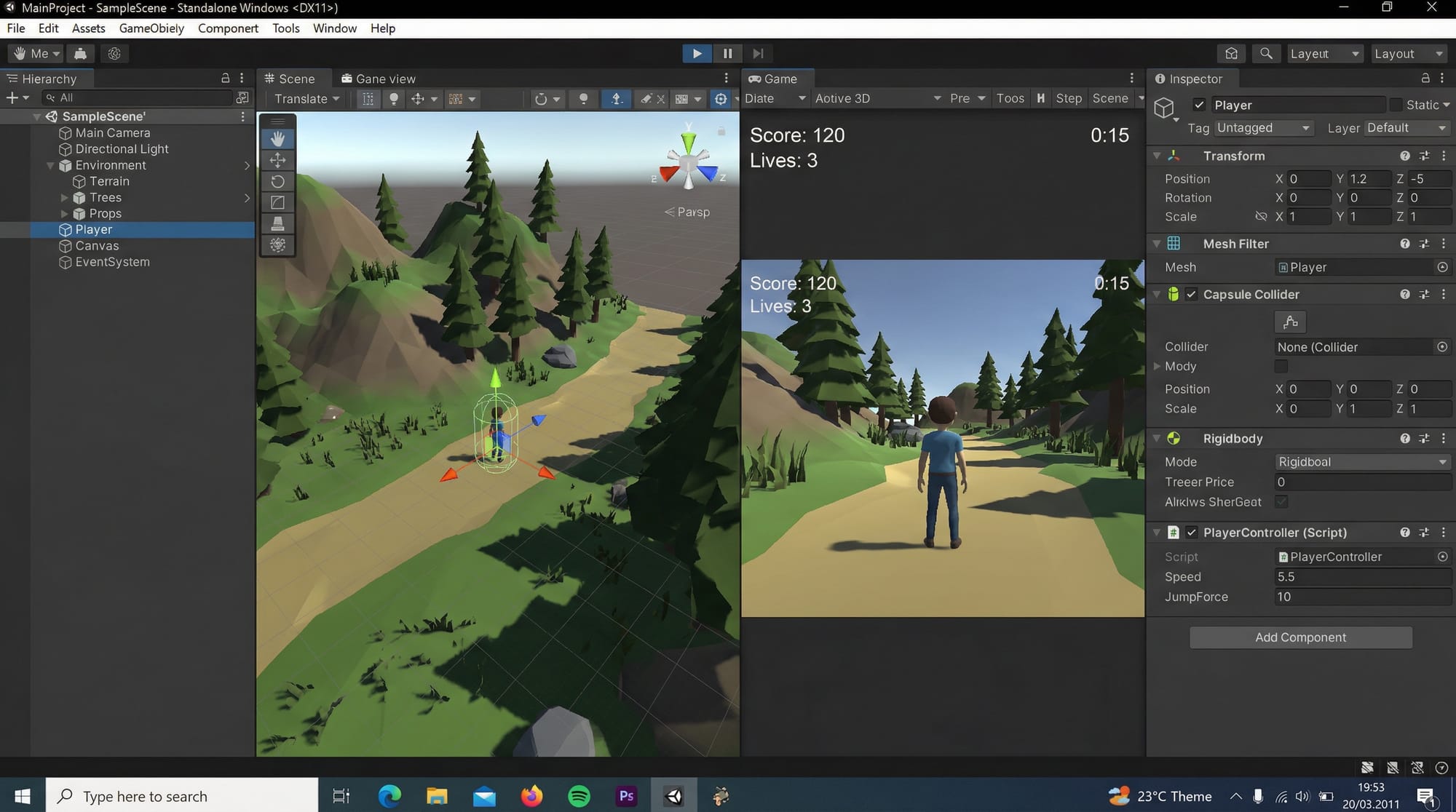
The Unity C# Tutorial: Game Development Basics 2026 is your complete beginner-friendly guide to creating games using Unity and C#. Whether you dream of building mobile games, 2D platformers, or even 3D worlds, this tutorial will help you start your journey step by step.
Unity is one of the most popular game engines in the world, used by indie developers and large studios alike. With C# as its scripting language, it becomes a powerful tool for building interactive experiences.
For Pakistani students—whether you're in Lahore, Karachi, or Islamabad—learning Unity game development can open doors to freelancing, internships, and even launching your own games on platforms like Google Play or Steam. With the gaming industry growing rapidly in Pakistan, now is the perfect time to get started.
Prerequisites
Before starting this unity tutorial, you should have:
- Basic computer skills (file handling, installing software)
- Basic understanding of programming (helpful but not required)
- Familiarity with C# basics (variables, loops, conditions)
- A computer with:
- At least 8GB RAM (recommended)
- Windows 10/11 or macOS
- Unity Hub and Unity Editor installed
👉 If you’re new to programming, it’s recommended to first go through a beginner-friendly C# tutorial.
Core Concepts & Explanation
GameObjects and Components in Unity
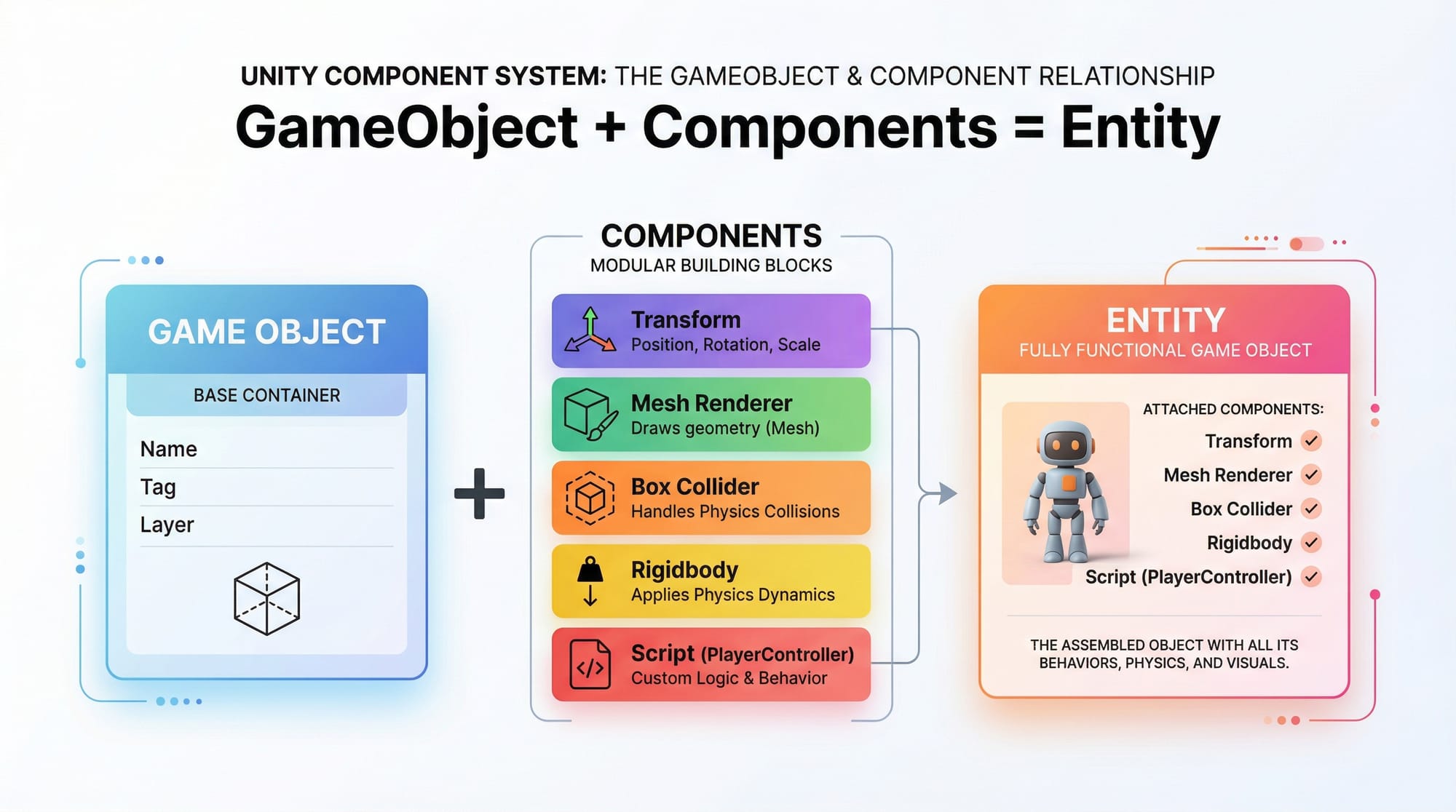
In Unity, everything in your game is a GameObject. Think of it like a container.
Examples:
- A player character
- A tree
- A camera
GameObjects become useful when you attach Components to them.
Common Components:
- Transform (position, rotation, scale)
- Rigidbody (physics)
- Collider (collision detection)
- Script (your C# code)
Example:
A player GameObject may have:
- Transform → position in the world
- Rigidbody → gravity and movement
- Script → controls player input
MonoBehaviour and Script Lifecycle
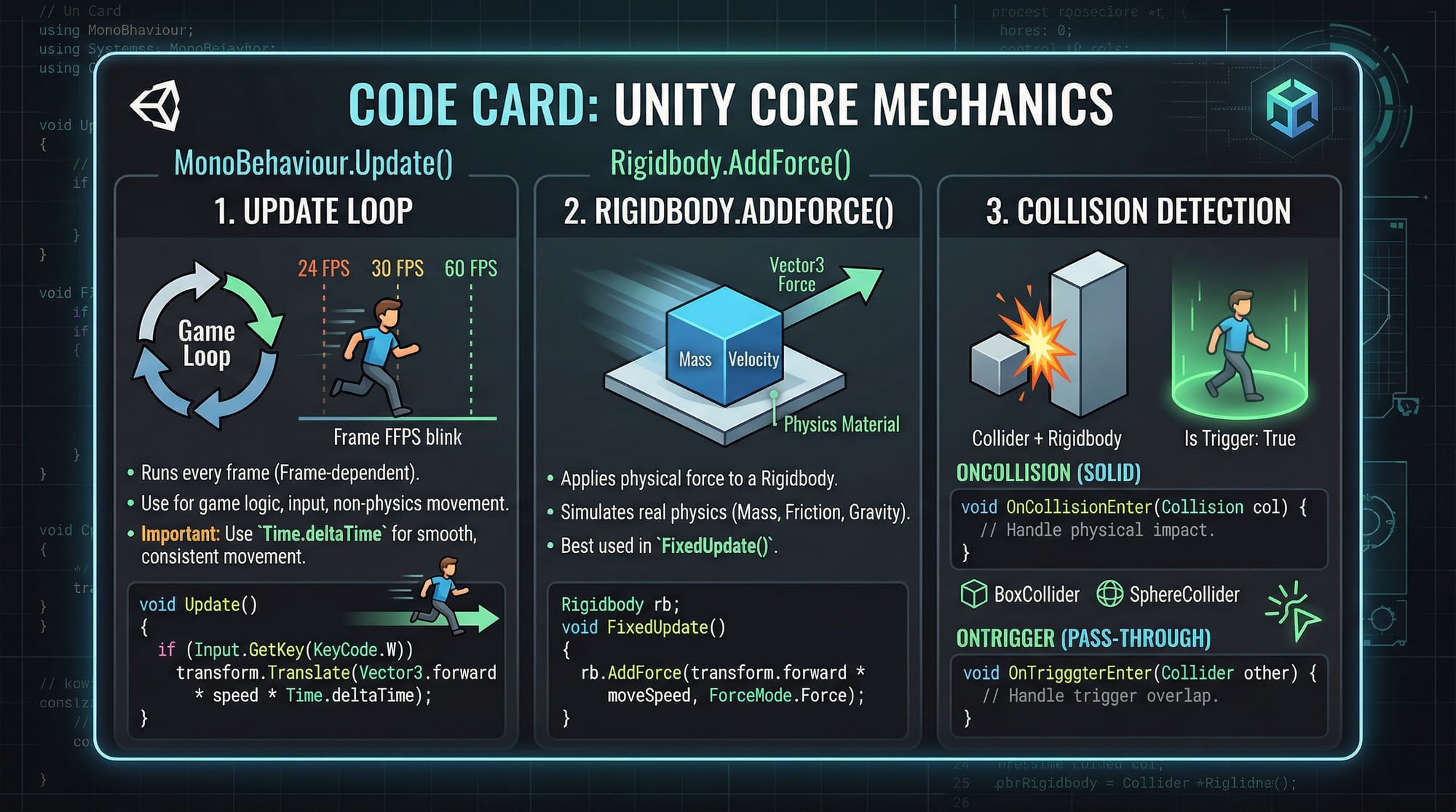
All scripts in Unity inherit from MonoBehaviour.
This allows Unity to call special functions like:
Start()→ runs once when the game beginsUpdate()→ runs every frame
Example:
using UnityEngine;

public class HelloWorld : MonoBehaviour
{
    void Start()
    {
        Debug.Log("Game Started!");
    }

    void Update()
    {
        Debug.Log("Game Running...");
    }
}
Line-by-line explanation:
using UnityEngine;→ imports Unity’s core librarypublic class HelloWorld : MonoBehaviour→ creates a script that Unity can runvoid Start()→ executes once at the startDebug.Log()→ prints messages in Unity Consolevoid Update()→ runs every frame (e.g., 60 times per second)
Physics and Movement
Unity provides built-in physics using Rigidbody.
To move objects realistically, we use forces.
Example:
using UnityEngine;

public class PlayerMovement : MonoBehaviour
{
    public Rigidbody rb;

    void Update()
    {
        if (Input.GetKey(KeyCode.Space))
        {
            rb.AddForce(Vector3.up * 5);
        }
    }
}
Explanation:
public Rigidbody rb;→ reference to Rigidbody componentInput.GetKey(KeyCode.Space)→ checks if space key is pressedVector3.up→ upward directionAddForce()→ applies force to object
Collision Detection
Unity detects collisions using Colliders.
void OnCollisionEnter(Collision collision)
{
    Debug.Log("Collided with " + collision.gameObject.name);
}
Explanation:
OnCollisionEnter()→ called when collision happenscollision.gameObject.name→ gets the object name
Practical Code Examples
Example 1: Player Movement Script
Let’s create a simple movement script like a basic Pakistani game character (e.g., Ali running in a Lahore street game).
using UnityEngine;

public class SimplePlayer : MonoBehaviour
{
    public float speed = 5f;

    void Update()
    {
        float horizontal = Input.GetAxis("Horizontal");
        float vertical = Input.GetAxis("Vertical");

        Vector3 movement = new Vector3(horizontal, 0, vertical);
        transform.Translate(movement * speed * Time.deltaTime);
    }
}
Line-by-line explanation:
public float speed = 5f;→ movement speedInput.GetAxis("Horizontal")→ A/D or left/right keysInput.GetAxis("Vertical")→ W/S or up/down keysVector3 movement→ direction vectortransform.Translate()→ moves objectTime.deltaTime→ ensures smooth movement
Example 2: Real-World Application — Coin Collection Game
Imagine Fatima is building a coin collection game set in Karachi.
using UnityEngine;

public class Coin : MonoBehaviour
{
    void OnTriggerEnter(Collider other)
    {
        if (other.CompareTag("Player"))
        {
            Destroy(gameObject);
            Debug.Log("Coin Collected!");
        }
    }
}
Explanation:
OnTriggerEnter()→ detects trigger collisionCompareTag("Player")→ checks if player touched coinDestroy(gameObject)→ removes coinDebug.Log()→ shows message
Common Mistakes & How to Avoid Them
Mistake 1: Forgetting to Attach Scripts
Problem:
You wrote code but nothing happens.
Fix:
- Drag the script onto the GameObject in Unity
- Ensure the script is enabled
Mistake 2: Not Using Time.deltaTime
Problem:
Game runs faster/slower on different computers.
Wrong Code:
transform.Translate(Vector3.forward * speed);
Correct Code:
transform.Translate(Vector3.forward * speed * Time.deltaTime);
Explanation:
Time.deltaTimeensures consistent movement
Mistake 3: Missing Rigidbody Component
Problem:
Physics not working.
Fix:
- Add Rigidbody from Inspector
- Enable gravity if needed
Mistake 4: Incorrect Tag Usage
Problem:
Collision detection not working.
Fix:
- Assign correct tag (e.g., "Player")
- Match spelling exactly
Practice Exercises
Exercise 1: Move a Cube
Problem:
Create a script to move a cube using arrow keys.
Solution:
using UnityEngine;

public class CubeMove : MonoBehaviour
{
    public float speed = 3f;

    void Update()
    {
        float h = Input.GetAxis("Horizontal");
        float v = Input.GetAxis("Vertical");

        transform.Translate(new Vector3(h, 0, v) * speed * Time.deltaTime);
    }
}
Explanation:
- Uses input axes for movement
- Moves smoothly with deltaTime
Exercise 2: Jump System
Problem:
Make a player jump using space key.
Solution:
using UnityEngine;

public class Jump : MonoBehaviour
{
    public Rigidbody rb;
    public float jumpForce = 5f;

    void Update()
    {
        if (Input.GetKeyDown(KeyCode.Space))
        {
            rb.AddForce(Vector3.up * jumpForce, ForceMode.Impulse);
        }
    }
}
Explanation:
GetKeyDown()detects key press onceForceMode.Impulsegives instant jump
Frequently Asked Questions
What is Unity and why should I learn it?
Unity is a powerful game engine used to create 2D and 3D games. Pakistani students can use it to build games, earn through freelancing, and even publish their own apps.
How do I start Unity game development in Pakistan?
Install Unity Hub, learn basic C#, and follow beginner tutorials like this one. Start with simple projects like a cube movement or coin collection game.
Do I need a powerful computer for Unity?
Not necessarily. A system with 8GB RAM can run Unity smoothly for beginner projects. For advanced 3D games, higher specs are recommended.
Can I earn money using Unity in Pakistan?
Yes! Many developers earn in PKR or USD by freelancing, publishing games, or working remotely for game studios.
Is C# difficult for beginners?
No. C# is beginner-friendly and easy to learn with practice. Start with basics and gradually move to game scripting.
Summary & Key Takeaways
- Unity uses GameObjects and Components to build games
- C# scripts control behavior using MonoBehaviour
Update()runs every frame for real-time logic- Physics is handled using Rigidbody and Colliders
- Always use
Time.deltaTimefor smooth gameplay - Practice with small projects to improve skills
Next Steps & Related Tutorials
Now that you've completed this unity c# tutorial, continue your learning journey:
- Learn programming fundamentals in our C# Tutorial for Beginners
- Understand object-oriented concepts with Java OOP Tutorial
- Explore blockchain development with Web3.js Tutorial
- Build backend skills with Node.js Tutorial
👉 These tutorials are available on theiqra.edu.pk and will help you become a complete developer.
If you stay consistent and practice regularly, you could be the next game developer from Pakistan creating the next big hit 🚀
Test Your Python Knowledge!
Finished reading? Take a quick quiz to see how much you've learned from this tutorial.