Linux Security Hardening SSH Firewall & Permissions
Introduction
Linux servers power a huge portion of the internet—from university labs in Islamabad to production systems in Karachi startups. However, simply installing Linux is not enough. Without proper protection, your system can be vulnerable to attacks such as unauthorized access, brute-force logins, or data leaks.
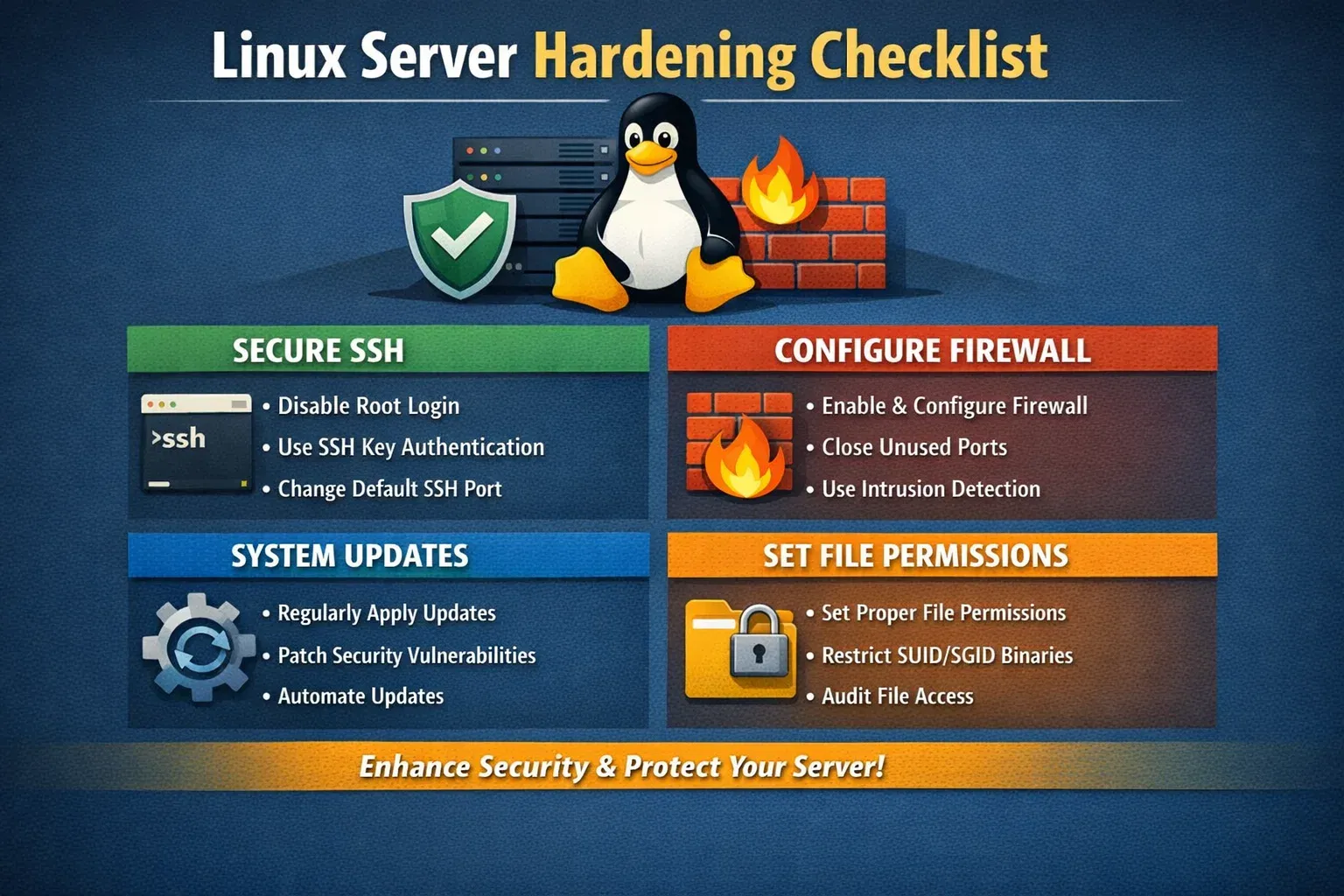
Linux Security Hardening is the process of securing a Linux system by reducing vulnerabilities and applying best practices. In this tutorial, we’ll focus on three critical areas:
- SSH Security (protecting remote access)
- Firewall Configuration (UFW) (controlling network traffic)
- File Permissions (restricting access to files and directories)
For Pakistani students, learning Linux security is especially valuable because:
- Many freelancing and DevOps jobs require server management skills
- Universities like Iqra University often use Linux-based labs
- Hosting platforms (local and international) rely heavily on Linux
By the end of this guide, you’ll be able to secure your own Linux server like a professional.
Prerequisites
Before starting this tutorial, you should have:
- Basic knowledge of Linux commands (
cd,ls,chmod,nano) - A Linux system (Ubuntu recommended)
- Basic understanding of networking (IP address, ports)
- Access to a terminal (local or SSH)
- Root or sudo privileges
If you’re new, consider first reading Linux Basics on theiqra.edu.pk.
Core Concepts & Explanation
SSH Security Fundamentals
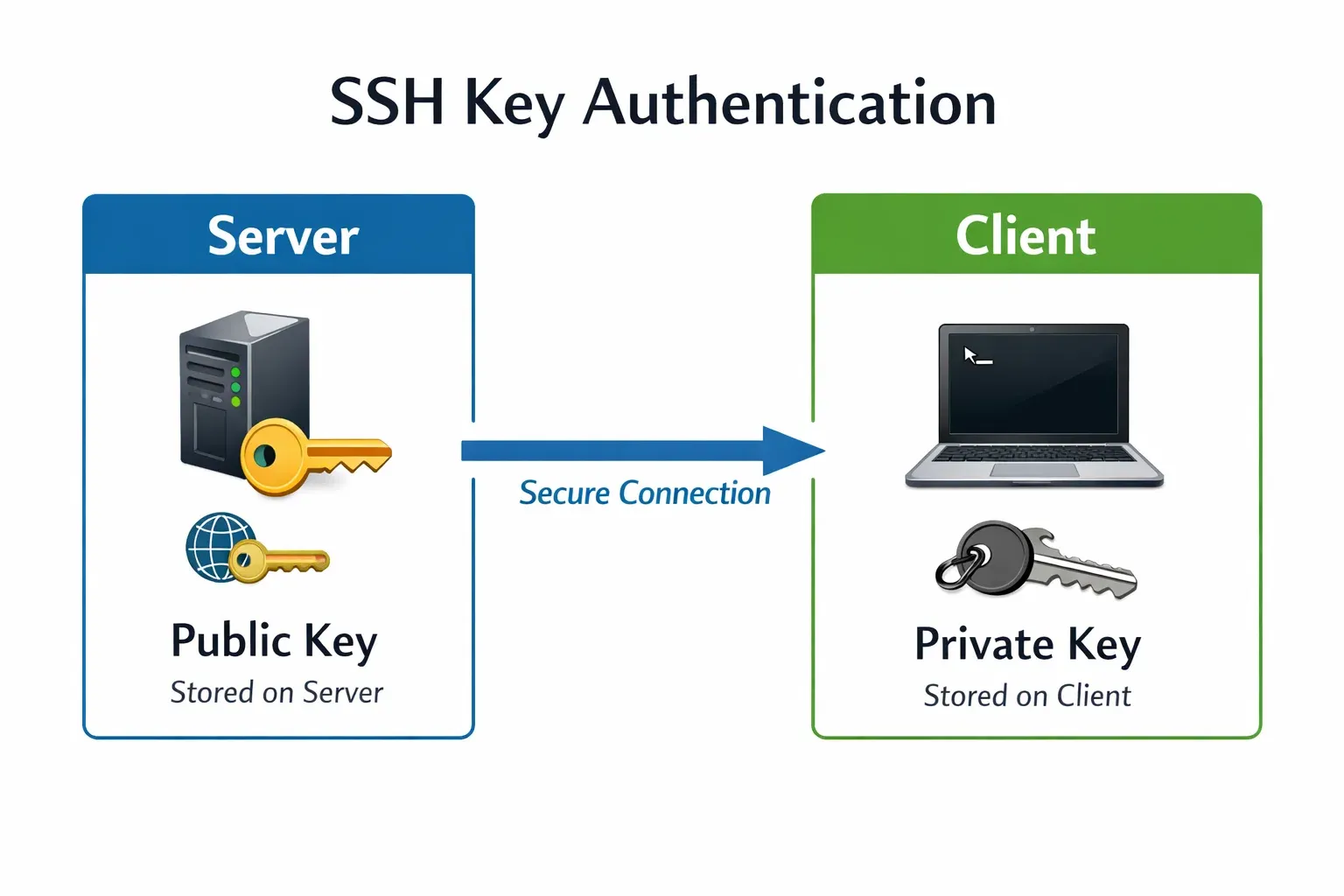
SSH (Secure Shell) allows you to connect remotely to a server. For example, Ahmad in Lahore may SSH into a server hosted in Islamabad.
However, default SSH settings are often insecure:
- Password login enabled
- Root login allowed
- Default port (22)
Key SSH Hardening Techniques:
- Disable root login
- Use SSH key authentication
- Change default port
- Limit login attempts
Example:
Instead of:
ssh [email protected]
Use:
ssh [email protected]
This reduces attack surface significantly.
Firewall Security with UFW
A firewall controls which traffic is allowed or blocked.
UFW (Uncomplicated Firewall) is a beginner-friendly firewall tool in Linux.
Think of it like a gatekeeper:
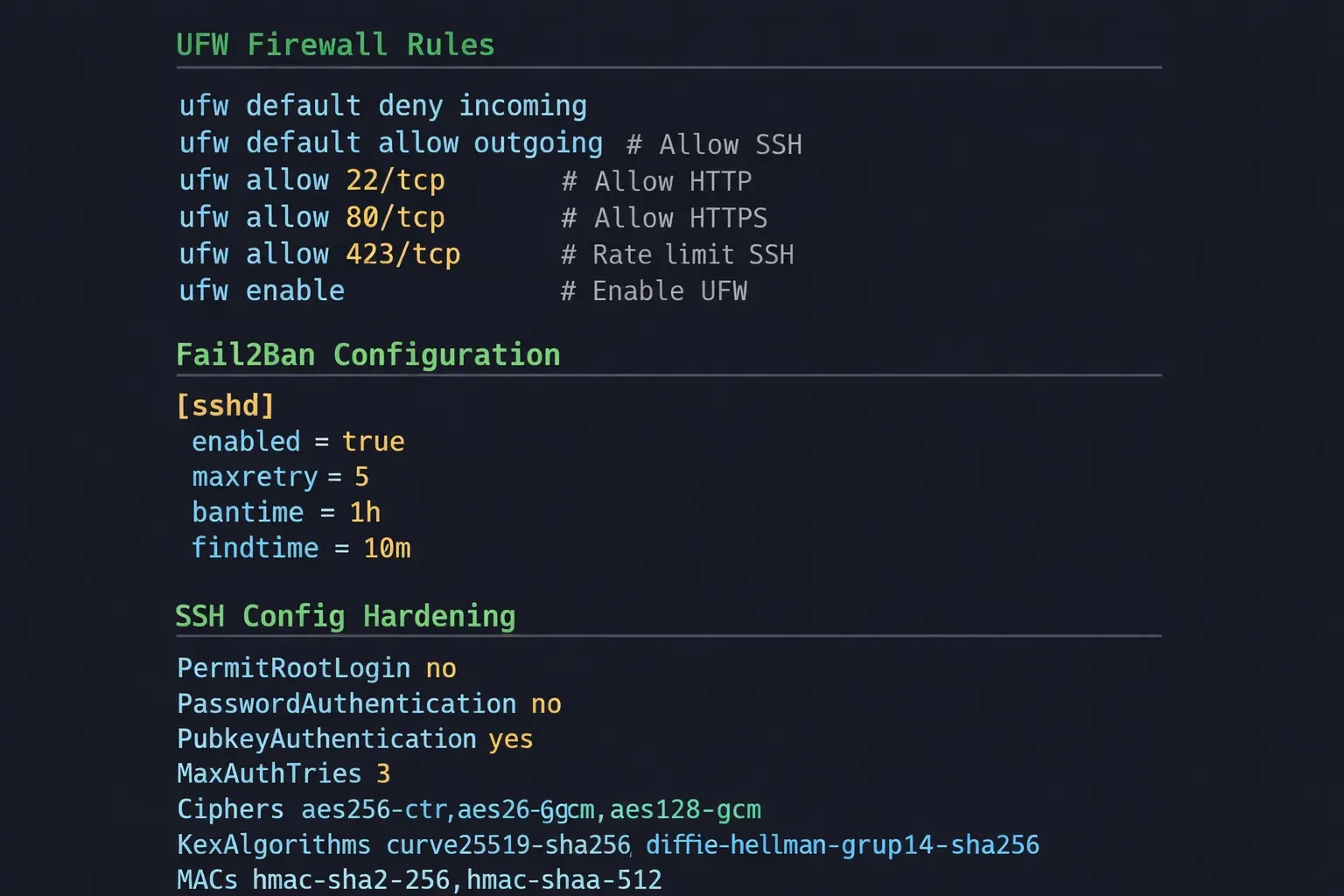
- Allow SSH (port 22 or custom)
- Allow web traffic (port 80, 443)
- Block everything else
Example:
If Fatima is running a web server:
- Allow HTTP (80)
- Allow HTTPS (443)
- Deny all other ports
File Permissions and Ownership
Linux uses permissions to control access:
| Permission | Meaning |
|---|---|
| r | Read |
| w | Write |
| x | Execute |
Each file has:
- Owner
- Group
- Others
Example:
-rwxr-x---
Meaning:
- Owner: full access
- Group: read + execute
- Others: no access
Improper permissions can expose sensitive data like passwords or configs.
Practical Code Examples
Example 1: Secure SSH Configuration
sudo nano /etc/ssh/sshd_config
Explanation:
sudo: run as adminnano: open file editor/etc/ssh/sshd_config: SSH config file
Now modify these lines:
PermitRootLogin no
- Disables root login
PasswordAuthentication no
- Forces SSH key usage
Port 2222
- Changes default port
Restart SSH:
sudo systemctl restart ssh
Explanation:
systemctl: manage servicesrestart ssh: apply new settings
Example 2: Real-World Application (UFW + Fail2Ban + SSH)
Let’s say Ali in Karachi is hosting a small freelancing website.
Step 1: Enable UFW
sudo ufw enable
- Activates firewall
Step 2: Allow SSH
sudo ufw allow 2222
- Allows custom SSH port
Step 3: Allow Web Traffic
sudo ufw allow 80
sudo ufw allow 443
- Enables HTTP and HTTPS
Step 4: Check Status
sudo ufw status
- Shows active rules
Step 5: Install Fail2Ban
sudo apt install fail2ban
- Installs protection against brute-force attacks
Step 6: Start Service
sudo systemctl enable fail2ban
sudo systemctl start fail2ban
- Enables auto-start
- Starts service
Common Mistakes & How to Avoid Them
Mistake 1: Locking Yourself Out of SSH
Changing SSH port without allowing it in firewall:
❌ Wrong:
Port 2222
But forgetting:
sudo ufw allow 2222
✅ Fix:
Always allow port before restarting SSH.
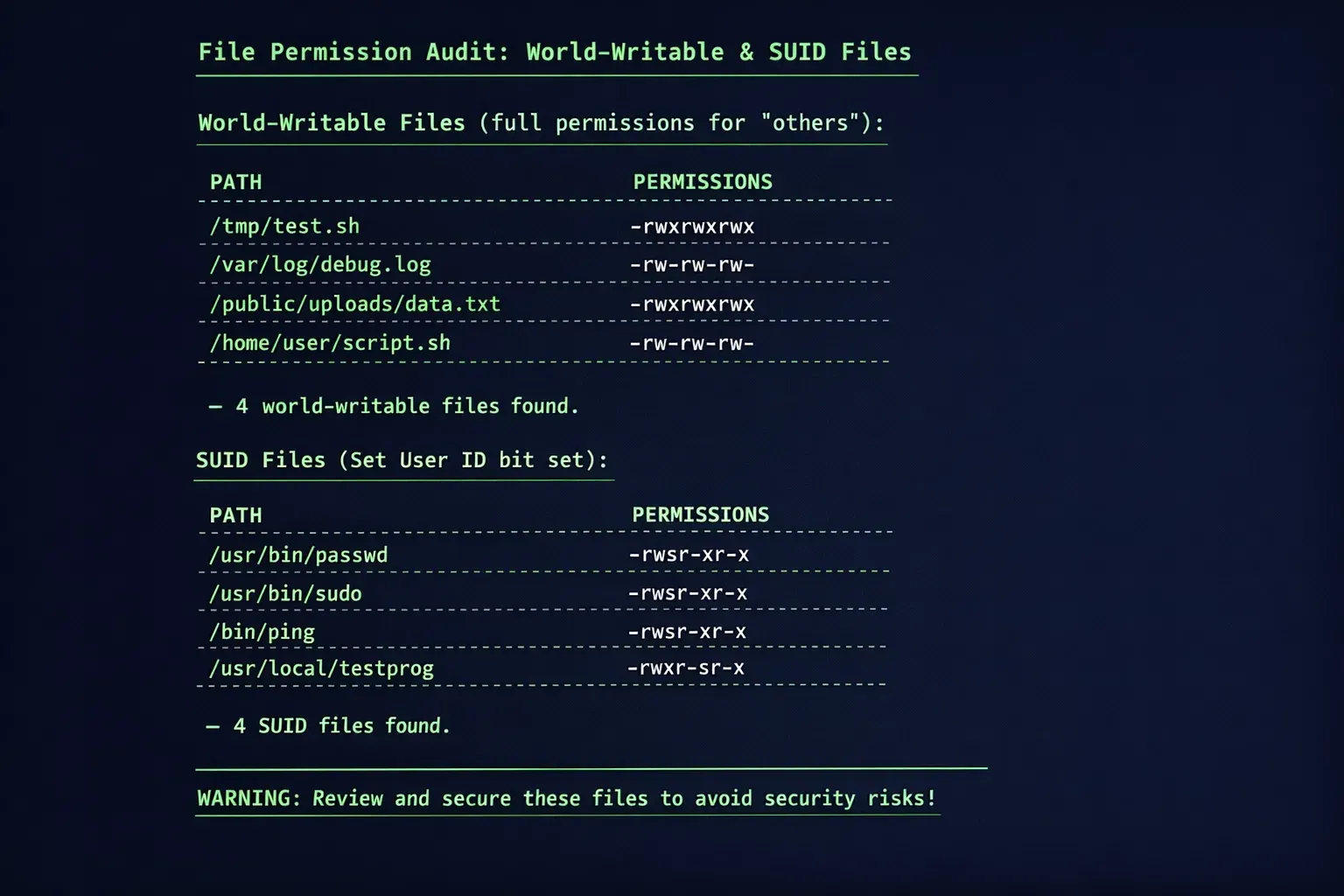
Mistake 2: Using Weak File Permissions
Example of insecure file:
-rwxrwxrwx config.php
This means anyone can modify it.
✅ Fix:
chmod 640 config.php
Explanation:
- Owner: read/write
- Group: read
- Others: no access
Mistake 3: Leaving Root Login Enabled
❌ Dangerous:
PermitRootLogin yes
✅ Fix:
PermitRootLogin no
Mistake 4: Ignoring Updates
Outdated systems are vulnerable.
✅ Fix:
sudo apt update
sudo apt upgrade
Practice Exercises
Exercise 1: Secure SSH Server
Problem:
Configure SSH securely on a new Ubuntu server.
Solution:
sudo nano /etc/ssh/sshd_config
Add:
PermitRootLogin no
PasswordAuthentication no
Port 2222
Then:
sudo ufw allow 2222
sudo systemctl restart ssh
Exercise 2: Setup Firewall for Web Server
Problem:
Allow only SSH, HTTP, and HTTPS.
Solution:
sudo ufw enable
- Enable firewall
sudo ufw allow 2222
- Allow SSH
sudo ufw allow 80
sudo ufw allow 443
- Allow web traffic
sudo ufw status
- Verify rules
Frequently Asked Questions
What is Linux security hardening?
Linux security hardening is the process of securing a system by minimizing vulnerabilities. It includes configuring SSH, firewalls, permissions, and updates to protect against attacks.
How do I secure SSH on Linux?
You can secure SSH by disabling root login, using SSH keys instead of passwords, changing the default port, and limiting login attempts using tools like Fail2Ban.
What is UFW firewall in Linux?
UFW (Uncomplicated Firewall) is a simple tool for managing firewall rules in Linux. It allows or blocks traffic based on ports and protocols.
Why are file permissions important?
File permissions control who can read, write, or execute files. Incorrect permissions can expose sensitive data or allow unauthorized changes.
How do I check open ports on Linux?
You can use:
sudo ufw status
or
sudo netstat -tuln
to view open ports and active services.
Summary & Key Takeaways
- Linux security hardening is essential for protecting servers from attacks
- Always secure SSH using keys, disable root login, and change default port
- Use UFW firewall to allow only necessary traffic
- Set proper file permissions to prevent unauthorized access
- Regular updates are critical for system security
- Tools like Fail2Ban help prevent brute-force attacks
Next Steps & Related Tutorials
Now that you’ve learned Linux security hardening, continue your journey with:
- Learn foundational commands in Linux Basics tutorial
- Explore system optimization in Advanced Linux guide
- Understand networking with Linux Networking tutorial
- Dive into automation using Bash Scripting tutorial
Keep practicing, experiment on your own servers, and soon you’ll be able to secure production systems confidently—just like professional DevOps engineers in Pakistan 🚀
Test Your Python Knowledge!
Finished reading? Take a quick quiz to see how much you've learned from this tutorial.