Android Development for Beginners 2026 Complete Guide
Introduction
Android development is the process of creating mobile applications for the Android operating system, which powers billions of smartphones around the world. In Pakistan, Android phones dominate the market because they are affordable and widely available. This makes Android development an extremely valuable skill for students who want to build mobile apps, start freelancing, or launch tech startups.
This Android development tutorial is designed specifically for beginners in 2026. If you have never created a mobile app before, don't worry. This guide will walk you through everything step-by-step, from understanding how Android apps work to writing your first Android application using Android Studio and Kotlin.
By the end of this tutorial, you will:
- Understand the structure of Android apps
- Learn how Android components work
- Build a basic Android application
- Avoid common beginner mistakes
- Gain practical experience through exercises
For Pakistani students in cities like Lahore, Karachi, and Islamabad, Android development can open doors to freelancing platforms like Upwork and Fiverr, where developers earn thousands of PKR building simple mobile applications.
In short, if you want to learn Android development from scratch, this guide is the perfect place to start.
Prerequisites
Before starting Android development, you should have some basic technical knowledge. The good news is that you don't need to be an expert programmer.
Here are the recommended prerequisites:
Basic Programming Knowledge
Android apps are written mainly using Kotlin or Java. Kotlin is now Google's preferred language for Android development.
You should understand:
- Variables
- Functions
- Conditional statements
- Loops
- Basic object-oriented programming
If you are new to programming, we recommend starting with:
- Kotlin Tutorial
- Java Tutorial
These tutorials will help you build the foundation needed to learn Android.
A Computer with Good Specifications
Android development tools require a reasonably powerful computer.
Recommended specs:
- Processor: Intel i5 or equivalent
- RAM: 8GB or higher
- Storage: At least 20GB free space
- Operating System: Windows, macOS, or Linux
Install Android Studio
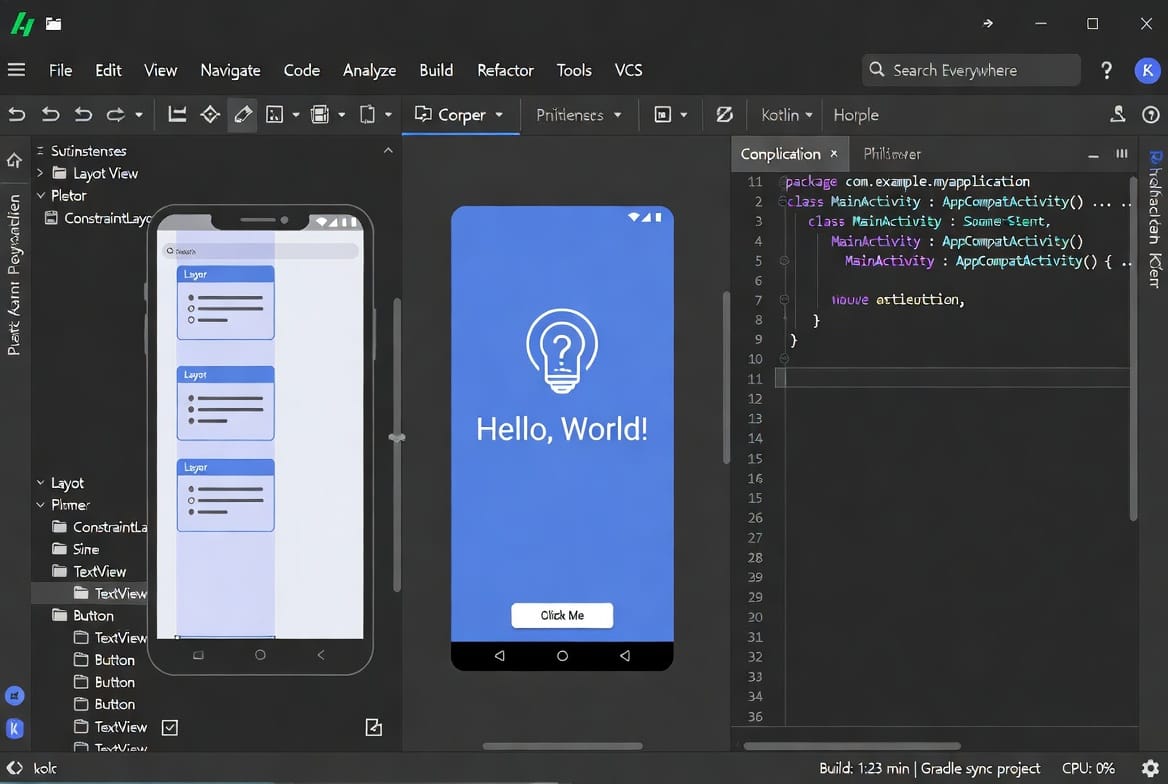
Android Studio is the official IDE (Integrated Development Environment) used to build Android apps.
Steps:
- Download Android Studio
- Install the Android SDK
- Configure an emulator or connect a real Android phone
- Create your first project
Once Android Studio is installed, you are ready to start learning Android development.
Core Concepts & Explanation
Before writing code, it's important to understand the main building blocks of Android applications.
Android Application Architecture
Android apps are made of multiple components that work together.
The most important components include:
- Activities
- Fragments
- ViewModels
- Repositories
- Layouts
Each component has a specific responsibility.
For example:
- Activity → Controls a screen
- Fragment → A reusable UI section
- ViewModel → Manages UI-related data
- Repository → Handles data sources
Example scenario:
Ali, a student from Lahore, builds a student fee calculator app.
The app might have:
- Activity → Main screen
- Fragment → Fee calculator form
- ViewModel → Calculation logic
- Repository → Database storage
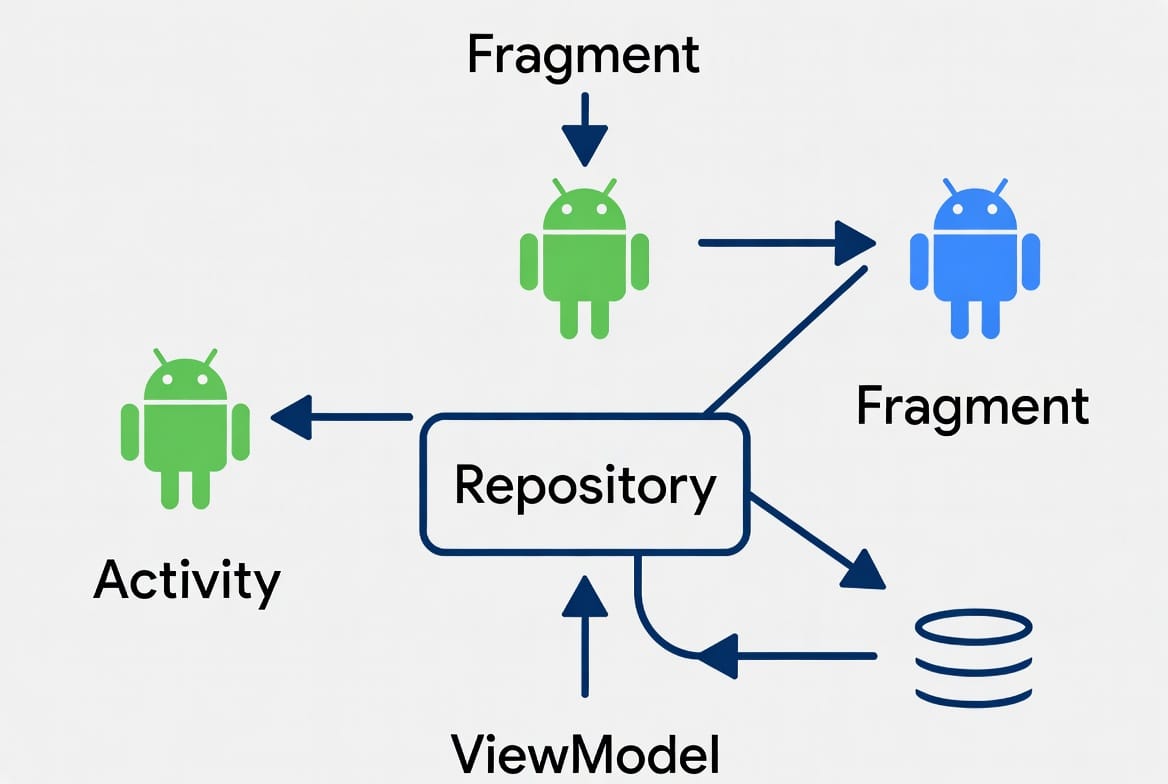
Understanding this architecture helps developers build apps that are scalable and easy to maintain.
Activities and User Interface
An Activity represents a single screen in an Android application.
Examples:
- Login screen
- Dashboard
- Settings page
Each activity usually has:
- Kotlin/Java code
- XML layout for the UI
For example:
MainActivity.kt
activity_main.xml
The XML file defines the layout, while Kotlin handles the logic.
Example layout elements:
- Buttons
- TextViews
- EditTexts
- Images
Activities also have a lifecycle, which means Android controls when they start, pause, or stop.
Lifecycle methods include:
- onCreate()
- onStart()
- onResume()
- onPause()
- onStop()
Understanding lifecycle events helps you manage app behavior properly.
Practical Code Examples
Now let's create our first Android app.
Example 1: Creating a Simple Button App
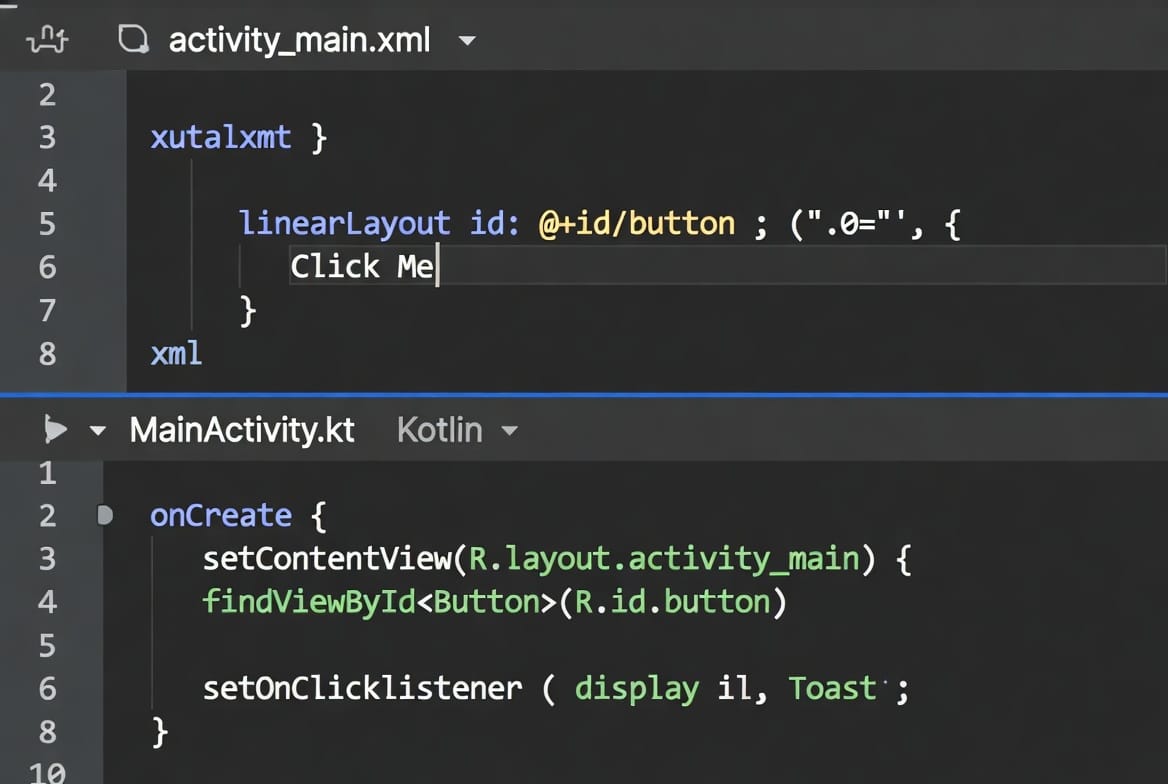
This example shows a simple Android app where a button displays a message.
Step 1: XML Layout
<!-- activity_main.xml -->

<LinearLayout
    xmlns:android="http://schemas.android.com/apk/res/android"
    android:orientation="vertical"
    android:layout_width="match_parent"
    android:layout_height="match_parent"
    android:gravity="center">

    <Button
        android:id="@+id/btnClick"
        android:layout_width="wrap_content"
        android:layout_height="wrap_content"
        android:text="Click Me"/>

</LinearLayout>
Explanation:
Line-by-line explanation:
<LinearLayout>
Creates a vertical layout container for UI elements.
android:orientation="vertical"
Places elements vertically.
android:layout_width="match_parent"
Makes the layout fill the screen width.
android:layout_height="match_parent"
Makes the layout fill the screen height.
android:gravity="center"
Centers the UI elements on the screen.
<Button>
Adds a clickable button.
android:id="@+id/btnClick"
Assigns a unique ID to the button so Kotlin code can access it.
android:text="Click Me"
Displays text on the button.
Step 2: Kotlin Code
package com.example.helloworld

import android.os.Bundle
import android.widget.Button
import android.widget.Toast
import androidx.appcompat.app.AppCompatActivity

class MainActivity : AppCompatActivity() {

    override fun onCreate(savedInstanceState: Bundle?) {
        super.onCreate(savedInstanceState)

        setContentView(R.layout.activity_main)

        val button = findViewById<Button>(R.id.btnClick)

        button.setOnClickListener {
            Toast.makeText(this, "Hello Ahmad!", Toast.LENGTH_SHORT).show()
        }
    }
}
Line-by-line explanation:
package com.example.helloworld
Defines the package name of the project.
import android.os.Bundle
Imports Android classes needed for the activity lifecycle.
class MainActivity : AppCompatActivity()
Creates the main activity class.
override fun onCreate()
The onCreate method runs when the activity starts.
setContentView(R.layout.activity_main)
Loads the XML layout into the activity.
val button = findViewById<Button>(R.id.btnClick)
Finds the button from the layout using its ID.
button.setOnClickListener {}
Defines what happens when the button is clicked.
Toast.makeText(...)
Displays a small message on the screen.
This is the simplest Android application structure.
Example 2: Real-World Application
Let's build a student expense calculator app useful for Pakistani students.
Imagine Fatima, a student in Islamabad, wants to track her daily expenses in PKR.
val foodExpense = 500
val transportExpense = 200

val totalExpense = foodExpense + transportExpense

println("Total daily expense: $totalExpense PKR")
Explanation:
val foodExpense = 500
Stores food expenses in PKR.
val transportExpense = 200
Stores transport costs.
val totalExpense = foodExpense + transportExpense
Adds both expenses together.
println(...)
Prints the result.
In a real Android app, this value could be displayed in a TextView.
Common Mistakes & How to Avoid Them
Beginners often make mistakes when starting Android development. Let's look at the most common ones.
Mistake 1: Incorrect Layout IDs
A very common error happens when developers reference the wrong ID.
Example mistake:
findViewById<Button>(R.id.buttonClick)
But the actual ID in XML might be:
android:id="@+id/btnClick"
Solution:
Always make sure the XML ID matches the Kotlin code.
Correct version:
findViewById<Button>(R.id.btnClick)
This ensures Android Studio can connect the UI with the code.
Mistake 2: Ignoring Activity Lifecycle
Many beginners ignore the Android lifecycle.
For example, loading heavy data inside onCreate() can slow down the app.
Bad practice:
override fun onCreate(savedInstanceState: Bundle?) {
    loadLargeDatabase()
}
Better practice:
Load heavy operations asynchronously using background threads or ViewModel.
This improves performance and prevents app freezing.
Practice Exercises
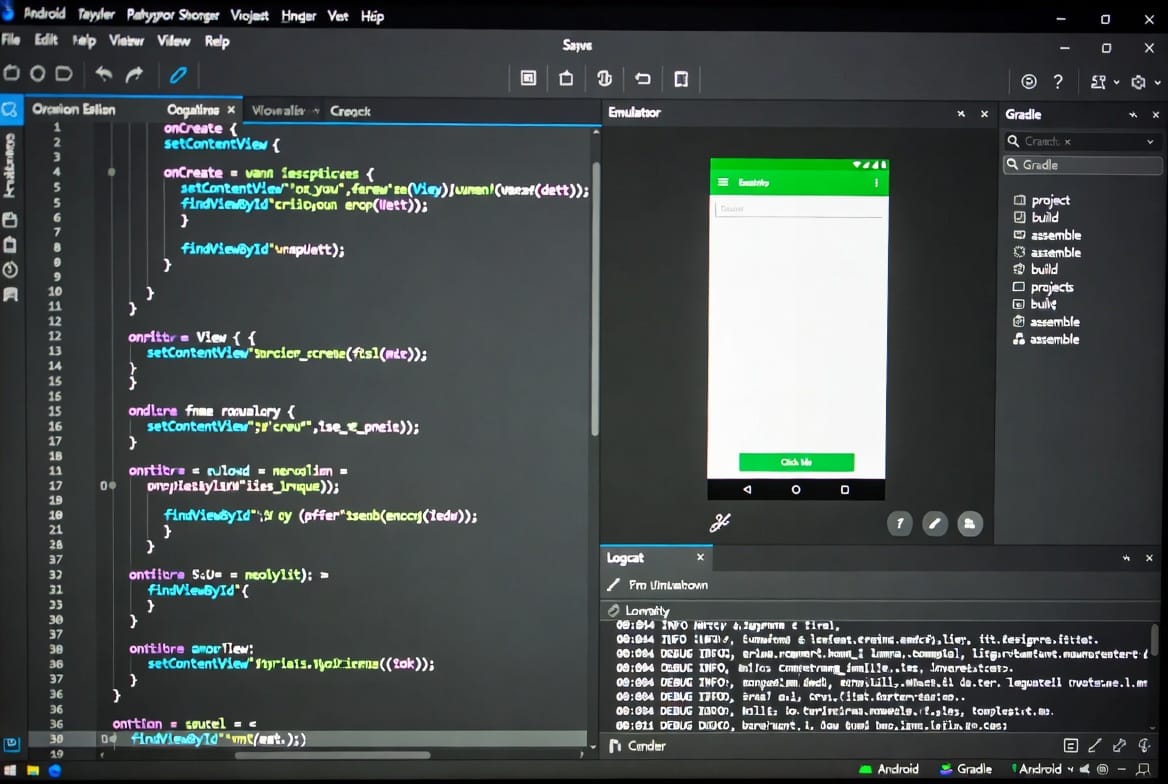
Practicing is the best way to learn Android development.
Exercise 1: Greeting App
Problem:
Create an Android app that displays "Welcome Ali!" when a button is pressed.
Solution:
button.setOnClickListener {
    Toast.makeText(this, "Welcome Ali!", Toast.LENGTH_SHORT).show()
}
Explanation:
setOnClickListener
Detects when the button is clicked.
Toast.makeText()
Displays a short greeting message.
Exercise 2: PKR Calculator
Problem:
Create a simple calculator that adds two numbers representing expenses in PKR.
Solution:
val rent = 15000
val groceries = 8000

val total = rent + groceries

println("Total monthly expense: $total PKR")
Explanation:
val rent
Stores rent cost.
val groceries
Stores grocery expenses.
val total
Adds both values.
println()
Displays the result.
Frequently Asked Questions
What is Android development?
Android development is the process of building applications for devices running the Android operating system. Developers use tools like Android Studio and programming languages such as Kotlin or Java to create mobile apps.
How do I start learning Android development?
Start by learning basic programming with Kotlin or Java, then install Android Studio and create a beginner project. Following structured tutorials and building small apps helps you learn faster.
Is Android development good for freelancing in Pakistan?
Yes. Many Pakistani developers earn income through freelancing platforms by building Android apps. Businesses often hire freelancers to create small mobile apps, which can pay thousands of PKR.
Should beginners learn Kotlin or Java?
Kotlin is now Google's recommended language for Android development. It is simpler, safer, and requires less code compared to Java, making it ideal for beginners.
Do I need a powerful computer for Android development?
You don't need a high-end machine, but at least 8GB RAM is recommended. Android emulators and Android Studio can be resource-intensive.
Summary & Key Takeaways
- Android development allows you to build apps for billions of Android devices worldwide.
- Android Studio is the official tool used for creating Android applications.
- Activities control screens and interact with UI elements defined in XML.
- Kotlin is the recommended programming language for modern Android development.
- Understanding Android architecture helps you build scalable applications.
- Practice projects help beginners become confident Android developers.
Next Steps & Related Tutorials
Now that you understand the basics of Android development, continue learning with these tutorials on theiqra.edu.pk:
- Learn Android faster with our Kotlin Tutorial for Beginners
- Understand object-oriented programming in the Java Tutorial
- Build backend APIs using the Go Programming Tutorial
- Learn system programming fundamentals with the C++ Programming Guide
Combining these programming skills will help you become a full-stack mobile developer capable of building real-world applications.
Test Your Python Knowledge!
Finished reading? Take a quick quiz to see how much you've learned from this tutorial.