Jupyter Notebook Tutorial Setup Usage & Best Practices
Introduction
A jupyter notebook tutorial: setup, usage & best practices is a complete guide to learning how to use one of the most powerful tools in data science and programming—Jupyter Notebook. It allows you to write code, add explanations, visualize data, and share your work—all in one place.
For Pakistani students in cities like Lahore, Karachi, and Islamabad, Jupyter Notebook is especially useful because it simplifies learning Python, data science, and machine learning without needing complex software setups.
Unlike traditional coding environments, Jupyter Notebook uses an interactive approach:
- Write code in small blocks (cells)
- Run and test instantly
- Add notes using Markdown
- Visualize results using charts and graphs
This makes it perfect for beginners, especially students like Ahmad, Fatima, and Ali who are just starting their journey in programming.
Prerequisites
Before starting this ipynb guide, you should have:
- Basic understanding of computers
- Beginner-level knowledge of Python (variables, loops, functions)
- Installed Python (preferably Python 3.8+)
- Basic command line usage (optional but helpful)
If you are new to Python, it’s recommended to first go through a Pandas Tutorial or basic Python course.
Core Concepts & Explanation
Understanding Jupyter Notebook Interface
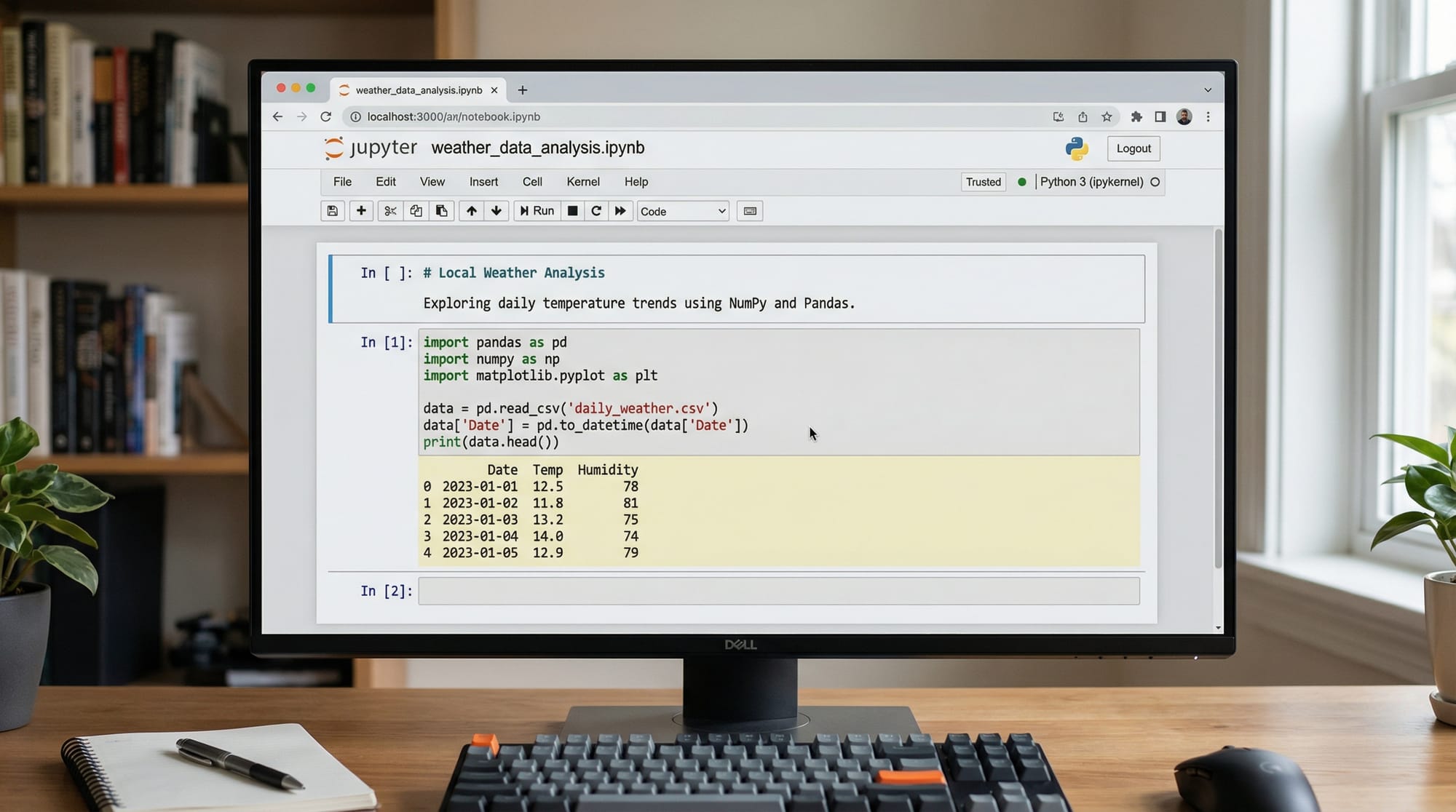
Jupyter Notebook is made up of cells, and each cell can contain code or text.
Types of cells:
- Code cells → run Python code
- Markdown cells → write explanations, headings, notes
Example:
print("Hello, Pakistan!")
Explanation:
print()→ displays output"Hello, Pakistan!"→ text string shown on screen
When you run this, the output will appear directly below the cell.
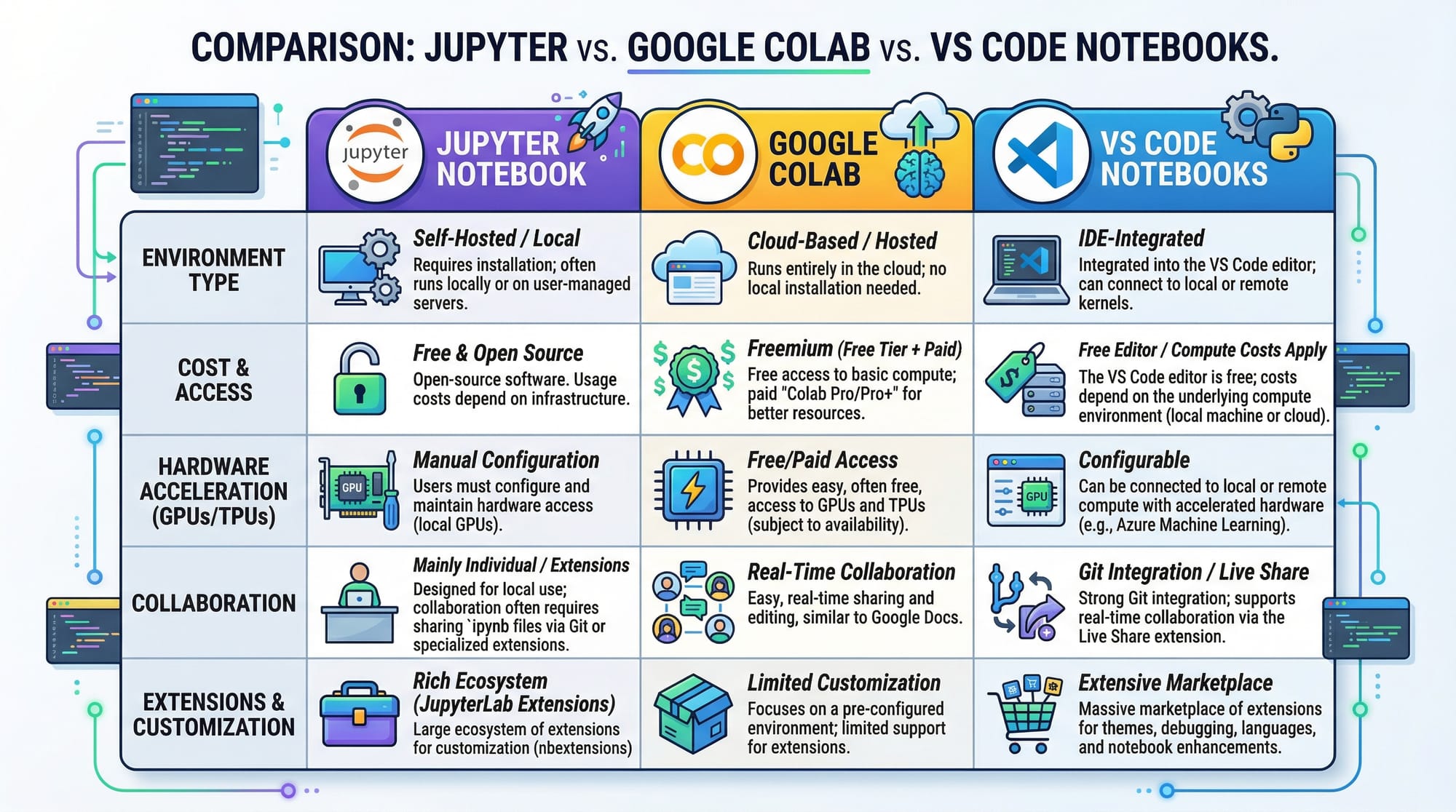
Jupyter Lab vs Notebook
A jupyter lab tutorial usually introduces JupyterLab, which is an advanced version of Notebook.
Key differences:
- Jupyter Notebook → simple and beginner-friendly
- JupyterLab → more powerful, supports multiple tabs and tools
Example:
- Notebook → good for learning
- JupyterLab → better for professional projects
Magic Commands and Shortcuts
Jupyter provides special commands called magic commands.
Examples:
%timeit sum(range(1000))
Explanation:
%timeit→ measures execution timesum(range(1000))→ calculates sum from 0 to 999
!pip install numpy
Explanation:
!→ runs system commandpip install numpy→ installs NumPy library
%%bash
echo "Hello from Bash"
Explanation:
%%bash→ runs shell scriptecho→ prints message in terminal

Practical Code Examples
Example 1: Basic Data Analysis
Let’s say Fatima wants to analyze student marks.
# Step 1: Create a list of marks
marks = [85, 90, 78, 92, 88]

# Step 2: Calculate average
average = sum(marks) / len(marks)

# Step 3: Print result
print("Average Marks:", average)
Explanation:
marks = [...]→ stores marks in a listsum(marks)→ adds all valueslen(marks)→ counts total studentsaverage = ...→ calculates meanprint()→ displays result
Example 2: Real-World Application
Ali runs a small shop in Karachi and wants to calculate daily sales.
# Step 1: Store sales in PKR
sales = [1200, 1500, 1100, 1800, 2000]

# Step 2: Calculate total sales
total_sales = sum(sales)

# Step 3: Find highest sale
max_sale = max(sales)

# Step 4: Print results
print("Total Sales:", total_sales, "PKR")
print("Highest Sale:", max_sale, "PKR")
Explanation:
sales = [...]→ daily sales datasum(sales)→ total incomemax(sales)→ highest earning day- Output helps in decision-making

Common Mistakes & How to Avoid Them
Mistake 1: Not Running Cells in Order
Problem:
Students often run cells randomly, causing errors.
Example:
print(total)
total = 100
Issue:
totalis used before being defined
Fix:
total = 100
print(total)
Mistake 2: Forgetting to Install Libraries
Problem:
Code fails due to missing libraries.
Example:
import pandas
Error:
Module not found
Fix:
!pip install pandas
Then:
import pandas
Practice Exercises
Exercise 1: Student Grades
Problem:
Ahmad has marks: 70, 80, 90, 60, 75. Calculate average.
Solution:
marks = [70, 80, 90, 60, 75]
average = sum(marks) / len(marks)
print("Average:", average)
Exercise 2: Monthly Expenses
Problem:
Fatima tracks expenses in PKR: 5000, 7000, 6500, 8000. Find total.
Solution:
expenses = [5000, 7000, 6500, 8000]
total = sum(expenses)
print("Total Expenses:", total)
Frequently Asked Questions
What is Jupyter Notebook used for?
Jupyter Notebook is used for writing and running code interactively, especially for data science, analysis, and machine learning. It allows combining code, text, and visuals in one document.
How do I install Jupyter Notebook?
You can install it using pip: pip install notebook or by installing Anaconda, which includes it by default.
What is the difference between Jupyter Notebook and JupyterLab?
Jupyter Notebook is simpler and ideal for beginners, while JupyterLab offers advanced features like multiple tabs and file management.
Can I use Jupyter Notebook online?
Yes, you can use platforms like Google Colab to run notebooks online without installing anything on your computer.
What is an .ipynb file?
An .ipynb file is a Jupyter Notebook file that contains code, text, and outputs in a structured format.
Summary & Key Takeaways
- Jupyter Notebook is an interactive tool for coding and data analysis
- It uses cells for writing code and explanations
- Magic commands make tasks faster and easier
- Ideal for beginners and data science learners in Pakistan
- Supports real-world problem solving like sales and student data
- JupyterLab is a more advanced version for professional use
Next Steps & Related Tutorials
To continue your learning journey on theiqra.edu.pk, explore:
- Learn data handling with our Pandas Tutorial
- Follow the complete Data Science Roadmap for 2026
- Start numerical computing with a NumPy Tutorial
- Visualize data using a Matplotlib Tutorial
These tutorials will help you move from beginner to advanced level in data science.
Test Your Python Knowledge!
Finished reading? Take a quick quiz to see how much you've learned from this tutorial.