Systemd Tutorial Services Timers & Journal Management
Introduction
Systemd is a modern Linux init system and service manager used in almost all major distributions like Ubuntu, Debian, and CentOS. In simple words, it is responsible for starting, stopping, and managing system services when your computer boots.
In this systemd tutorial: services, timers & journal management, Pakistani students will learn how Linux systems actually run background processes like web servers, databases, and scheduled tasks. If you are studying computer science in Lahore, Karachi, or Islamabad, understanding systemd is essential for system administration, DevOps, and cloud computing careers.
Unlike older systems like SysV init, systemd is faster, more powerful, and uses a structured approach with units, services, and timers. It also provides logging through journald, making troubleshooting easier.
By the end of this tutorial, you will confidently use:
systemctl linuxcommands- Create and manage systemd service
- Schedule tasks using timers
- Analyze logs using
journalctl
Prerequisites
Before starting this systemd tutorial, you should know:
- Basic Linux command line usage (cd, ls, mkdir)
- File permissions (chmod, chown)
- Basic text editors like nano or vim
- Understanding of processes in Linux
If you are new, first complete tutorials like:
- Linux Basics on theiqra.edu.pk
- Linux File System Introduction
Core Concepts & Explanation
Systemd Architecture and Units
Systemd works using units, which are configuration files that define what should be managed.
There are different types of units:
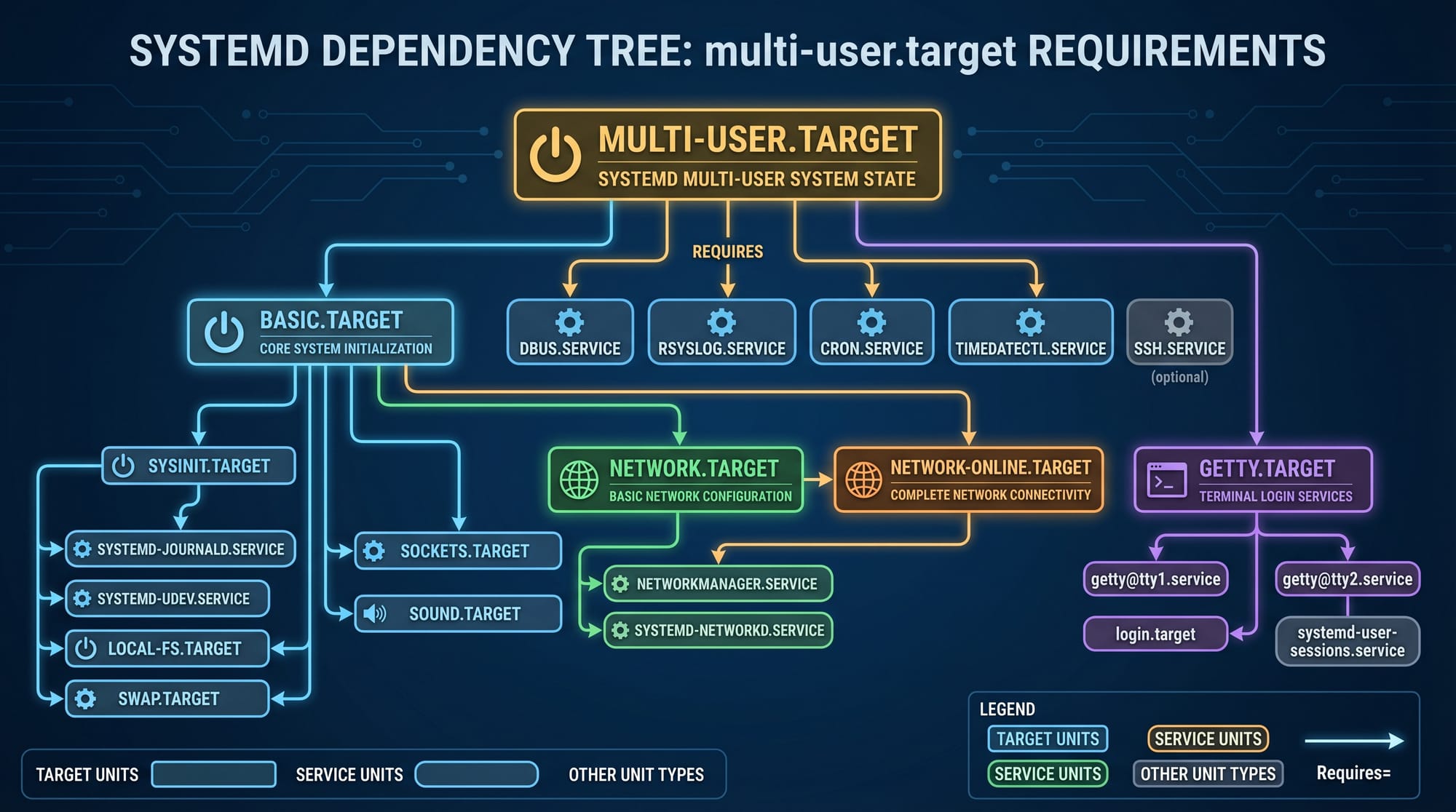
.service→ background services (e.g., Apache server).timer→ scheduled tasks (like cron jobs).socket→ network-based activation.target→ grouping of services (like runlevels)
Example:
A web server like Nginx runs as a .service unit.
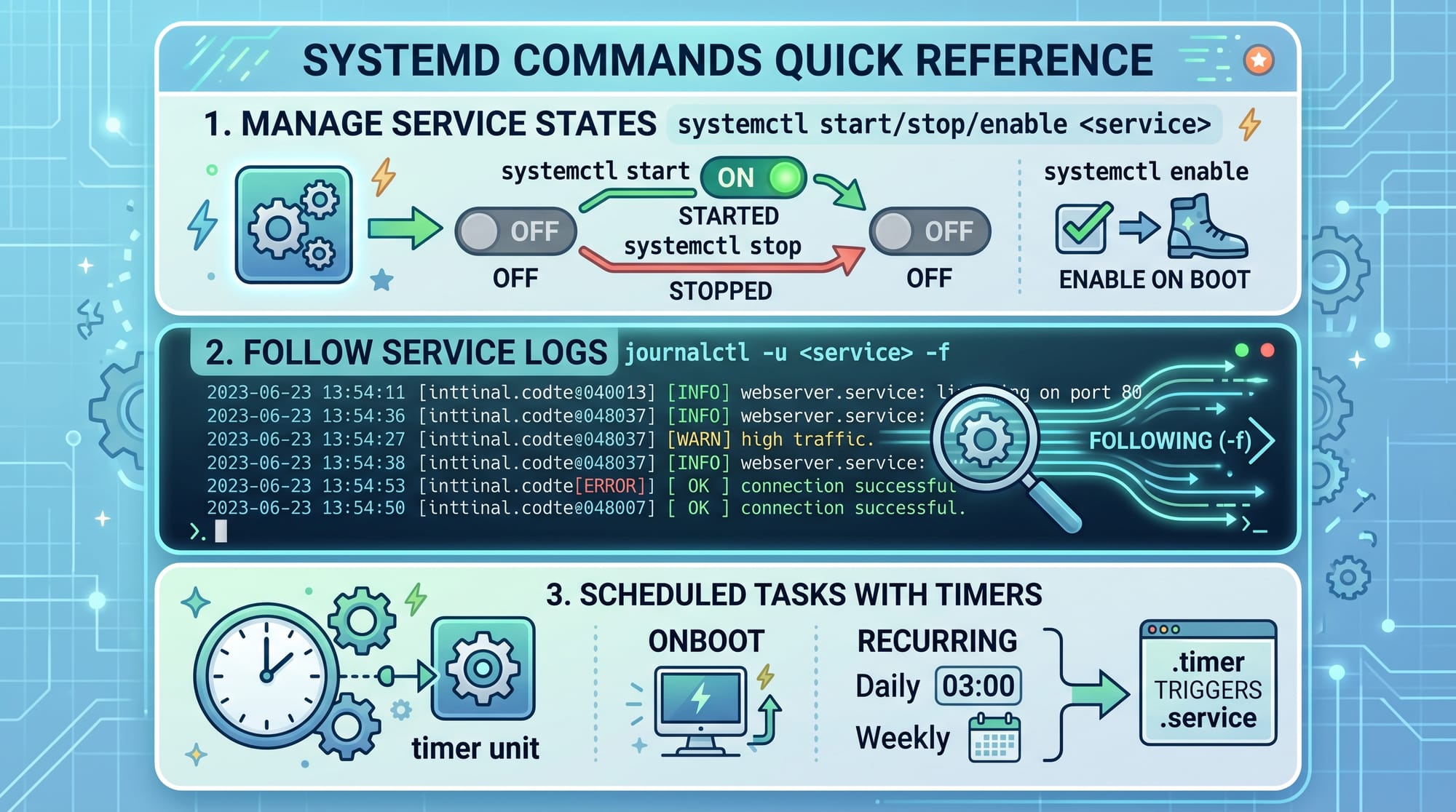
Systemctl is the main command tool:
systemctl start nginx
systemctl stop nginx
systemctl enable nginx
Line-by-line explanation:
systemctl start nginx→ Starts Nginx service immediatelysystemctl stop nginx→ Stops running servicesystemctl enable nginx→ Starts service automatically on boot
Systemd Services vs Timers vs Journald
Systemd Services
A systemd service is a background process managed by systemd.
Example: Apache, MySQL, SSH.
Systemd Timers
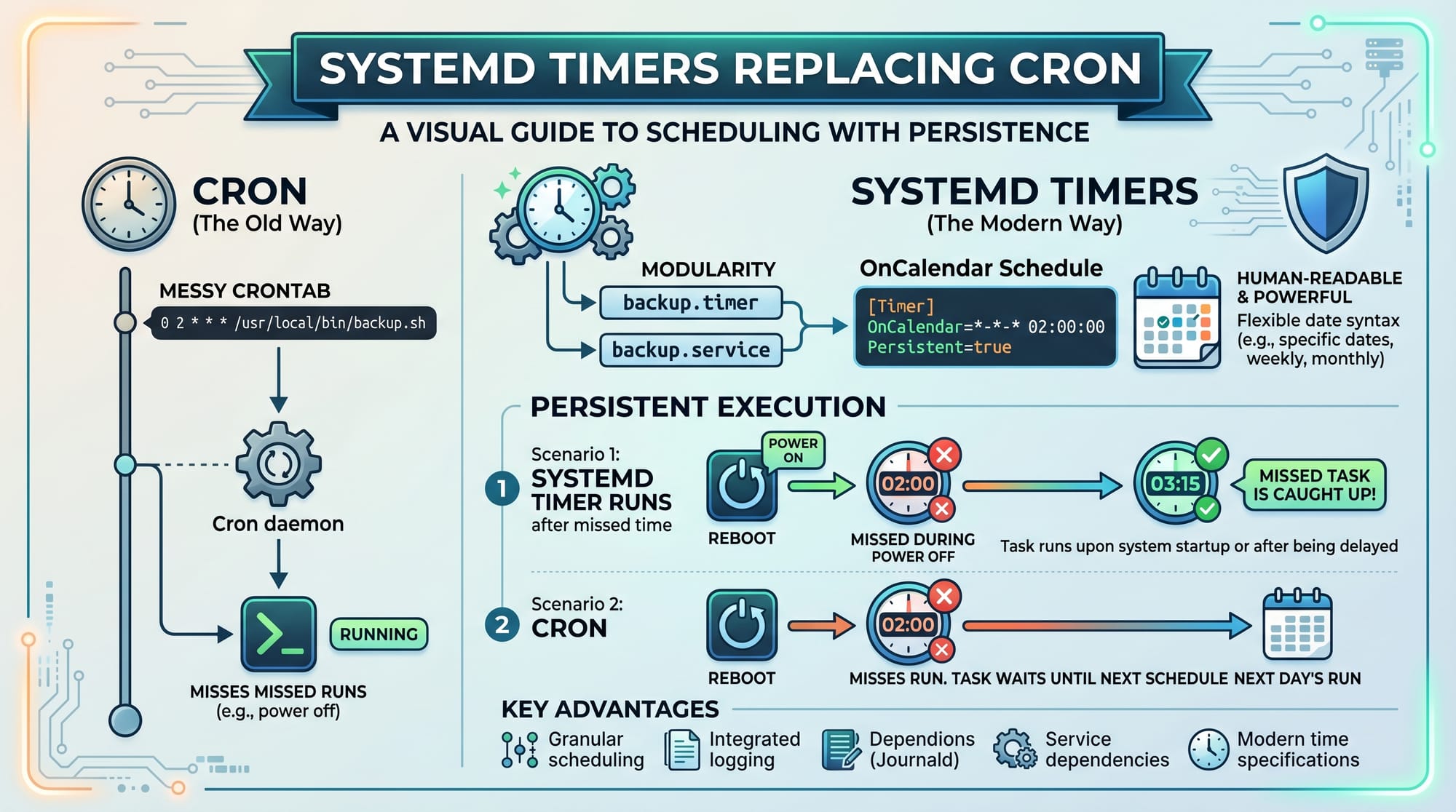
Timers are used instead of cron for scheduling tasks.
Example: Run backup every day at 2 AM.
Journald Logging System
Systemd stores logs using journald, which helps debugging.
Command:
journalctl -u nginx
Line-by-line explanation:
journalctl→ View system logs-u nginx→ Filter logs for nginx service only
Practical Code Examples
Example 1: Creating a Custom Systemd Service
We will create a simple service that runs a Python script.
Step 1: Create script
nano /home/ahmad/hello.py
Python code:
print("Hello from systemd service in Pakistan!")
Step 2: Create systemd service file
sudo nano /etc/systemd/system/hello.service
Service file:
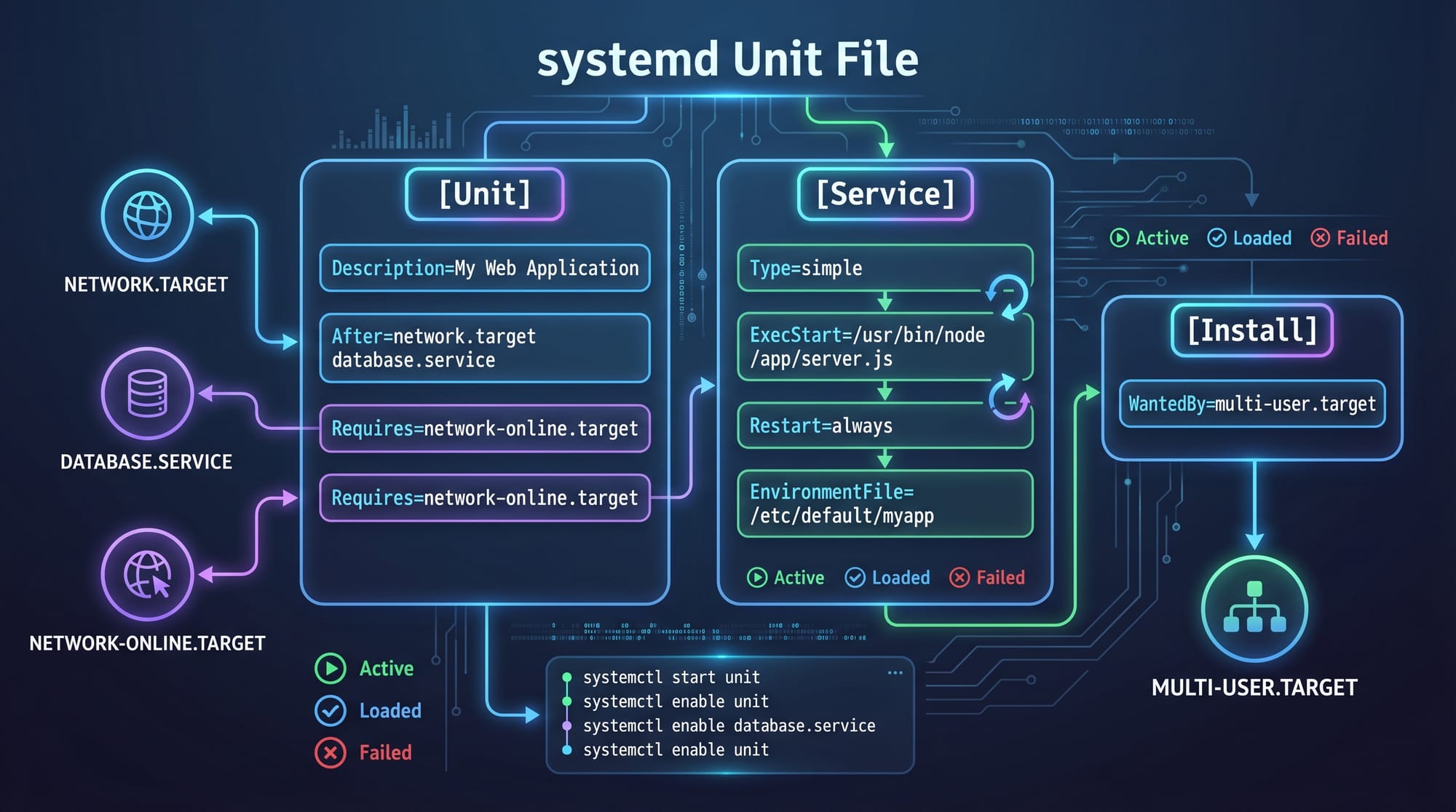
[Unit]
Description=Hello Service

[Service]
ExecStart=/usr/bin/python3 /home/ahmad/hello.py
Restart=always

[Install]
WantedBy=multi-user.target
Explanation line-by-line:
[Unit] section
Description→ Name of service shown in logs
[Service] section
ExecStart→ Command to run Python scriptRestart=always→ Automatically restart if it crashes
[Install] section
WantedBy=multi-user.target→ Runs when system reaches normal mode
Step 3: Enable and start service
sudo systemctl daemon-reload
sudo systemctl enable hello.service
sudo systemctl start hello.service
Explanation:
daemon-reload→ Reload systemd configurationenable→ Start on bootstart→ Run immediately
Example 2: Systemd Timer for Automated Backup
Instead of cron, we use systemd timers.
Step 1: Create backup script
nano /home/fatima/backup.sh
#!/bin/bash
tar -czf /home/fatima/backup.tar.gz /home/fatima/documents
Explanation:
tar -czf→ Compress files/home/fatima/documents→ Source folderbackup.tar.gz→ Output file
Step 2: Create service file
sudo nano /etc/systemd/system/backup.service
[Unit]
Description=Backup Service

[Service]
ExecStart=/home/fatima/backup.sh
Explanation:
- Runs backup script when triggered
Step 3: Create timer file
sudo nano /etc/systemd/system/backup.timer
[Unit]
Description=Run backup daily

[Timer]
OnCalendar=daily
Persistent=true

[Install]
WantedBy=timers.target
Explanation:
OnCalendar=daily→ Runs every dayPersistent=true→ Runs missed jobs after reboottimers.target→ Enables timer system
Step 4: Enable timer
sudo systemctl daemon-reload
sudo systemctl enable --now backup.timer
Explanation:
- Enables and starts timer immediately
Common Mistakes & How to Avoid Them
Mistake 1: Forgetting daemon-reload
Many beginners create a service but it does not work.
Problem:
Service file updated but systemd does not detect it.
Fix:
Always run:
sudo systemctl daemon-reload
Mistake 2: Wrong file permissions
If scripts are not executable, services fail.
Fix:
chmod +x /home/fatima/backup.sh
Explanation:
chmod +x→ Makes script executable
Practice Exercises
Exercise 1: Create a Systemd Service
Create a service that prints your name “Ali from Karachi” every time it runs.
Solution:
- Create script
- Add ExecStart in service file
- Enable service using systemctl
Exercise 2: Schedule a Log Cleanup Timer
Create a timer that deletes /tmp files every week.
Solution:
- Write bash script using
rm -rf /tmp/* - Create service + timer unit
- Set
OnCalendar=weekly
Frequently Asked Questions
What is systemd in Linux?
Systemd is a system and service manager that starts services and manages system processes in Linux. It replaces older init systems and improves performance and control.
What is a systemd service?
A systemd service is a background process defined in a .service file that runs tasks like servers, scripts, or applications automatically.
How do I check systemd service status?
Use:
systemctl status nginx
It shows whether a service is active, inactive, or failed along with logs.
What is the difference between cron and systemd timer?
Cron is older and simpler, while systemd timers are more powerful, support logging, and integrate with systemd services.
How do I view logs using journalctl?
Use:
journalctl -u nginx -f
It shows real-time logs for troubleshooting services.
Summary & Key Takeaways
- Systemd manages services, timers, and system processes in Linux
systemctl linuxis the main command tool- Systemd services run background applications
- Timers replace cron for scheduling tasks
- Journald provides centralized logging using
journalctl - Understanding systemd is essential for DevOps and Linux administration
Next Steps & Related Tutorials
To strengthen your Linux skills, explore:
- Linux Basics — Learn fundamental commands
- Linux Administration — System management skills
- Process Management in Linux — Understand system processes
- Networking in Linux — Essential for servers
If you want, I can also convert this into a PDF course handout, interactive quiz, or hands-on lab exercises for students in Pakistan.
Test Your Python Knowledge!
Finished reading? Take a quick quiz to see how much you've learned from this tutorial.